
If you are looking to micro-manage your folders in Outlook, it is essential to organize them. You can alphabetically sort out the folders to make navigation quicker and more intuitive, especially when dealing with a large volume of emails. This helps reduce the time spent searching for specific folders and ensures a more organized workspace. In this post, we will explore how to sort folders alphabetically in Outlook 365 and Outlook New.
How to sort folders alphabetically in Outlook 365?
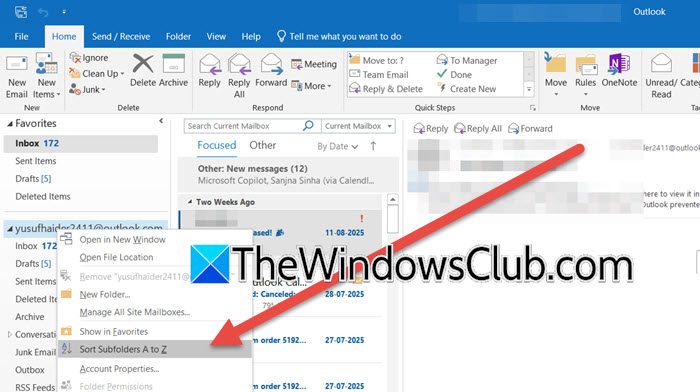
To sort folders alphabetically in Outlook 365, you can easily organize your folder pane for better efficiency and visual clarity. By default, Outlook may display folders in the order they were created, but you can quickly switch to alphabetical sorting through a few simple steps. This process works similarly in both the classic Outlook interface and the newer version, though the exact method may vary slightly depending on your setup. To achieve the same, follow the steps outlined below.
- Look for the parent folder (e.g., your email account or a main folder containing subfolders) in the left-hand folder pane and then right-click on it.
- Now, you need to select Sort Subfolders A to Z from the context menu. This will immediately rearrange all subfolders alphabetically.
- Alternatively, click on the Folder tab and then select Show all folders A to Z to ensure folders are displayed alphabetically. This setting helps maintain alphabetical order consistently.
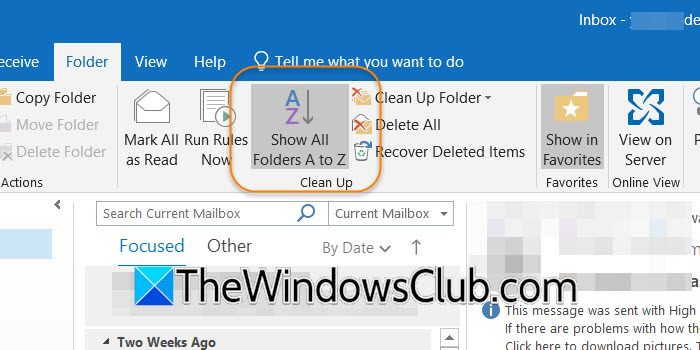
Special folders such as Inbox, Drafts, and Sent Items usually stay at the top of your folder list, even when you sort everything alphabetically. This is by design, so you can quickly access the folders you use most often.
If you want your folders to always appear in alphabetical order, ensure that custom sorting is not enabled. Once set, the alphabetical arrangement should stay in place unless you manually change it.
Hopefully, now, you can easily arrange your folders.
How to sort folders alphabetically in New Outlook
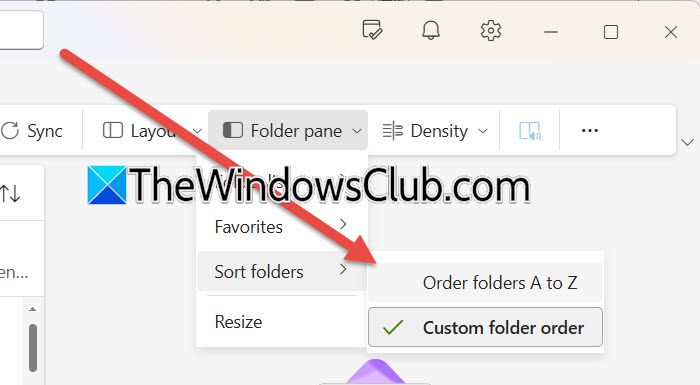
In the new Outlook for Microsoft 365, sorting your folders alphabetically is easy. The updated design resembles a website and consolidates settings in a single, intuitive location. You don’t need to right-click like before. Follow these steps to arrange your folders in alphabetical order.
- Click on the View tab in the top ribbon menu.
- Select Folder Pane.
- In the side menu that appears, choose Order folders A to Z
This way, you can sort your folders in alphabetical order.
Note: The same steps can be used to sort folders in Outlook Web.
Special default folders (like Inbox, Sent, Drafts) will remain fixed at the top of your list, with all other folders sorted alphabetically beneath them. This setting is persistent and will maintain the order until you change it.
Read: How to repair the Inbox Folder in Outlook
Folder sorting resets automatically in Outlook
This issue typically occurs due to a synchronization conflict between the local cache on your computer and the server, often stemming from a corrupted Outlook data file (.ost). It can also be caused by an outdated Outlook profile that struggles to maintain view settings or by third-party add-ins interfering with how Outlook saves your custom folder arrangement.
To resolve this issue, you can rebuild Outlook data files, clear the Outlook cache, investigate the issue in Safe Mode, and create a new Outlook Profile.
Read: Cannot start Microsoft Outlook, Cannot open the Outlook window
How do I change the order of my email folders in Outlook?
To arrange your folders alphabetically, follow the steps mentioned earlier in this post. To custom-arrange your folders, select and hold the folder you want to move, then drag and drop it to the new location. Alternatively, right-click the folder and select Move Up or Move Down.
Also Read: See what folder an email is in Outlook.
