
This post covers how to manage Extensions in the Windows Terminal app in Windows 11. It’s a new feature that allows you to view the sources (Active Extensions) for your Terminal profiles and color schemes. A dedicated Extensions page is added for this feature in the Terminal app. There, you can see a list of all Active Extensions, as visible in the image below. A toggle is also provided to enable/disable an extension with one click.

Here is an example. If you have installed the Ubuntu app on your Windows 11 PC, it will display Ubuntu as a source in the Active Extensions list for that profile, along with a toggle to enable or disable the extension. You can also see additional details such as the scope of the extension (available for Current User or All Users), added color scheme(s) for the Ubuntu profile, added profiles, and the terminal.json file content. You cannot make changes to the file content there, but enable/disable the associated extension(s) for a profile to see how they affect the settings (i.e., adding color schemes and modifying or adding new profiles).
Currently, the app supports JSON fragment extensions only (which are snippets of JSON code) for dynamic profiles in Windows Terminal, Microsoft Store applications (like Ubuntu), applications installed from the web, and other supported command-line applications, that application developers can write to modify existing profiles, add new color schemes, profiles, etc.
How to manage Extensions in Windows Terminal in Windows 11
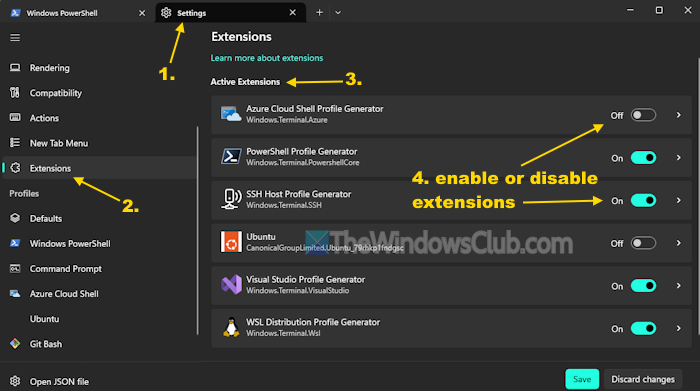
Here are the steps to manage Extensions in the Windows Terminal app in Windows 11:
- Open Windows Terminal app using the Win+X menu, Start menu, or another preferred way
- Click on the drop-down icon (next to the + icon on the title bar)
- Click on the Settings option. A Settings tab will open
- Select Extensions in the Navigation pane available just below the New Tab Menu
- An Extensions page will open in a separate tab. Here, you will see a list of Active Extensions for the supported dynamic profile generators (such as PowerShell Profile Generator, Azure Cloud Profile Generator, WSL Distribution Profile Generator, and more)
- For each extension (or source) for a profile, you will see a toggle to enable or disable the extension
- You can also click on an extension to explore additional information. For example, clicking on Azure Cloud Profile Generator will let you check the extension scope, settings.json file content, and added profile content. The content includes information such as profile status (hidden or visible), color scheme (say vintage), source (Windows.Terminal.Azure), starting directory, etc.
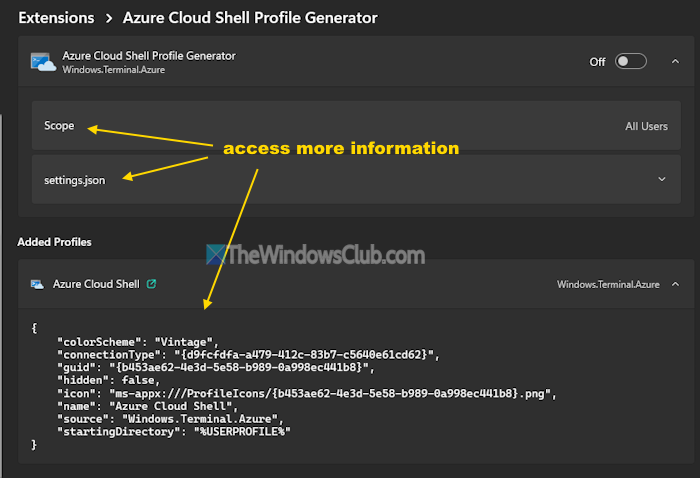
You can also select all the content of the settings file or the added profile and copy it to the clipboard using the right-click menu.
TIP: You can read a detailed documentation at learn.microsoft.com to learn about the structure of JSON files (which includes profiles list, updates field, and color schemes list), minimum requirements for settings added with fragments, and where to place JSON fragment files for Microsoft Store applications and Applications installed from the web.
That’s all.
Now read: How to open, customize, and configure Windows Terminal settings
How do I change Terminal settings in Windows 11?
Open the Terminal app and press Ctrl+, shortcut key. This will open the Windows Terminal Settings page in a separate tab. Now you can change or customize Windows Terminal Startup settings, Interaction settings, Appearance, add or change color schemes, manage profiles, etc. You can also reset Terminal to default settings from that page.
Where are the Windows Terminal settings stored?
Windows Terminal settings are stored in a settings.json file. It is stored in a LocalState folder. Its location is:
%LOCALAPPDATA%\Packages\Microsoft.WindowsTerminal_8wekyb3d8bbwe\LocalState
You can open that JSON file in Notepad or a text editor and make changes there. It is good to first back up Windows Terminal settings before making any changes to it.
Now read: How to enable and use the right-click menu in Windows Terminal.
