
This post will show you how to change Terminal to Command Prompt in Windows 11. Windows 11 includes a new command-line interface called Windows Terminal. This utility includes a range of features and customization options. But many users still find the traditional Command Prompt more familiar. For these users, Windows offers options to switch between Terminal and Command Prompt. Keep reading this post to learn how you can do it.
How to Change Terminal to Command Prompt in Windows 11?
Follow any of these methods to change Terminal to Command Prompt in Windows:
1] Using the Settings App
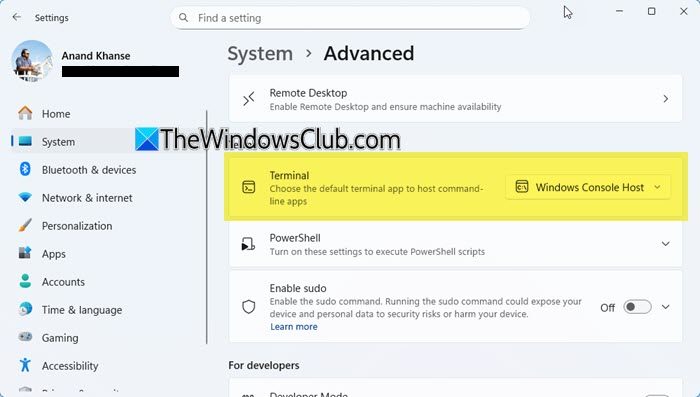
To change Terminal to Command Prompt easily using the Settings app. Here’s how:
- Press Windows + I to open the Settings app.
- Navigate to Syatem and click on Advanced.
- Scroll down to Terminal, click the dropdown and select Windows Console Host.
- Now, you can search and open Command Prompt as an independent app.
2] Using the Terminal App
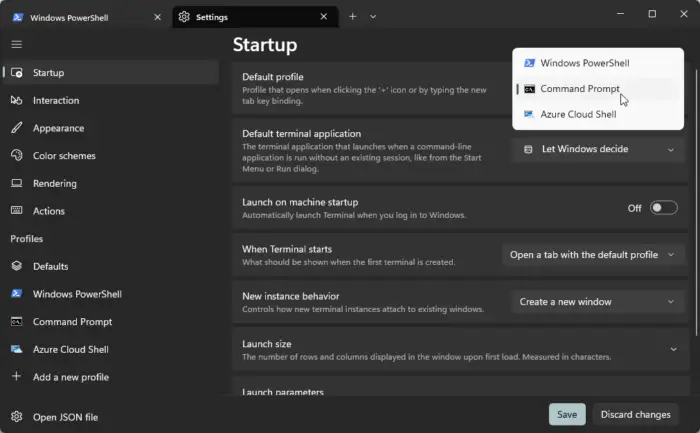
You can switch from Terminal to Command Prompt in the Terminal app itself. Here’s how:
- Open Windows Terminal, click the + icon in the tab and select the Settings option.
- Navigate to the Startup tab and click on the dropdown beside the Default profile.
- Here, select Command Prompt. This will launch the Terminal app with Command Prompt using the default profile.
Does Windows 11 still have Command Prompt?
Yes, Windows 11 still has Command Prompt. However, with the Windows 22H2 update, the default app used to host the console has been changed to Windows Terminal. But Windows lets users revert to the Command Prompt.
Read: How to show Control Panel in WinX Menu of Windows
What is the difference between Terminal and Command Prompt in Windows 11?
Windows Terminal provides a unified interface to access multiple shells and supports cross-platform development. The Command Prompt is more compatible with legacy applications, with basic command-line functionality.
Read: Terminal vs PowerShell vs Command Prompt difference explained.
