
In this post, we will show you how to reset Windows Terminal customization settings to default in Windows 11/10. It’s easy to do. You can do it via Terminal Settings or via the JSON file. We will also show you how to clear the cache in Terminal.
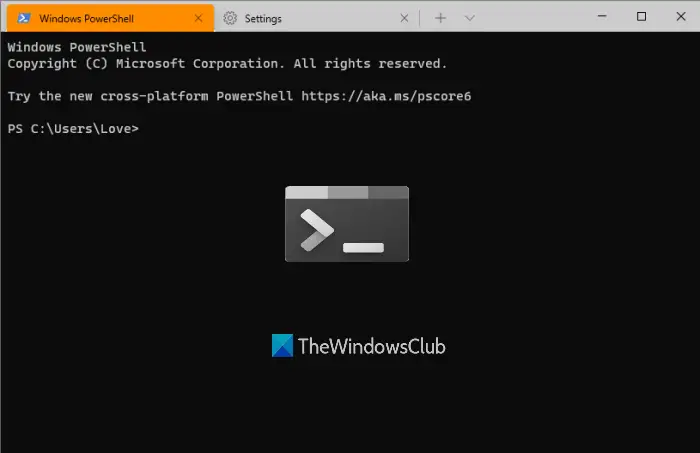
There are a lot of Settings in Windows Terminal that you can customize such as select default profile, set launch mode (maximized, focus, etc.), color schemes for terminal colors and system colors, and more. If you’re experiencing unexpected issues after changing the settings or are unhappy with the customizations, resetting Windows Terminal settings to default might be helpful.
Read: How to Install Windows Terminal
How to reset Terminal to default settings in Windows 11
There is a new setting in Windows Terminal that lets you reset Terminal settings to the default. Follow these steps to do so:
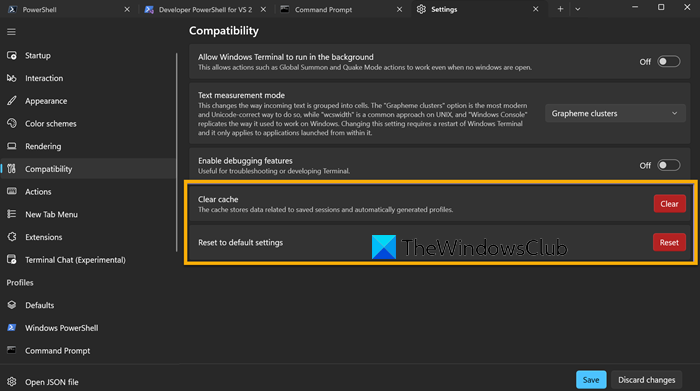
- Open the Settings of Windows Terminal
- Click on the Compatibility section
- Locate Reset to default settings
- Click on the Reset button against it.
This will reset Windows Terminal settings to the default.
Reset Terminal via the JSON file
You can also reset Terminal via the JSON file. Here are the steps:
- Open Windows Terminal
- Access Settings page
- Open Settings file of Windows Terminal
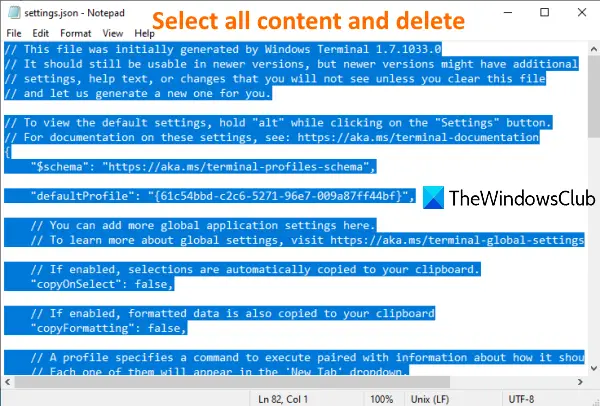
- Delete all content of Settings file
- Save the Settings file
- Re-launch Windows Terminal.
Use the Search box of Windows, type windows terminal, and press Enter to open the Windows Terminal tool.
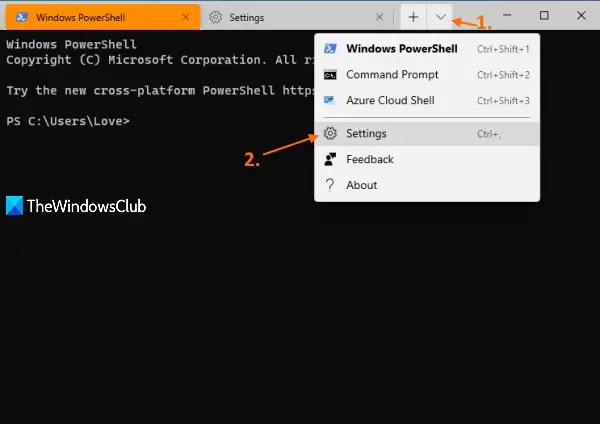
After that, open the Settings page of Windows Terminal. For this, click on the drop-down icon (available just before the new tab icon) and select the Settings option. Alternatively, you can use Ctrl+, hotkey.
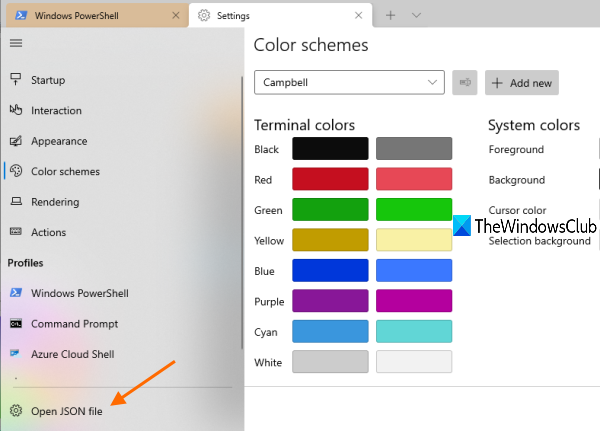
Now you have to open the Settings file (JSON) of Windows Terminal. For that, click on the Open JSON file option available on the bottom-left part of the Settings page.
If it prompts you how you want to open that file, select Notepad from the available options, and press OK.
Read: How to customize and configure Windows Terminal settings
Now you will see the list of all the settings of Windows Terminal present in that JSON file. Select all the content using Ctrl+A hotkey and delete it. Before doing that, you can also copy all the settings and paste them somewhere so that you can restore all those settings if needed.
Use the File menu of Notepad and click on the Save option.
Close Windows Terminal and open it again. Windows Terminal tool will notice that the JSON settings file is empty and thus it will add default values again in the Settings file.
Hope it is helpful to reset Windows Terminal settings to default.
How to clear cache in Terminal
The cache in Windows Terminal stores data related to saved sessions and automatically generated profiles. To clear the cache of Windows Terminal, take these steps:
- Open the Settings of Windows Terminal
- Click on the Compatibility section
- Locate Reset to default setting
- Click on the Clear button against it.
Read next:
