
In this tutorial, we will show you how to enable and use the right-click menu in Windows Terminal. Earlier, when we right-click on a profile in Windows Terminal, the copied text is pasted (when there’s no selection) or the selected text is copied, and no menu is displayed. Now Windows Terminal will display a menu on right-click which includes Find, Split pane, Web search, Close tab, and other options, as visible in the image below.
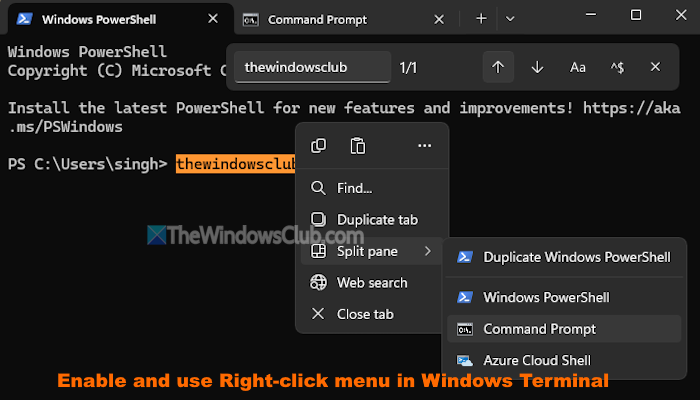
You don’t have to right-click on the profile tab to access such options. You can use the right-click context menu for an individual profile or all profiles in Windows Terminal. This tutorial covers step-by-step instructions for it.
How to enable right-click menu in Windows Terminal
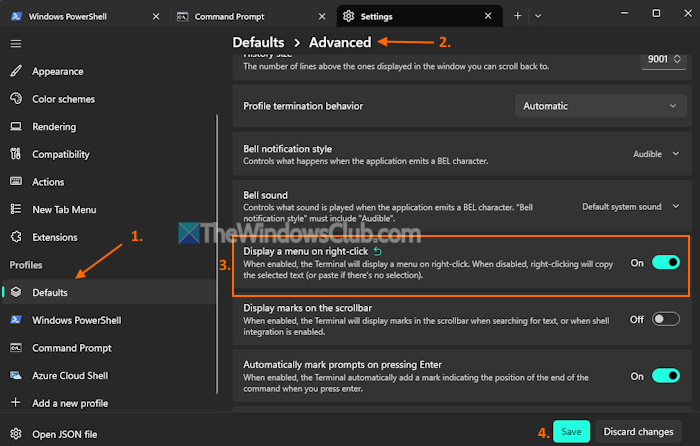
You can enable the right-click context menu in Windows Terminal for all profiles or a particular profile. Here are the steps:
- Right-click on the Start button and select the Terminal option to open the Windows Terminal app
- Click on the drop-down icon at the top part
- Select the Settings option to open the Windows Terminal Settings in a separate tab. You can also use the Ctrl+, hotkey to open Settings
- In the Navigation pane, select Defaults under the Profiles section if you want to enable the right-click menu for all profiles. Or else, select a profile (Windows PowerShell, Command Prompt, Azure Cloud Shell, etc.) for which you want to activate this feature
- Select Advanced under the Additional settings section on the right-hand part
- Turn on the Display a menu on right-click option
- Press the Save button.
Related: How to reset Terminal to default settings in Windows PC
How to use the right-click context menu in Windows Terminal?
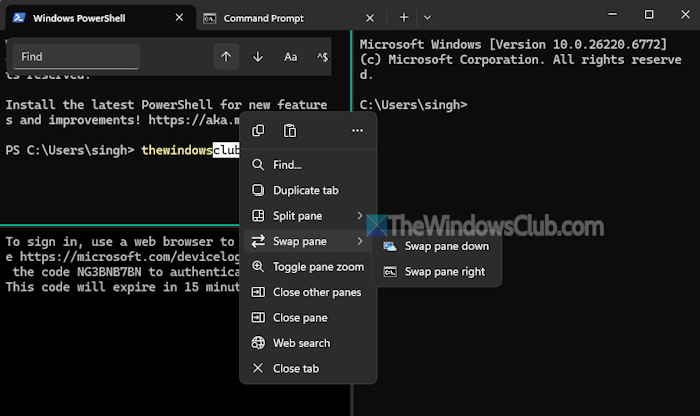
Once you have enabled the feature, you can use Windows Terminal to display a menu on right-click on the Split pane, and profile window with and without text selection. The right-click menu options may vary in each case. For example:
- If you right-click on a profile window without text selection and Split pane mode, you will see Find, Duplicate tab, Split pane, and Close tab options
- On text selection, you will see the Duplicate tab, Split pane, Find, Close tab, and Web search options. Clicking on the Web search option will start a Bing search for the selected text in a new tab of your default browser
- When you have enabled Split pane mode, you will see Swap pane, Split pane, Find, Duplicate tab, Toggle pane zoom (to show the currently active profile only), Close pane, Close other panes, and Close tab options.
In case you want to turn off the right-click menu in Windows Terminal, open the Settings tab. Select the Defaults option > Advanced > and turn off the Display a menu on right-click option.
That’s all.
Read next: How to back up Windows Terminal settings
How to enable right-click Open in Terminal?
The Open in Terminal option remains enabled in the right-click context menu by default. You don’t have to activate it. Right-click on the desktop or a folder, and the ‘Open in Terminal’ option will be visible there. If the Open in Terminal option is missing, you may need to enter the required Registry entries to add Open in Terminal to the context menu on your Windows 11 PC.
How to right-click open in CMD?
Windows has replaced the Open command window here option with the Open PowerShell window here in the right-click context menu. To restore the Open Command Prompt window here option in the right-click menu, first, take ownership of the Directory Registry key or the cmd key present under the root directory HKEY_CLASSES_ROOT. After that, rename the HideBasedOnVelocityId to ShowBasedOnVelocityId DWORD (32-bit) Value. Restart your PC if needed.
Read next: Windows Terminal Tips and Tricks to make you work like a Pro.
