
In this post, we’ll show you how to lock your Windows 11 PC remotely using an Android phone. Microsoft is rolling out a new update to the Link to Windows app that now includes the ability to remotely lock your PC from anywhere, as long as it’s connected to the internet. Previously, Link to Windows allowed users to send files, view notifications, and mirror their phone’s screen to the PC. Now, with this new update, you can also secure your PC remotely using just your Android device.
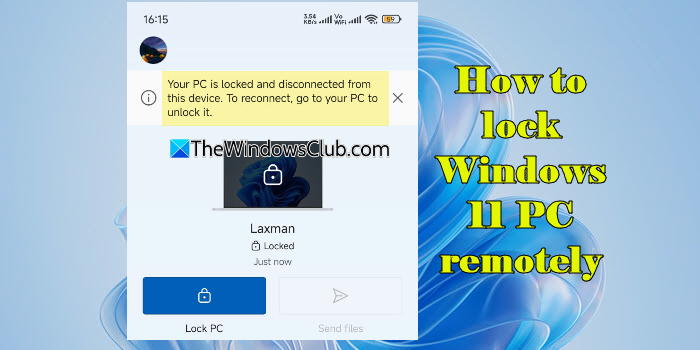
Windows already includes a feature called Dynamic Lock, which can automatically lock your PC when you walk away with your Bluetooth-connected phone. But if Dynamic Lock is not enabled or you are away from Bluetooth range, the Link to Windows app lets you manually lock your PC using your phone.
How to lock Windows 11 PC remotely with Android phone
To lock your Windows 11 PC remotely with your Android phone, you need to follow these steps:
- Opt in to the Link to Windows program
- Pair your Android phone with your PC
- Enable Remote PC controls on your PC
- Lock your PC remotely from your Android phone
Let’s walk through each step in detail
Note: This feature is currently only available to users in the Windows Insider Program. The update will be rolled out to all shortly. Also, make sure that your PC has the Phone Link app version 1.25062.83.0 or higher installed.
1] Opt in to the Link to Windows program
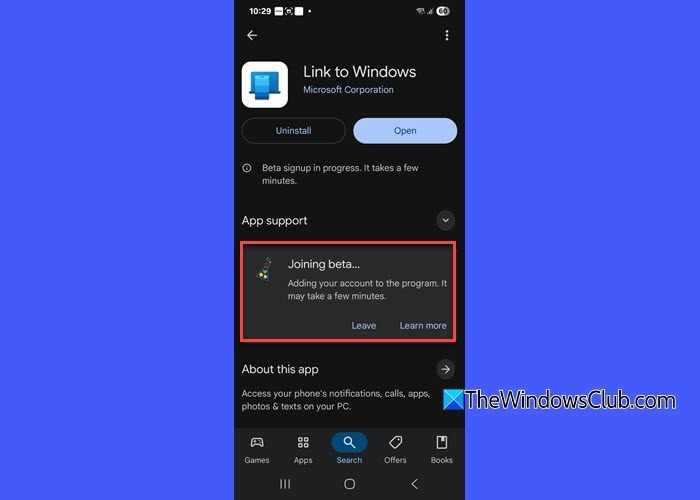
Open the Play Store on your Android device. In the search bar, type ‘Link to Windows’ and tap on the app from the search results.
Make sure you’re signed into the Play Store with the same Google account that’s linked to your Link to Windows app.
Scroll down on the app page until you find the Join the beta section under App support. Tap Join to become a beta tester.
You’ll see a message that says, “Joining beta… It may take a few minutes”. Wait a few minutes, then update the app when prompted.
2] Pair your Android phone with your PC
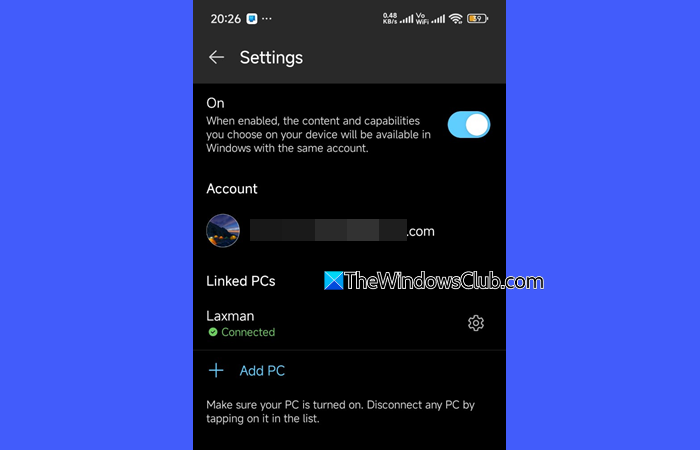
Make sure the PC you want to lock is powered on, signed in, and connected to the internet.
Open the Link to Windows app on your phone. If the PC isn’t visible on the home screen, tap the account icon in the top-left corner. You will see a list of devices under Linked PCs. If it is there, tap on it. Else, tap on Settings and swipe through the dots under Device control until your PC appears. Then tap Access PC to connect.
Once the PC is selected and connected, you’re ready to control it remotely.
3] Enable Remote PC controls on your PC
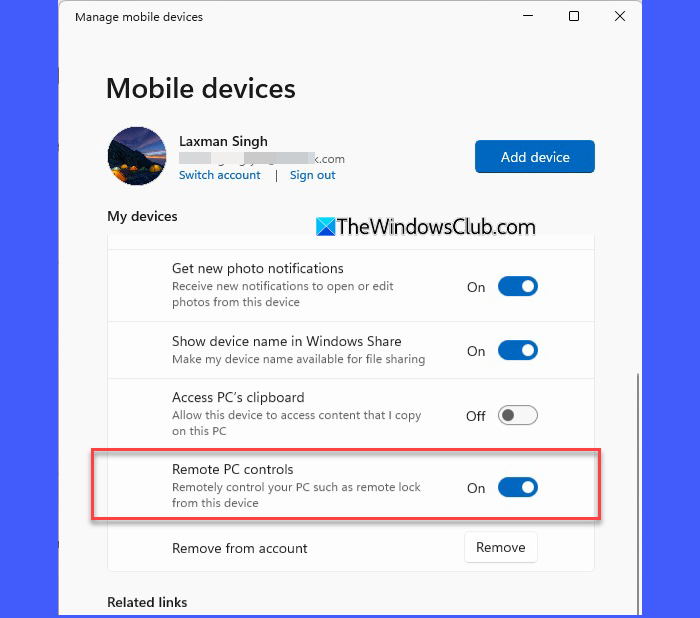
Before you can lock your PC from your phone, you must enable remote control permissions on your PC. This ensures your phone has permission to send commands to your PC, including locking it remotely.
On your PC, go to Settings > Bluetooth & devices > Mobile devices > Manage devices. Confirm that:
- You’re signed in with the same Microsoft account as used in the Link to Windows app.
- Your Android phone is listed and enabled here.
- The Remote PC controls toggle is on.
4] Lock your PC remotely from your Android phone
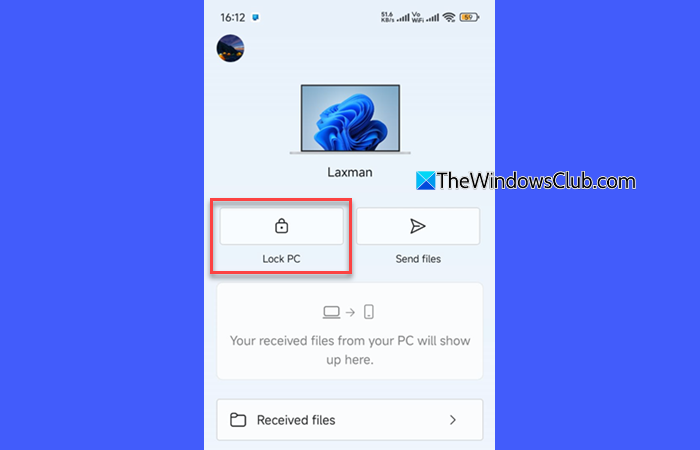
Open the Link to Windows app on your Android phone. Tap the name of your connected PC. Tap the Lock PC button. A confirmation prompt will appear. Tap Lock again to confirm.
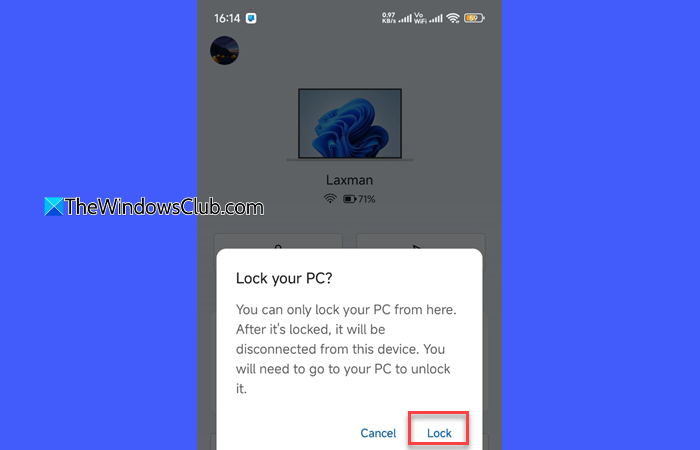
That’s it! You’ve successfully locked your PC remotely from your Android device.
I hope you find this useful.
Read: How to remote wipe Windows laptop.
Can I control my Windows 11 PC from my phone?
Yes, you can control your Windows 11 PC from your Android phone using the Link to Windows app. With the latest updates (available via the Windows Insider Program), you can perform remote actions such as sending files to your PC, locking your PC remotely when it’s connected, and mirroring your phone’s screen to the PC. Just ensure both devices are paired and meet the app version requirements.
How to control a Windows 11 PC remotely?
There are several methods to control your Windows 11 PC remotely. If you want to lock your PC remotely using your Android phone, use the Link to Windows app (beta). For more advanced control, you may use Remote Desktop (available on Windows Pro and Enterprise editions), or third-party tools like TeamViewer, AnyDesk, or Chrome Remote Desktop. These options allow full remote access to your PC from almost any device.
Read Next: Remotely lock or unlock Windows PC with Find My Device.
