
Kahoot! is a game-based global learning platform with more than 11 billion (non-unique) players or participants. You can create and share learning games (also known as kahoots), and host a learning session or assign a kahoot to let others join it to participate. And, in this tutorial, we will show you how to join a Kahoot! game with a Kahoot! Join Pin with step-by-step instructions.
What’s the Kahoot game PIN?
When a host starts a live session or assigns a kahoot (an assigned game or challenge), a unique Kahoot! game PIN, also known as Kahoot! code, join code, or session code is generated automatically. It’s a temporary number (6-10 digits) for each Kahoot game. You can use that game PIN to join an assigned game or a live session with or without any sign-up.
Before we proceed further, you should also look at some important points:
- An active internet connection is required to join a game
- You must create a unique nickname to participate
- You can’t rejoin a game with the same nickname. To rejoin a game, you must pick another unique nickname, and this also resets your score
- As a participant, you can’t generate a game PIN. Only a host can do it
- You may need an account to join a game if a host has enabled the Player identifier
- A Kahoot! game PIN is valid until the game is running (for a live game) or the assignment’s deadline
- No game PIN is required for solo play or learn mode.
How to join a Kahoot Game
You can join a Kahoot Game with a Kahoot Join Pin on a PC and a mobile device. This tutorial includes both ways.
- Join a Kahoot Game with a Kahoot Join PIN on PC
- Join a Kahoot Game with a Kahoot game PIN on a mobile device using Kahoot! mobile app.
Easy Steps to Enter with a Kahoot Join Pin
1] Join a Kahoot Game with a Kahoot Join PIN on PC
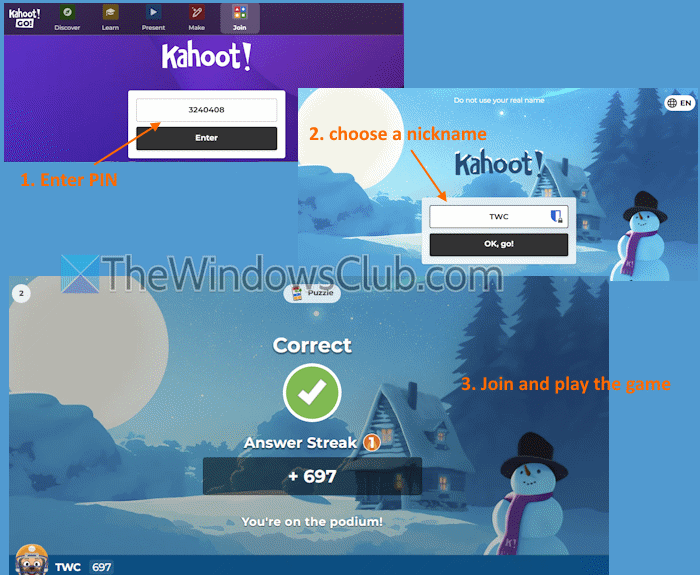
Once a host sets an assignment or starts a live game, the game lobby opens, and a unique join code is generated immediately. It is visible on the top middle part of the lobby. Follow these steps to join a Kahoot game with a Kahoot join PIN on your PC:
- Open the kahoot.it game page in a browser (Microsoft Edge, Google Chrome, etc.)
- Add the game PIN in the text field given by the host
- Press the Enter button
- If the Player identifier is enabled by the host, you need to provide your email address to join that particular kahoot. Enter the email address and press the Go button
- Choose a nickname. If the nickname generator is turned on, spin to generate a random nickname. If not, you can add a nickname of your choice
- Press OK, go! It will check the nickname, and you will be in
- Finally, the host will start the game, and you can start answering the questions as the game progresses.
TIP: You can also join a Kahoot game using a direct link generated by the game host or a game QR code.
Read:
- How to find and enter a Kahoot join PIN for live quizzes
- Kahoot Join PIN not working? How to fix and join Games fast
2] Join a Kahoot Game with a Kahoot game PIN on a mobile device using Kahoot! mobile app
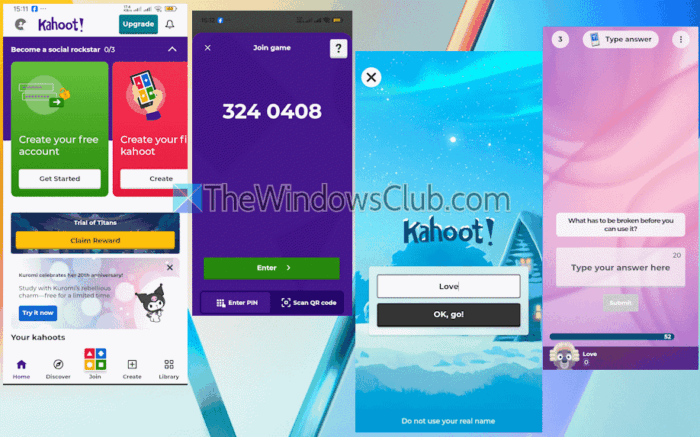
You can also use a browser on your mobile device to join a Kahoot game with a Kahoot game PIN. But, if you want to use Kahoot! mobile app, follow these steps:
- Install Kahoot! mobile app on your Android phone or iPhone. It is available on both Google Play and App Store
- Launch the app
- Set up your account (login or sign up) or select the Maybe later option
- Tap on the Join icon in the bottom middle part of the app interface
- Enter the game PIN. You can also join a game by scanning the game’s QR code
- Tap Enter
- Select a unique nickname. If the game host has enabled the nickname generator, you can spin to get a random one
- Tap on OK, go! Button
- Now you can join the game and play it.
You can also reload and quit the game anytime by tapping on the three vertical dots icon on the top right corner of your phone and selecting an option.
That’s all.
Now read: Best e-Learning Apps, Websites & Tools to educate Kids at Home
How do I find a public Kahoot game?
Log in to your Kahoot! account and access the Discover page from the left pane to find public Kahoot games. Here, you can explore premium collections or browse through categories (like Science, Language arts, Spark creativity, General knowledge, etc.). You can also use the search bar to discover kahoots. Furthermore, there is a Filters feature on the top left part to search for Free content, Kahoot!+ AccessPass, or Kahoot! Marketplace, and filter content by Subject, Created by, Grade, and more.
Read next: Websites that help you Learn to Code playing Games & having Fun.
