
Kahoot is a popular game-based learning platform where teachers, presenters, and hosts create interactive quizzes. Players can join these live Kahoot games by entering a unique Game PIN on the website kahoot.it or through the app. A common issue users encounter is that the PIN occasionally fails to work, preventing them from entering the game lobby, even if the code appears to be correct. In this post, we are going to see what to do if the Kahoot join PIN is not working and how you can fix and join games fast.
Why is my Kahoot PIN not working?
The Kahoot PIN doesn’t usually work for a few main reasons. First, the Game PIN may have expired. The PIN only works while the game lobby is open, so entering it before the host starts or after they end the session will not work. Second, if the host restarts the game, a new PIN is created. Other reasons include typos when entering the code or technical problems. These could be a weak internet connection, an outdated web browser, or network firewalls found in schools and offices that block Kahoot’s real-time connection.
Fix Kahoot Join PIN not working
If the Kahoot join PIN is not working, follow the solutions mentioned below.
- Double-Check the game status with the host
- Refresh or retry on a different device
- Test your connection and browser
- Use Kahoot’s Official Connection Test
- Contact Your Network Administrator (For School/Work)
Let us talk about them in detail.
1] Double-Check the game status with the host
This solution addresses common reasons for PIN failures, focusing on host-side issues that players can’t see. A Kahoot PIN is a temporary code generated when the host starts a live game. If you can’t join despite entering the correct PIN, the problem often lies between your code and the one active in the host’s lobby. This quick verification step clears up any confusion about the PIN’s validity and ensures everyone is in sync.
You need to contact the host immediately via any available method (in-person, chat, video call, or messaging app) to let them know you can’t join. Ask them to provide the exact numeric PIN from their game lobby screen without any prompts. Ensure the game is live by confirming they have clicked “Start” and are in the player lobby; don’t join a preview or finished game. If they had to restart, request the new PIN displayed. Re-enter the fresh PIN carefully, double-checking each digit as you type it into kahoot.it or the app.
Read: How to find and enter a Kahoot join PIN for live quizzes
2] Refresh or retry on a different device
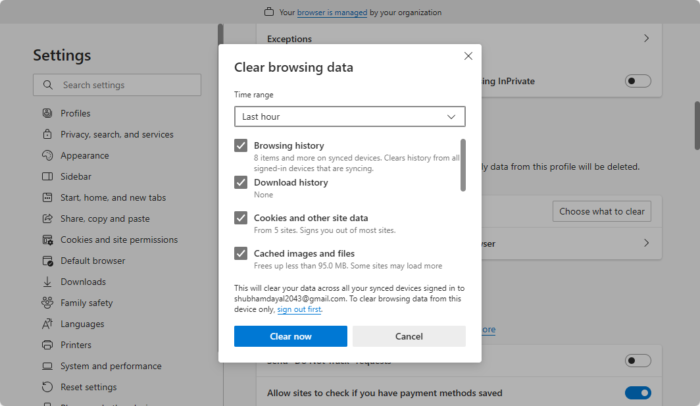
Refreshing your browser or app clears cached errors and resets the connection to Kahoot’s servers. Trying a different device quickly determines if the issue is with your specific hardware/software or a broader network problem. We will also clear the browser’s cache, be it Chrome or Edge, and then try joining using the PIN.
3] Test your connection and browser
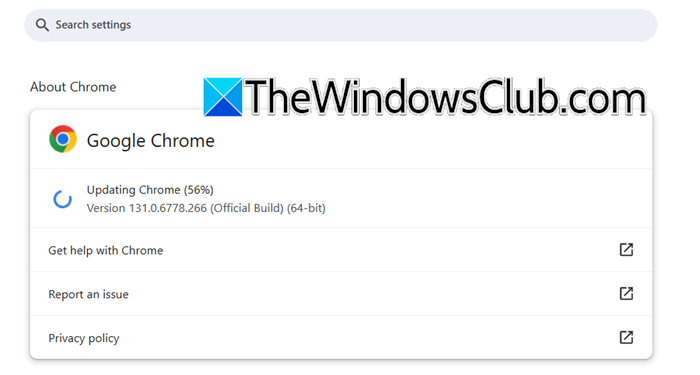
Kahoot is a live and interactive platform that needs a strong and stable internet connection to work properly. If your connection is weak or keeps dropping, you may have trouble joining Kahoot and entering your Game PIN. Additionally, an old or incompatible web browser might not support the technology needed for Kahoot’s real-time gameplay. This can cause the joining process to fail when you try to enter the PIN.
First, disconnect your network or turn off the WiFi. Then, reconnect or turn the WiFi back on to see if that helps.
If that is to no avail, check for a browser update. If you are on Edge, go to Settings > About Microsoft Edge to check for updates. Chrome users can go to Settings > About Chrome to update their browser.
4] Use Kahoot’s Official Connection Test
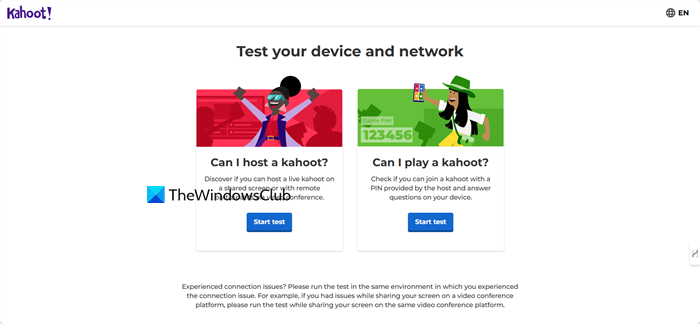
The official Kahoot test, test.kahoot.it, directly checks if your specific device and network can establish the essential technical connections required for live gameplay, which a standard internet test cannot. It provides authoritative feedback, often identifying if a network firewall is blocking the real-time communication ports that Kahoot needs to function.
Read: Best Discord Servers for Gaming that you can join
5] Contact Your Network Administrator (For School/Work)
If you are on a school, university, or corporate network and consistently fail to join, the firewall is likely blocking the connection. Inform your IT department and ask if they can allow the necessary WebSocket connections for Kahoot’s domains (like play.kahoot.it), which are essential for live gameplay.
Hopefully, with these solutions, you will be able to resolve the issue.
Read: Free multiplayer games for Windows PC to play with friends from home
How to join a random Kahoot game?
Kahoot does not have an official feature for finding and joining games with random people. However, you can participate in public sessions hosted by others. The best way to do this is to look for creators hosting live quizzes on platforms like YouTube or Twitch. These streamers display an active game PIN on their screen, which you can enter at kahoot.it or in the app to join their game. Additionally, you may find lists of currently active public PINs on certain websites and community Discord servers.
Also Read: Best Free Gaming VPN or GPN software for Windows PC.
