
This guide shows you several working methods to fix Steam error codes 16 and 80. Steam is a popular gaming platform for gaming enthusiasts worldwide. In most cases, you experience a hassle-free and error-free gaming experience on Steam. But, a lot of times users run down into errors that put a halt in their gaming experience. Two of such errors are error codes 16 and 80. If you are facing any of these errors on Steam, look no further. This post will help you how to resolve these errors on Windows PC. In this article, we will list multiple working solutions to help you resolve Steam errors 16 and 80.
What is Steam Error Code 16?
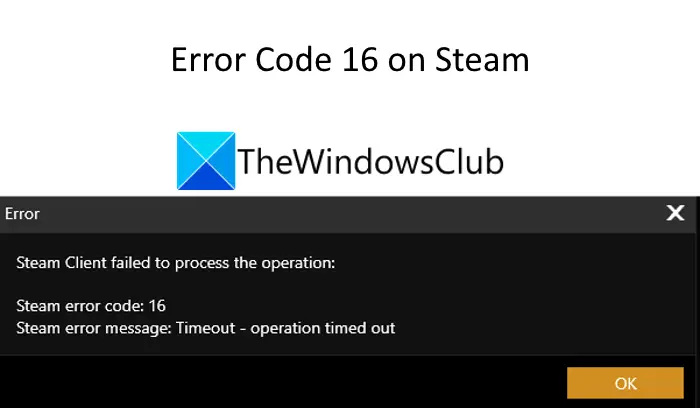
The error code 16 on Steam is a runtime error that occurs when Steam crashes or fails to run. It basically prevents opening a game. When triggered, the Steam error code 18 prompts the following error message:
Steam Client failed to process the operation:
Steam error code 16
Steam error message: Timeout – operation timed out
Now, how can you fix error 16 on Steam? We will find that out later in this post. But before that, let us find out what causes the error 16 on Steam to understand the fixes better.
What causes Steam error code 16?
There can be several distinct reasons that trigger error code 16 on Steam. After analyzing several reports, here are some of the possible causes of this error:
- It can be caused if some incompatible or conflicting programs are running in the background.
- You can also experience it due to outdated graphics drivers.
- Low memory issues can be another reason for this Steam error.
- It can also be caused due to network connection issues.
If you are facing the Steam error code 16, this post will help you find a suitable solution to fix the issue. Let us check out the fixes now!
How to Fix Steam Error Code 16?
To fix error code 16 on Steam, here are the working methods you should try:
- Close all conflicting programs.
- Check your internet connection.
- Update your graphics drivers.
- Update Steam.
- Reinstall Runtime Libraries.
- Try running disk cleanup.
Let us discuss the above methods in detail!
1] Close all conflicting programs
You can try closing all conflicting programs to resolve the issue. As discussed earlier, some running programs can cause error 16 on Steam, which might enable you to fix the issue. Simply open the Task Manager, select the running program from the Processes tab, and then click on the End Task button to close it. Do the same for all the conflicting programs one by one.
Once you identify the exact programs that are conflicting with Steam, you can try troubleshooting, updating, or reinstalling the software.
2] Check your internet connection
Do check your network connection as this problem may arise due to network issues. Ensure you are connected to a stable and strong internet connection to avoid any issues.
See: Fix Steam Error Code 105, Unable to connect to the server
3] Update your graphics drivers
If you are using out-of-date graphics drivers, it can cause Steam error 16. If this scenario applies to you, you should consider updating your graphics drivers. See if this fixes the issue for you.
4] Update Steam
If you are using an older version of Steam, consider updating Steam. Check for any updates available for Steam on its official website and then update the program. It might help you resolve the issue.
Read: An error occurred while installing or updating the Steam game
5] Reinstall Runtime Libraries
If Microsoft Visual C++ is not installed properly or there are some corrupted files associated with it, it can cause error 16 on Steam. So, uninstall Microsoft Visual C++ Redistributable Package and then try reinstalling Microsoft Visual C++. See if this works for you.
6] Try running Disk cleanup
You can also try deleting unnecessary files from your system to free up some space. It will clear up cache and temporary files that might be conflicting with Steam. Hence, running a disk cleanup might help you to resolve the issue.
See: Fix Steam Service component error on Windows
What is error code 80 Steam?
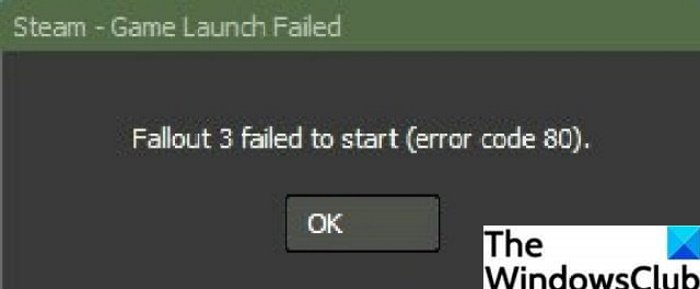
Error code 80 Steam occurs when you attempt to launch a Steam game. It prompts a similar error message like the below one when encountered:
Fallout 3 failed to start (error code 80)
It prevents you from playing your games as normal. Now, if you are facing this error on Steam, don’t think you are alone. Multiple users have reported being experiencing the same error. You can fix this issue by following some troubleshooting methods. Let’s explore the working solutions that help you resolve error code 80 on Steam.
How to fix error code 80 on Steam?
Here are fixes that you can try to resolve the error 80 on Steam:
- Verify integrity of Game Files.
- Check Steam Folder Permissions.
- Check if there are some software conflicts.
- Update graphics driver.
- Troubleshoot in Clean Boot State.
Let us elaborate on the above fixes now!
1] Verify integrity of Game Files
If corrupted Steam game files are causing error 80, you can try verifying the integrity of the game files. This will essentially check and compare files, replacing them with the latest files from Steam servers. In case there are files incomplete or missing, this method will restore game files without corruption. Several users were able to resolve the issue using this method.
Here are the steps to verify the integrity of game files on Steam:
Firstly, right-click on the Steam client and use Run as administrator to launch it with admin privilege. Now, go to the Library tab and right-click on that game that threw error 80.

Next, press the Properties option from the context menu.
Then, navigate to the Local Files tab and there you will see an option saying Verify Integrity of Game Files, click on it.
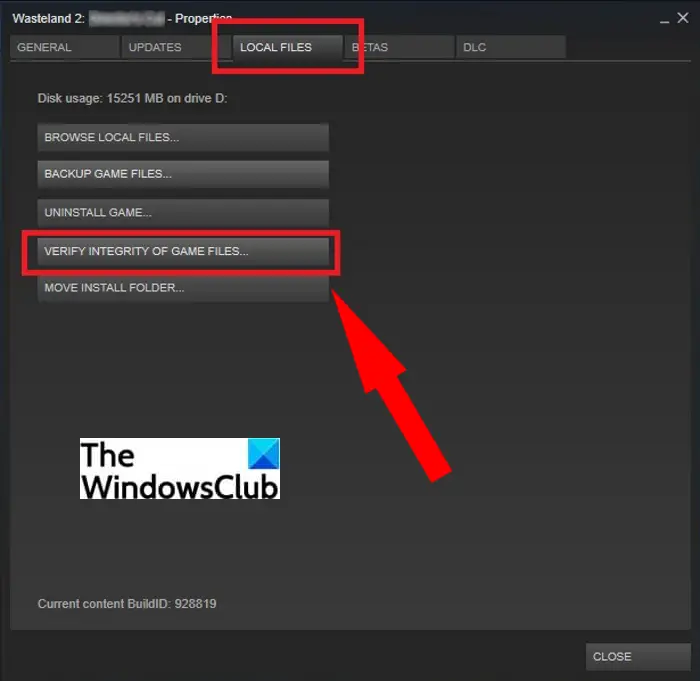
Steam will now verify the integrity of your game files for a short time and replace any corrupted files.
When the process is completed, open Task Manager and end all Steam-related tasks one by one. Finally, you can restart Steam with administrator privilege and see if the error is fixed.
If this doesn’t help, try another method to resolve the issue.
See: How to fix Steam Error E502 L3 on Windows PC
2] Check Steam Folder Permissions
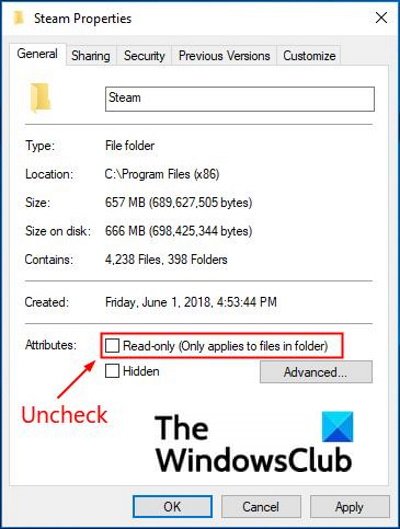
A program needs both read and write permissions to work properly. If Steam doesn’t have the necessary Write permissions, you might experience this error. So, check the permission for the Steam folder and change the settings if only the Read-only setting is applied. Here are the steps that you can follow for that:
- Firstly, you need to end all Steam-related tasks and processes running on your PC. Simply launch the Task Manager and then use the End Task option to close the processes one by one.
- Now, open the File Explorer and locate the Steam folder. By default, you will find Steam at C:\Program Files (x86) location.
- Next, right-click on the Steam folder and press the Properties button.
- After that, go to the General tab and uncheck the Read-only option.
- Relaunch the Steam client with administrator privilege.
Related: How to reset File & Folder permissions to default in Windows
3] Check if there are some software conflicts
Some software conflicts can also result in error 80 on Steam. Try closing down background programs that might be conflicting with the Steam client and see if the issue is resolved.
4] Update your graphics drivers
You might be unable to launch a Steam game due to old and outdated graphics drivers and end up getting error 80. So, update all your graphics drivers, relaunch the Steam client, and see if the issue is resolved.
Tip: Best free Driver Update Software for Windows
5] Troubleshoot in Clean Boot State
Running your PC with a minimal set of drivers and applications might help you get rid of this Steam error. So, you can try troubleshooting this error in a clean boot state. So, perform a clean boot and see if the issue is fixed. This will counter software conflicts if any.
That’s it! We hope this article helps if you were facing error 16 or 80 on Steam.
See: How to fix Steam Error Code 83 on Windows PC
What is error code 118 on Steam?
Error 118 on Steam occurs when the Steam client is unable to connect to the server. The first thing to fix this issue is to restart your router and then check if the problem is gone. There are additional methods you can try to resolve this error, such as enabling Steam through the firewall and disabling all third-party applications. You can check out all the fixes that enable you to resolve error code 118 in this guide.
How do I fix Steam fatal error Steam needs to be online to update?
To fix Steam fatal error – Steam needs to be online to update error, you can try disabling your antivirus or firewall, running Steam in compatibility mode, etc. You can also check out the linked post to resolve other Steam fatal errors.
Now read:
- Fix Steam error Initializing or Updating Transaction
- Fix New Steam library folder must be writable error.
