
This post explains how to find your computer’s username and password in Windows 11. Usernames and passwords are assigned to users when they first set up their Windows account. They are the unique identifiers that allow them to sign in to their PCs and access personal files and settings, and also protect their account from unauthorized access.
In many cases, users continue to work with a PIN and later realize they don’t remember their full account password. Sometimes, issues during initial setup (OOBE) after a major update require them to confirm their username or reset their password.
If you’ve forgotten your username or password and find yourself locked out of your PC, don’t worry. Windows provides several built-in options to help you find them.
How to find Computer Username and Password in Windows 11/10
Before I list the methods to find the computer username and password in Windows 11, a quick important note: Windows makes it easy to locate your username, but it will never display your current sign-in password in plain text for security reasons. If you forget your password, you’ll need to use approved recovery methods only.
Find your computer username in Windows 11
The following methods allow you to view your computer username:
1] Use Command Prompt / PowerShell:
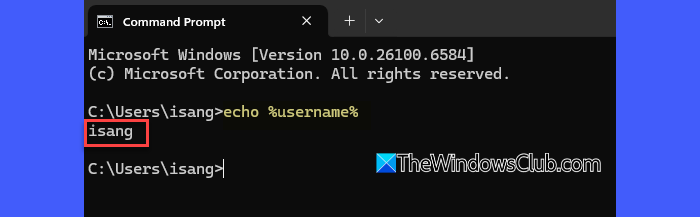
Press Win + S, type cmd, and press Enter. In the Command Prompt window, run the following command:
echo %username%
The above command displays your currently signed-in username.
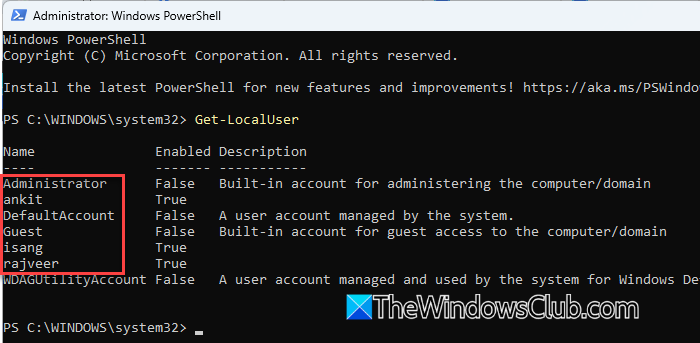
Alternatively, open PowerShell with admin rights and run the following command:
Get-LocalUser
The above command lists all local accounts created on the PC (including disabled ones).
2] Use File Explorer:
Press Win + E to open File Explorer. Navigate to C:\Users.
Look at the folder names listed there. Each folder represents a user account on the PC.
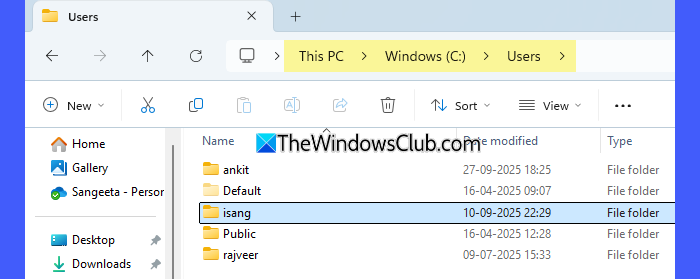
For Microsoft accounts, the folder name is usually a shortened form of your email. For local accounts, the folder name matches the username.
3] Use Task Manager:
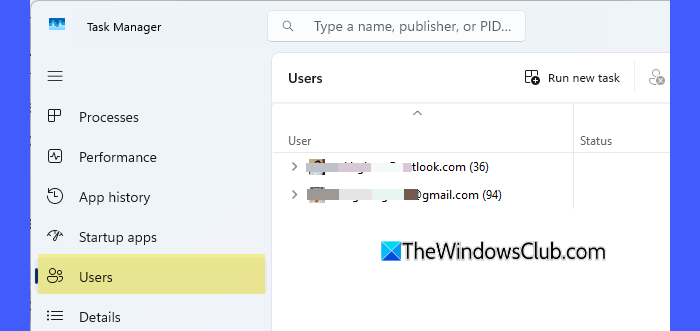
Press Ctrl + Shift + Esc to open Task Manager. Click the Users tab in the left panel. Under the User column:
- If you’re signed in with a local account, it shows the username.
- If you’re signed in with a Microsoft account, it shows the associated email address instead.
4] Use Local Users and Groups (lusrmgr.msc – Pro/Enterprise):
Press Win + R, type lusrmgr.msc, and press Enter. In the Local Users and Groups window, click Users in the left panel.
The middle pane shows a list of all accounts and their usernames.
5] Use Settings
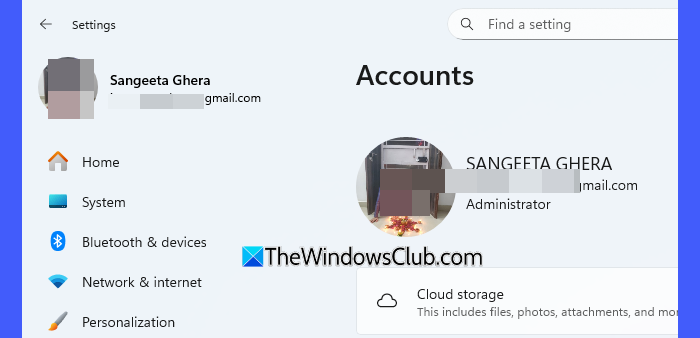
Press Win + I to open Settings. In the top-left corner of the Settings window, you’ll see:
- Your account display name.
- Your email address, if you are using a Microsoft account.
6] Use Start menu:
Click the Start button (Windows icon) on the taskbar or press the Windows key on your keyboard. Click your profile icon in the bottom-left corner of the Start menu.
A menu will pop up showing:
- Your display name.
- If you use a Microsoft account, it also shows your email address.
7] Use Control Panel
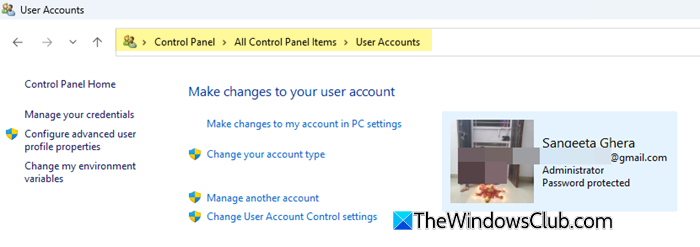
Type ‘control panel’ in the Windows Search bar and press Enter. Select Large icons from the View by dropdown.
Click User Accounts. In the top-right corner of this screen, you’ll see your account display name. If you’re using a Microsoft account, your email address is also displayed.
Reset or recover your Windows sign-in password
If you forget your computer password, you cannot view it directly. However, you can recover or reset your password using the available options.
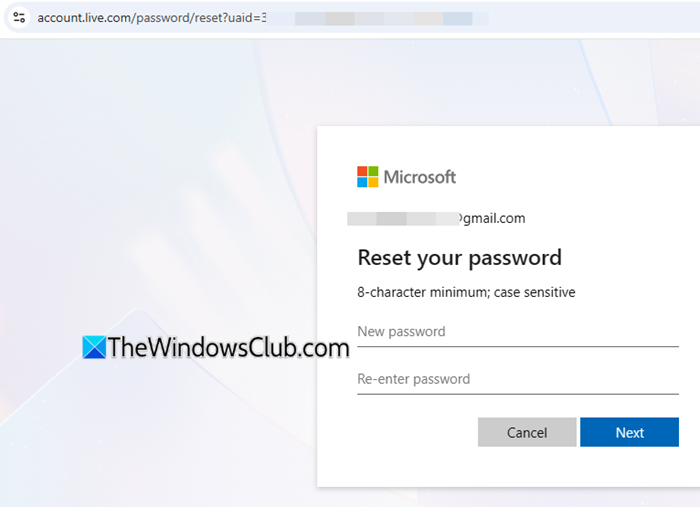
To reset your Microsoft account password, visit the Microsoft password reset page by clicking here, follow the on-screen steps, and use your registered email address or phone number to regain access. Alternatively, you may reset your Microsoft account password from the login screen.
For a local account, you can reset the password through another administrator account on the same PC or use a password reset disk if you created one earlier.
If none of these options work, advanced recovery methods, such as using the Windows Recovery Environment with Command Prompt or resetting Windows, may be required.
I hope you find this useful.
Read: How to get User Account details in Windows.
How do I check what my PC username is?
You may check your PC username in several ways. The quickest is to open Command Prompt and type whoami or echo %username%. You may also look under C:\Users in File Explorer, where each folder name represents a username. Or, you may open Task Manager and see the signed-in accounts under the Users tab.
How do I open My PC if I forgot my password in Windows 11?
If you use a Microsoft account, go to the Microsoft password reset page on another device and reset your password using your registered email or phone. On a local account, you may try your security questions, use a password reset disk, or reset your account password using Installation Media.
Read Next: Reset Administrator password in Windows using Sticky Keys.
