
You can display two subtitles simultaneously on the screen if you are running the VLC media player. Yes, it’s possible. However, there’s a trick you’ll need to play. The process requires the installation of an extension – Subtitler Lite, and a tool – Key Presser.
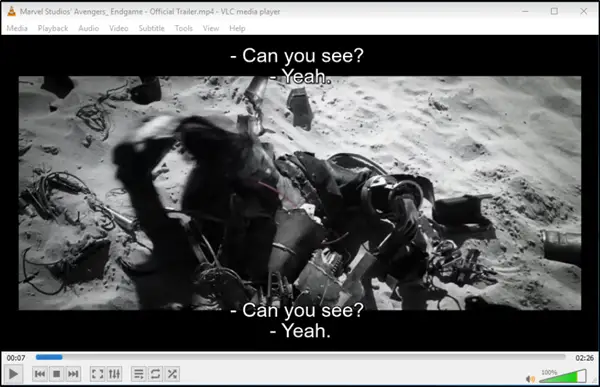
For a bilingual or multilingual community, displaying only one subtitle language in a VLC player on Windows 10 isn’t enough to serve most viewers. As such, displaying two subtitles in the VLC player on Windows 11/10 could be beneficial and desirable. Currently, VLC’s subtitle is named the primary subtitle, and the new one is the secondary subtitle. The soundtrack mainly comes from the primary one.
Display two subtitles simultaneously in VLC on PC
You’ll need to perform three steps to display two subtitles simultaneously in VLC.
- Download your subtitle files
- Download the Subtitler (lite) mod extension for VLC
- Download and install Key Presser.
The process is somewhat tedious, so you must bear with the steps.
1] Download your subtitle files
A subtitle file is compatible with any media player that supports it. If you want to add two subtitles to the VLC player, you must load the first file natively through VLC’s built-in feature. For the second subtitle file, you can choose to load it via a VLC plugin, but you should make sure that it has the name matching correctly with the video currently playing.
2] Download Subtitler Lite (mod) extension for VLC
It is VLC extension that displays subtitles on the screen in a playing video and a dialog box. It lets users watch a film with two different subtitles. For convenience, we have added two subtitles for the same language, i.e., English. However, you can select your preferred language. For instance, you can configure the VLC player to display Subtitles in English and others in French.
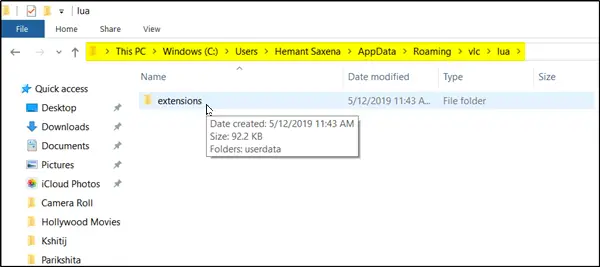
Once downloaded, extract (unzip) the .lua file and put it in the VLC subdirectory /lua/extensions, by default: ‘Windows (current user): %APPDATA%VLC lua extensions‘.
When done, you only need to open the video you want to play and access the VLC player’s built-in option to play the initial subtitle file.
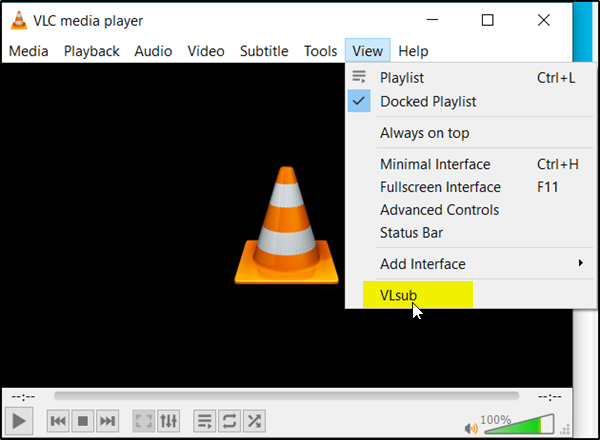
Next, go to the ‘View‘ tab in the top portion of the player >Subtitle Lite on the toolbar.
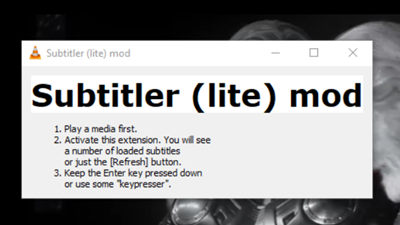
The action, when confirmed, will open a small window that displays the ‘Refresh’ button. This button must be pressed continuously to force it to load the second subtitle file. You can automate this process by installing another handy app – Key Presser.
3] Download, install & use Key Presser
KeyPresser is a lightweight, easy-to-use application that automates pressing a previously assigned key in the selected Windows application, such as VLC.
To configure Key Presser for Subtitle Lite, run Key Presser and select Subtitle Lite from the app list dropdown. In the Key field, select Enter from the dropdown.
Moving to the Time Interval field, enter the desired value – 100ms. Click Start! Make sure the Subtitle Lite window is the active window on your screen.
After a few seconds, you should notice the second subtitle file loading, and Subtitle Lite will be refreshed constantly by Key Presser to load the subtitles as the video plays.
Let us know if you can get it to work.
Can VLC automatically download subtitles?
No, VLC cannot automatically download subtitles. It can be read from the TXT file stored alongside the movie files. However, some plugins can help you automatically download subtitles. These plugins search for SRT files based on the video file’s metadata.
How do I get subtitles for a movie?
Open Subtitles, YIFY Subtitles, Subscene, Addic7ed, Podnapisi, TVsubtitles, Moviesubtitles, and TVsubs are excellent subtitle download platforms for movies and TV shows. They offer a vast collection of subtitles in multiple languages, prioritizing prompt TV show subtitles and accommodating a wide range of languages. These platforms enhance the global multimedia viewing experience.
