
Did you change your Microsoft Account password just before going to bed, and now you can’t remember it in the morning? It is possible that you may not be able to log in to your Windows PC. Many times it happens that we are not able to remember our password and hence not able to sign in to our computer. In Windows 11 and Windows 10, you can directly recover your password from the lock screen.
We have seen how to recover lost or forgotten Windows passwords using Windows built-in tools like Password Hint and the Reset Disk or with other free password recovery tools. We have also seen how to reset your Windows password, if your computer is on a domain or if it is a workgroup. This tutorial shows how you can recover and reset your forgotten or lost Microsoft Account password from the Login Screen in Windows.
TIP: You can visit the Microsoft wizard here to reset and recover your Microsoft Account.
Recover password from Login Screen in Windows 11/10
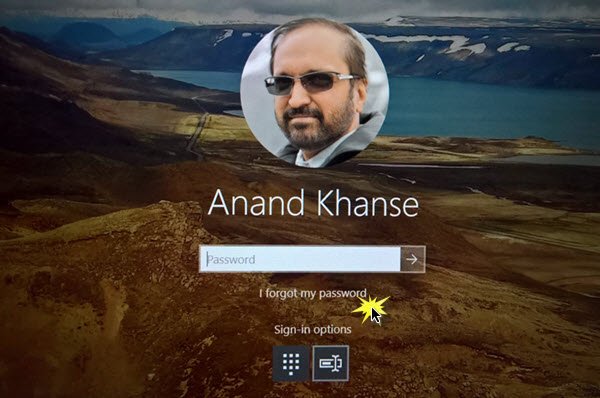
This feature has been added to Windows and can be conveniently used from the Lock Screen. Now on your lock screen, just below the password field, you will see a new option that reads ‘I forgot my password’.
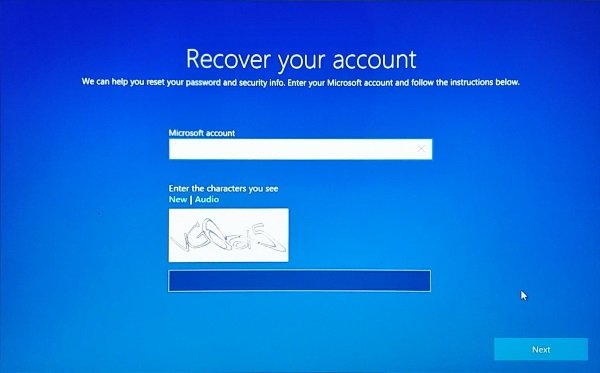
Clicking on that option will take you to another screen which will help you recover your password. The flow is like what you might have already experienced on the Microsoft website or on any other website in general. You need to enter your email id and a captcha to proceed.
In the next step, you need to select one of your Recovery Options that you might have specified while creating your account. It can be your alternate email address, your phone number, or maybe a security question. Other than that, you can even use the Authenticator app to recover your account. The Authenticator lets you use your phone instead of a password for your personal Microsoft account. If you do not have access to any of these, you might need access to another working computer to help you recover your account.
Once you’ve chosen your recovery option, wait till you receive your one-time password. Enter the password and once you are verified, you can create a new password.
The entire process is very simple and familiar. Very obviously, the computer must be connected to the internet to follow these steps. The recovery process is quick and comes in handy if you’ve forgotten your password.
Read: What to do if I forgot my computer password?
Recovering the PIN in Windows 11/10
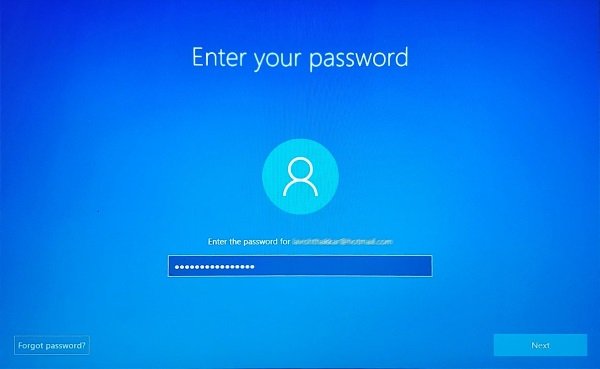
If you’ve been using a PIN to sign in to Windows and you’ve forgotten the PIN somehow. Then a similar process is also available to recover the PIN. All you need to do is enter the password for your Microsoft Account and wait for the OTP. Once verified, you can directly change the PIN and use the new PIN to sign in.
For Local Accounts, the recovery option is not available. Only users with Microsoft Account can recover passwords and PIN from the Lock Screen.
This was how you could recover your Microsoft Account from the Windows Lock Screen. This feature may prove helpful to many users and is one of the most requested features in Windows 11/10.
How to reset Microsoft account password from lock screen?
To reset a Microsoft account password from the lock screen, select “I forgot my password” on the sign-in screen and then follow the prompts to verify your identity using a security code sent to your registered email or phone number. After verification, create a new password to successfully reset and access your account.
How to remove Microsoft password from lock screen Windows 11?
To remove the Microsoft password from the lock screen in Windows 11, navigate to Settings > Accounts > Sign-in options. Choose “Password” and select “Remove.” Ensure you set up a PIN or other sign-in methods.
