
In this post, you will see how to export passwords from the Firefox browser. Like any other modern browsers, Firefox also provides a password manager to store and manage saved logins and passwords and use them whenever needed. It also lets you export logins. This can come in handy later to move your saved passwords from Firefox to another browser. This post has all the steps required to back up the saved passwords from Firefox.
Firefox lets you export passwords as a CSV file. That file includes a list of website addresses, usernames, passwords (in plain text), when a password was created, the last time it was used, etc.
Export Logins and Passwords from Firefox
Follow these steps to export or backup logins and passwords from Firefox on Windows 11/10:
- Open Firefox browser
- Access Firefox menu
- Go to Logins & Passwords settings
- Click on the 3 horizontal dots in the top right corner
- Select Export Logins
- Save them to your desired location.
Launch Firefox, then open the Firefox menu. Click the Open menu icon (hamburger icon) in the top-right corner of Firefox. After that, select the Logins and Passwords option.
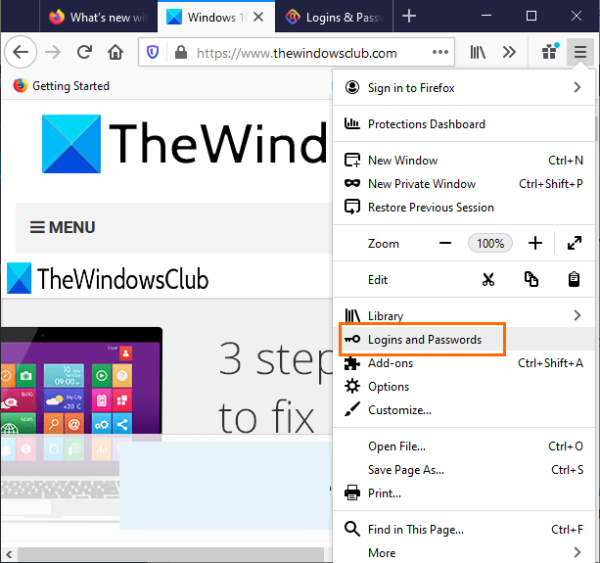
Alternatively, click the Firefox Profile icon and select Logins and Passwords.
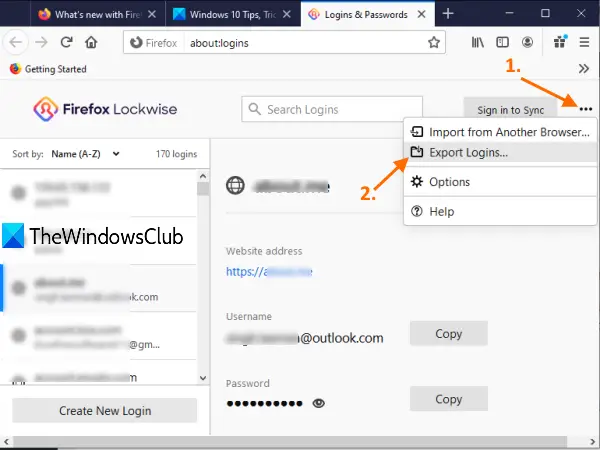
Now you can see a list of all saved passwords and login details in the left section. You can also delete or edit passwords before backing them up. Click the three vertical dots icon in the right corner, then select Export Logins.
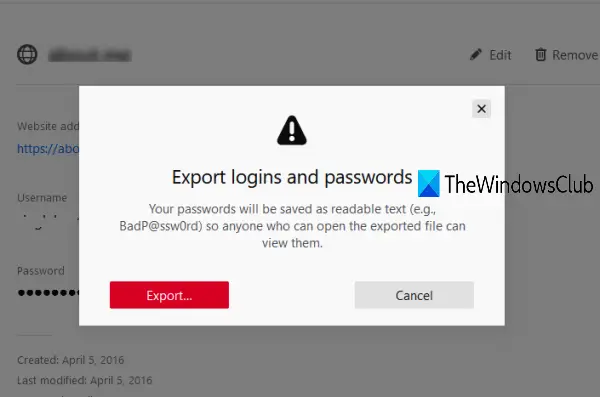
A warning box will visible. Press the Export button in that box. Now Windows Security box will open and it will prompt you to enter your Windows login password for confirmation.
Finally, a Save As window is opened using which you can export Firefox passwords as a CSV file with a custom name.
That’s all!
Read: How to restore or backup Firefox Bookmarks or Profile on Windows PC.
It is always good to have a backup of all your saved passwords. While there are some best free password managers already available to use, Firefox also offers the same and lets you back up saved logins and passwords.
Hope this helps.
Related reads:
- How to Export or Backup Bookmarks from Firefox
- How to Import Bookmarks into Firefox from Edge, Chrome
- How to Import Bookmarks, Passwords into Chrome from Edge or Firefox.
