
In this post, we will show you how to convert MSG files to PST format on a Windows 11/10 PC. An MSG file (.msg) is a Microsoft Outlook file format that stores a single Outlook item, such as an email message, contact, appointment, or task. It is widely used to share or preserve Outlook data outside the mailbox. However, as the number of MSG files grows, managing them becomes difficult.
That’s why many users convert MSG files to PST. By converting MSG files to PST, users can restore all saved messages to Outlook, create a backup, or migrate emails to a new system with ease. In this guide, we will show you four easy ways to convert your MSG files to PST format.
How to convert MSG files to PST format
You can convert MSG files to PST format on a Windows 11/10 PC using the following methods:
- Copy and paste method
- Drag and drop method
- Using an online file converter
- Using a third-party software
Note: These methods work only with the Microsoft Outlook desktop app installed on Windows. The Outlook web app (Outlook.com) does not support importing MSG files or exporting data to PST format.
Let us see these methods in detail.
1] Copy and paste method
If you have a small number of MSG files, you can easily convert them to PST format using this method.
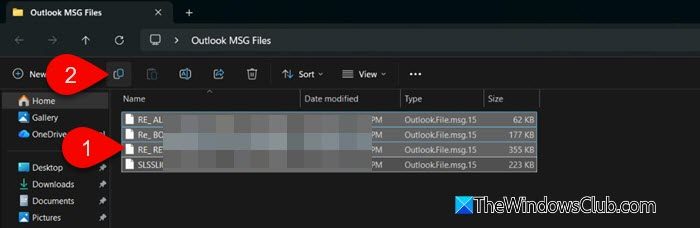
Open File Explorer and navigate to the folder where the MSG files are located. Select the files you wish to convert, right-click them, and choose Copy.
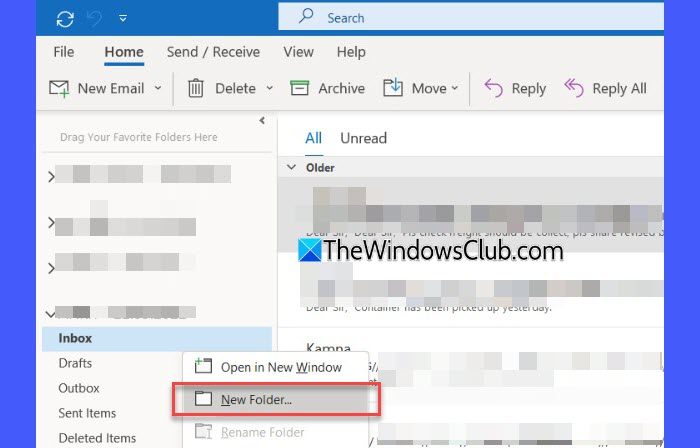
Next, open Microsoft Outlook. Right-click an existing folder and select New Folder.
Give this folder a suitable name (e.g., “MSG Files”)and press Enter. Open the newly created folder. Right-click inside it and choose Paste (or press Ctrl + V). This imports the MSG files.
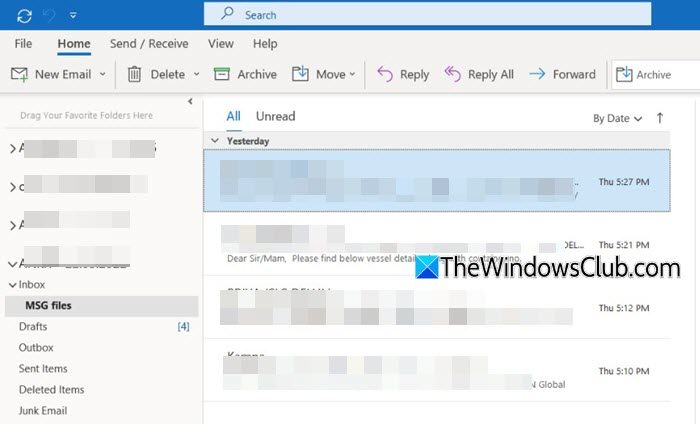
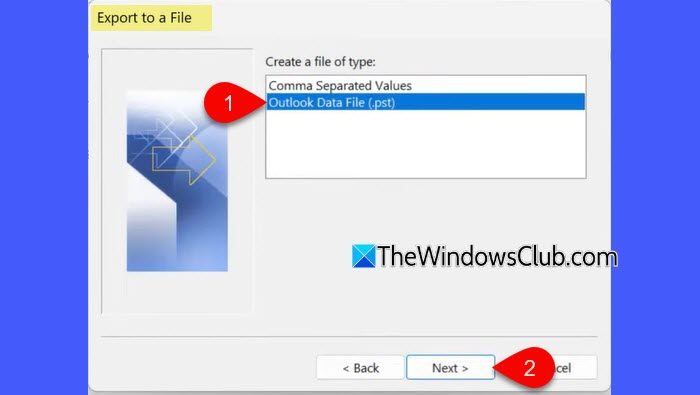
Once done, export the Outlook folder (containing the MSGs) to a PST file following these steps:
- Go to File > Open & Export > Import/Export.
- In the Import and Export wizard, choose Export to a file, then click Next.
- Select Outlook Data File (.pst), then click Next.
- Select the folder containing the MSG files and click Next.
- Choose a destination for the exported file, then click Finish.
2] Drag and drop method
The drag-and-drop method is quicker and more practical than copy-paste. It is ideal for importing multiple MSG files at once.
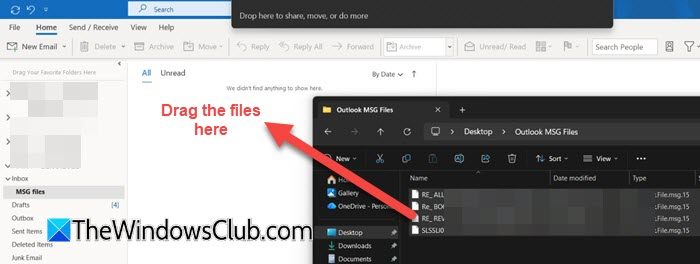
Open Microsoft Outlook and create a new folder in your mailbox.
Open the folder containing MSG files in File Explorer. Select the MSG files you want to import. Drag the selected files and drop them into the newly created folder in Outlook.
Once Outlook is finished importing the files, export the folder to a PST file.
Note: The above methods can take longer if you are dealing with a large number of files. Since the process is manual, there is also a higher chance of missing emails, creating duplicates, or importing data incorrectly. For a faster and more reliable approach, move on to the next method.
3] Using an online file converter
Several online tools allow you to convert MSG files to PST format. For example, Aspose MSG to PST Converter is a free web-based tool that can batch convert MSG files to PST. Here’s how to use it:
Click this link to open the Aspose MSG to PST Converter website in your web browser.
Click the Browse for file button or drag and drop your MSG files into the upload area. Make sure PST is selected in the Save as dropdown.
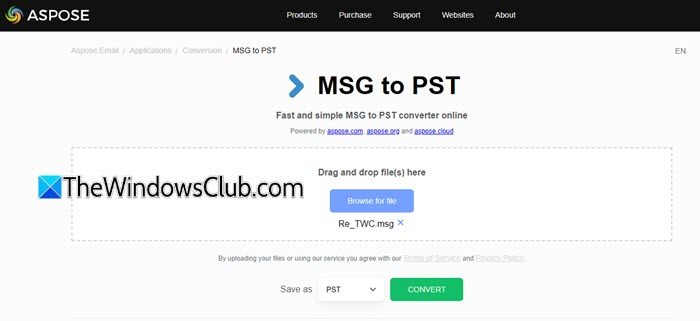
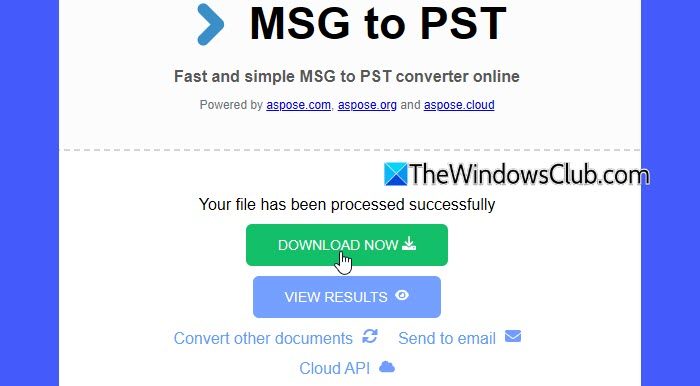
Once the files are uploaded, click the Convert button. The download link of the converted PST file will be available instantly after conversion.
You can download the PST file, share it via email, or preview output using the View Results button.
Note:
- Aspose uses cloud storage to process and store files. Converted files are stored online for up to 24 hours, after which they are automatically removed.
- There is no fixed limit on the number of conversions. The only restriction is the file size, which can be a few hundred megabytes.
- You can upload multiple MSG files at once. In such cases, the converted PST files are provided in a ZIP archive
- While Aspose states that it does not share your files or download links with third parties, we recommend avoiding online converters for sensitive or confidential emails. This is because your data is uploaded to a third-party server during the conversion process. For such data, using an offline tool is a safer option.
Zamzar is another well-known online file converter that supports converting MSG files to PST format.
4] Using a third-party software
There are plenty of software tools available that can convert MSG files to PST format. Here are some of the most popular MSG to PST converter tools available for Windows 11/10 OS:
- DRS Softech MSG Converter: Supports batch conversion of MSG files to PST and other formats such as EML, PDF, HTML, and more. It maintains folder structure and attachments and offers a preview of MSG content before conversion. Download it from here.
- Kernel MSG to PST Converter: A well-known tool that converts different types of MSG files [emails.msg, calendar.msg, tasks.msg, or notes.msg] into PST format. It supports bulk processing, previews message items, and preserves all email properties, attachments, and encoding. Download it from here.
- CubexSoft MSG to PST Converter: Another widely used tool that converts MSG files into PST and other formats such as EML, MBOX, PDF, HTML, and more. It supports batch conversion, preserves email metadata and attachments, and does not require Outlook to be installed on the system. Download it from here.
Note: Most of these tools offer a free demo version that lets you preview or convert a limited number of items. To unlock full conversion features or work with large mail archives, you need to purchase a license.
Steps to use third-party software:
Download and install the MSG to PST converter tool of your choice. Launch the software and select the MSG files you want to convert.
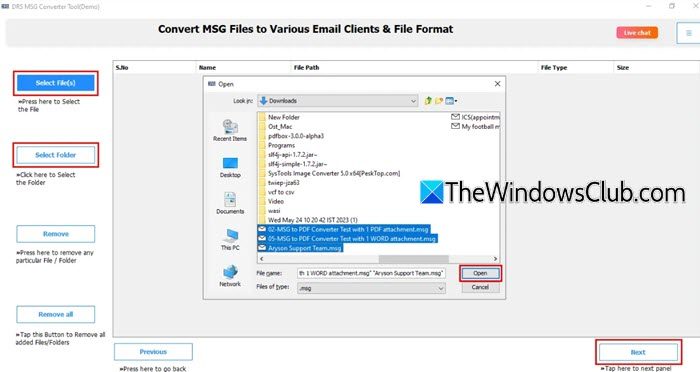
Choose PST as the output format. Select the destination where you want the PST file to be saved. Start the conversion process.
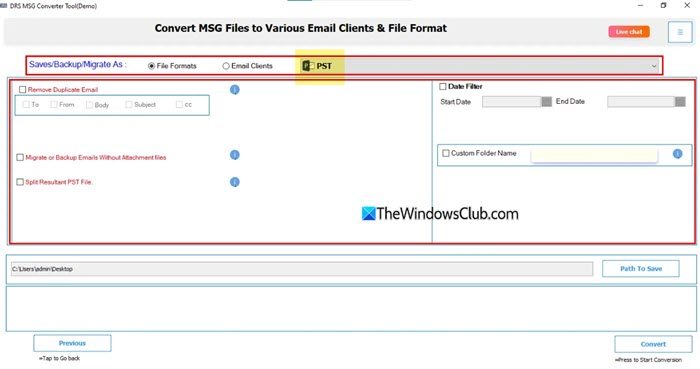
Once completed, open the exported PST file in Microsoft Outlook to view or import the emails.
That’s all! I hope you find this useful.
Read: Outlook disappears after importing PST file.
How to make a MSG File open in Outlook?
MSG files open in Microsoft Outlook by default when you drag them to the app’s interface. If they don’t, right-click the MSG file, select Open with, and choose Microsoft Outlook. You can also click Choose an app on your PC and set Outlook as the default app for opening .msg files. After this, MSG files will open in Outlook with a double-click.
How to convert Outlook MSG into PDF?
You can convert an MSG file to PDF using the built-in Microsoft Print to PDF feature. Open the file in Outlook, then click File > Print and select Microsoft Print to PDF as the printer. Save the file as a PDF when prompted. For bulk conversion, you can use online converters or third-party MSG conversion software.
Read Next: Stellar Viewer For PST: View contents of damaged Outlook PST Files.
