
Knowing who installed or removed software on your Windows computer can be helpful at times. Maybe you are trying to troubleshoot an issue, enforcing security policies, or just curious. However, Windows itself doesn’t offer a direct option to check who installed or removed software. However, there are ways that we have discussed briefly below.
How to check who installed or removed software in Windows 11/10
There are multiple ways to track who installed to removed software. However, you will need administrative permission to complete this task.
- PowerShell command
- Event Viewer
- Audit logging
1] PowerShell command
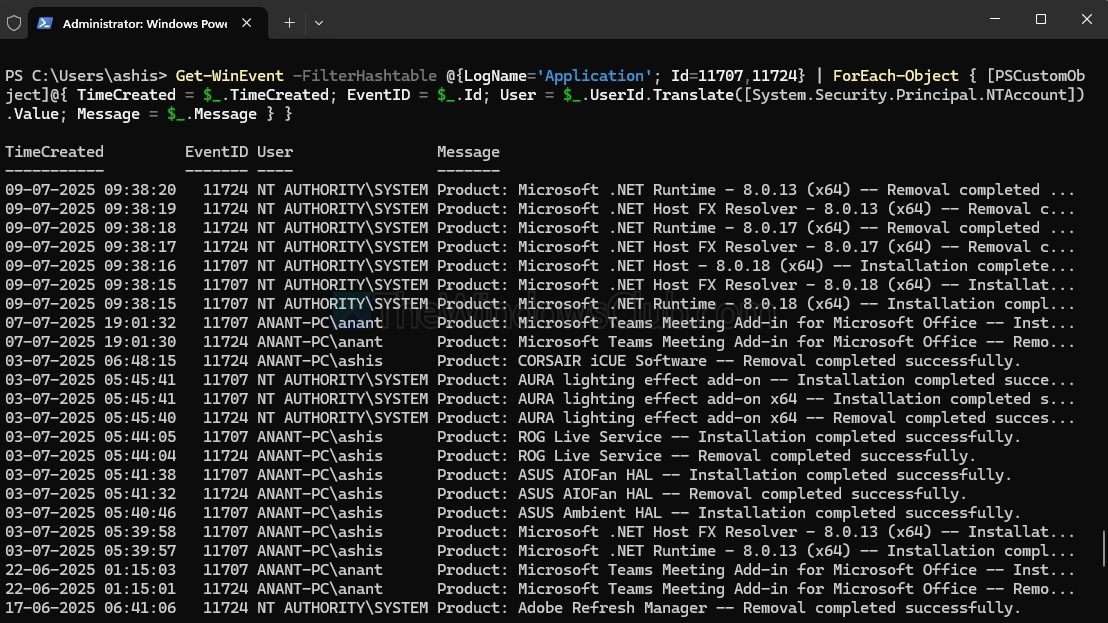
You can use a PowerShell command. It lets you filter and search logs efficiently.
- Right-click on the Windows icon and select Windows Terminal (Admin).
- Copy and paste the following command and press Enter:
Get-WinEvent -FilterHashtable @{LogName='Application'; Id=11707,11724} | ForEach-Object { [PSCustomObject]@{ TimeCreated = $_.TimeCreated; EventID = $_.Id; User = $_.UserId.Translate([System.Security.Principal.NTAccount]).Value; Message = $_.Message } }
2] Event viewer

One of the straightforward ways to know about software installation or removal is via Event Viewer, as it gives you detailed logs with user information.
- Press Windows key + R to open Run.
- Type eventvwr.msc and press Enter.
- From Event Viewer, go to Windows Logs > Security.
- Over here, look for these Event IDs such as 11707, 11724, 1033, 1034, and 1035, which are related to installation and removal.
- Open any of them, and check the Account Name field in the event details to know who acted.
3] Audit logging
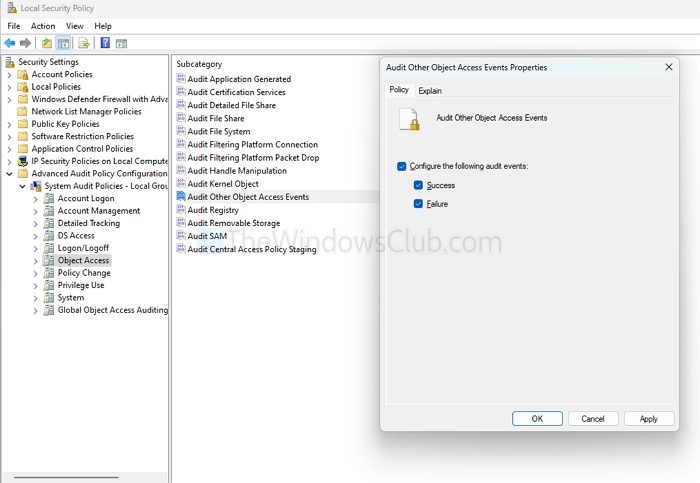
In case you want to know who installed or removed a software, you can enable audit logging in Local Security Policy settings. This will ensure that future events are captured.
- Open Run and type secpol.msc and press Enter.
- From Local Policy Editor, go to Advanced Audit Policy Configuration > System Audit Policies > Object Access.
- Over here, double-click on Audit Other Object Access Events and Audit Process Tracking, and enable them.
So those were a few ways to check who installed or removed software. While Event Viewer seems like a quick option, do know that event logs can be purged or overwritten. Therefore, ensure that you set up auditing first to obtain accurate results.
Read: What is Audit Success or Audit Failure in Event Viewer
Can admins track software installs/uninstalls using Group Policy across multiple computers?
If you’re managing a network via Active Directory, you can configure Group Policy settings to enable auditing and collect logs from multiple systems. By enabling “Audit process tracking” and “Audit other object access events” via Group Policy, and using log collection (like Windows Event Forwarding or a SIEM), you can monitor installation/uninstallation activity across your entire environment.
Can I find out what software was installed or removed at a specific date and time?
Yes, you can check the Application log in Event Viewer for Event IDs 11707 (install) and 11724 (uninstall), which include timestamps. You can also use PowerShell to filter these events by date to see what was installed or removed at a specific time.
