
If you want to change your default hard drive from C: to D:, read this post. We will guide you through the step-by-step process of doing this on a Windows 11/10 PC.
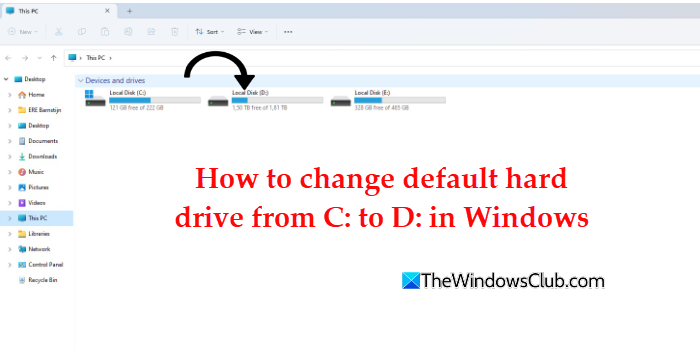
By default, Windows installs programs, saves files, and stores user data on the C: drive. When it fills up, the PC can slow down or even fail to install updates. By making another drive the default location for new files or apps, you can keep your C: drive uncluttered. However, there’s no single “change default hard drive” switch that affects everything. Instead, you have to use different settings for different types of data.
How to change default hard drive from C: to D: in Windows 11/10
To change your default hard drive from C: to D:, follow these steps:
- Change the default save location for apps and files
- Move user folders to D: drive
- Move installed Microsoft Store apps to another drive
- Change default install location for desktop apps
- Redirect the download location of your web browser
Let us see this in detail.
1] Change the default save location for apps and files
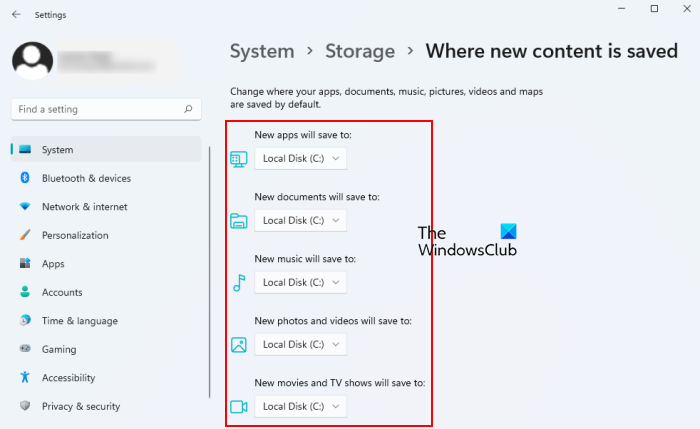
In Windows 11/10, you can tell the operating system where to store new apps and files by default. So, instead of saving everything to the C: drive, you can configure Windows to store new apps and files on the D: drive. By changing the default save location for apps and files, you can prevent your main drive from filling up quickly.
Press Win + I to open the Settings app. Go to System > Storage. Click Advanced storage settings under Storage management.
The section will expand. Click Where new content is saved. You’ll see the following options:
- New apps will save to:
- New documents will save to:
- New music will save to:
- New photos and videos will save to:
- New movies and TV shows will save to:
For each option, click the drop-down menu and select D:. Click Apply for each category.
Note: The above steps only change where new apps and files will be saved in the future. Existing files and folders remain on the C: drive unless you move them manually.
Read: Why does Windows install on the C drive?
2] Move user folders to D: drive
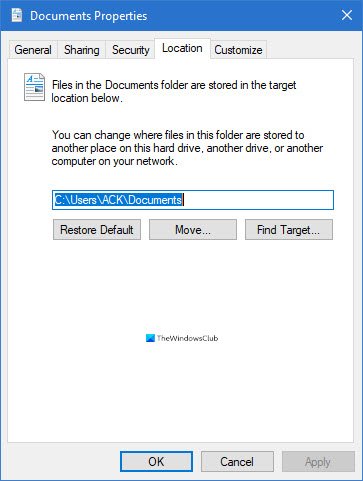
This method physically relocates your existing personal folders (Documents, Downloads, Pictures, etc.) to the D: drive and configures Windows to use the new location automatically for all apps. Here are the steps:
Press Win + E to open File Explorer. In the left pane, locate the folder you want to move (for example, Documents). Right-click the folder and select Properties.
In the Properties window, switch to the Location tab. Click Move…. A new window will open. Navigate to the D: drive, and either select an existing folder or create a new one (for example, D:\Documents). Click Select Folder to confirm your choice.
Back in the Location tab, click Apply. Windows will ask if you want to move all existing files from the old location to the new one. Choose Yes to continue.
Repeat these steps for other folders you want to move.
Note: Move only personal folders like Documents, Downloads, Pictures, Music, and Videos. System folders such as Windows, Program Files, and AppData must remain on the C: drive, as moving them can cause applications or Windows features to stop working correctly.
3] Move installed Microsoft Store apps to another drive
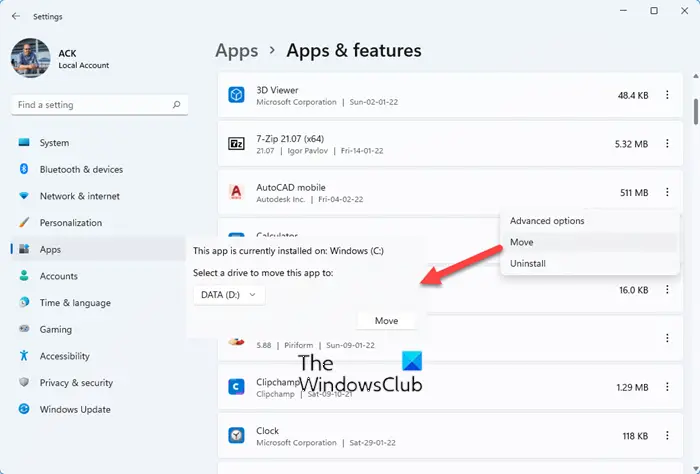
By default, Microsoft Store apps are installed on the C: drive. If you’re running low on space, Windows allows you to move many of these apps to another drive.
To move your Microsoft Store apps to the D: drive, follow these steps:
Press Win + I to open Settings. Go to Apps > Installed apps. Scroll through the list and find the app you want to move. Click the three-dot menu next to it and select Move. Choose D: drive from the list and click Move again. Windows will transfer the app to the new location.
You can also pick a Drive for installation in the Microsoft Store before downloading the app.
Note: You may notice the ‘Move’ option is greyed out for many apps. This is because the apps either don’t support moving or your system setup doesn’t meet the required conditions.
4] Change default install location for desktop apps
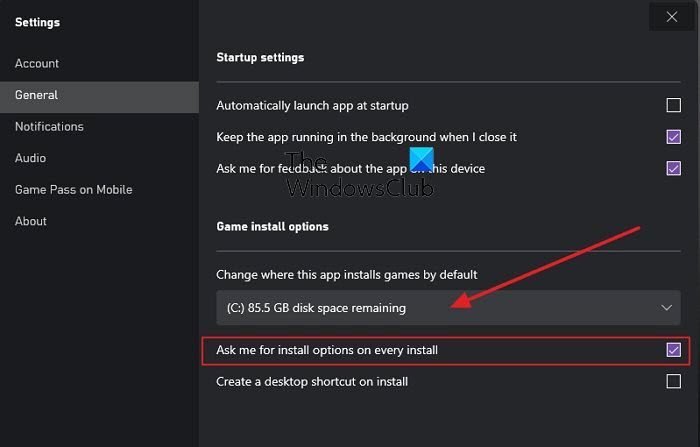
When you install a desktop app, it usually installs on the C: drive by default. However, some installers let you change this during setup.
During installation, look for a Custom Install or Advanced option, and then select a folder on the D: drive.
For game launchers like Xbox, Steam, Epic Games Launcher, or Battle.net, you can set up a separate library folder on the D: drive in their settings. New games will then install there automatically.
5] Redirect the download location of your web browser
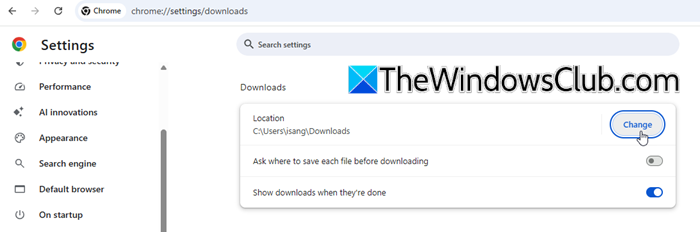
If you’ve already moved the Downloads folder to the D: drive using the Move user folders method, most browsers will automatically use the new path. However, if you have previously set a custom download location inside your browser’s settings, you’ll need to update it manually to point to the D: drive.
Microsoft Edge / Google Chrome: Open your browser and click the three dots in the top-right corner. Go to Settings > Downloads (in Edge) or Settings > Advanced > Downloads (in Chrome).
Under Location, click Change and select a folder on the D: drive.
Firefox: Click the menu button (three lines) and go to Settings > General. Under Files and Applications > Downloads, select Save files to, then Browse to pick a folder on the D: drive.
Note: This only affects new downloads. Already-downloaded files will stay in the old folder unless you move them manually.
I hope you find this useful.
Read: Microsoft Store apps not working or opening in Windows 11.
How to install Windows on D drive instead of C drive?
During Windows Setup, choose “Custom: Install Windows only (advanced)” and then select the D drive/partition you want for installation and click on Next to continue. If your current Windows is on C:, installing on D: will create a dual-boot system unless you format C:. If you want only one Windows installation, you must remove the old one. You should know that Windows always assigns the system drive as C: after installation, even if you choose another partition. So your new Windows on “D:” will likely become “C:” once installed.
How to make D drive default download windows 11?
You can make Windows save downloads to the D: drive by moving the Downloads folder. Right-click Downloads under This PC in File Explorer, choose Properties > Location, and set it to a folder on D:. Windows will then prompt to move existing files. Once done, all future downloads will go to the D: drive automatically.
How do I change the default install to D drive?
By default, Windows installs apps to the C: drive. To change this, go to Settings > System > Storage > Advanced storage settings > Where new content is saved. Select D: drive under the New apps will save to dropdown. For desktop apps, check if the installer provides a Custom/Advanced option and select D: during setup.
Read Next: Move or change location of OneDrive folder in Windows.
