
Games take up a lot of space, and if you are running out of space on the System Drive, here is how you can change the default location where the Xbox App installs games. You will have to take a two-step approach to set it up, but once done, you will not have to worry about space.
What is the Xbox App on Windows?
Xbox App is the primary app that makes it easy to find and install games. While the Microsoft Store remains in the background, most games can be managed through the app. The app also makes it easy to view all the games, progress, earned XP, and more. That said, with Windows installed, applications and OS files mostly occupy the primary storage, and with Games taking up so much space, performance can slow down. So it’s better to have a large dedicated partition for games alone.
Change default location of where Xbox app install games
The first step is to change the default location for installing games. The default location is set to C drive or the system drive. So when you change the location and install another game, it will install in a different location. Make sure to choose a driver that offers good read-write speed for better performance.
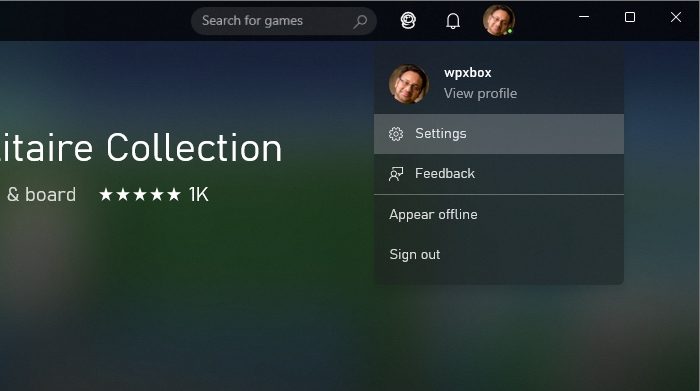
- Open the Xbox App
- Click on your Profile picture > Select Settings
- In the Xbox Settings, go to General Section > Game install options
- Assuming you have another partition, click on the drop-down and change it to another drive
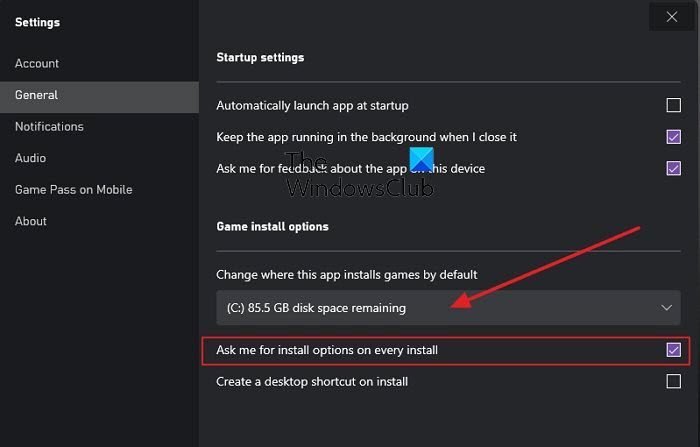
Taking one step further, if you have multiple partitions and enough space, you can set one more thing. Under game install options, check the box which says— Ask me for install options on every install.
Now, the next time you install a game, it will prompt you to choose where to install it.
Change Location of Existing Xbox Games
The second step is to move existing games to a different location so the System Drive has more breathing room and the games can expand if needed.
Go to Windows Settings > Apps > Apps & features. Click on the three-dot vertical menu > Advanced Options. Look for the option that lets you move the app from one location to another on the next screen. Once moved, all shortcuts and entries will be updated so there are no broken links.
Read: How to transfer Xbox One Games and Apps to External Hard Drive
Xbox app installing games to external hard drive
If the Xbox app is installing games to your external hard drive, first check that the drive is properly connected and formatted as NTFS. Then, open the Xbox app settings and confirm the default install location is set to the external drive. Make sure the drive has enough free space and isn’t set to “read-only.” If issues persist, disconnect and reconnect the drive or restart your PC to refresh recognition. Finally, try reinstalling the Xbox app or reassigning the install location through Windows storage settings.
Can you store Xbox game pass games on the external hard drive?
Yes, you can move any game to an external HDD if the developer has allowed it. It also applies to any app, and all of them work. That said, ensure the hard drive is connected to when you want to play the game. That said, it doesn’t mean you will be able to plug and play the game on any PC. Ensure the external drive has a capacity of 256 GB and uses a USB 3.0 connection.
Can you play Xbox games on a PC without an Xbox?
If the Xbox Game is also available for PC, you can play the Xbox Games on PC as well. However, you will need a different subscription to play the games on PC. However, if you have an Ultimate Xbox Game Pass, you don’t have to buy a separate subscription.
