
Hibernation lets you save the current state of a virtual machine to the operating system disk, allowing seamless restoration when needed. However, we’ve observed that in certain setups, especially when virtualization features are active, hibernation fails to function as expected. In this post, we will explore what to do when hibernation is not working when virtualization is enabled on your Windows computer.
Virtualization features like Virtual Machine Platform, Hyper-V, and HVCI disrupt hibernation by locking essential system resources and enforcing strict memory protection. Hypervisors reserve CPU and RAM, making it impossible for the OS to capture a complete system snapshot. Security tools such as Memory Integrity and Virtualization-Based Security continuously guard memory, interfering with the way hibernation stores system state. Some services, like the Hyper-V Guest Shutdown, can also block components required for hibernation.
Additionally, security protocols such as memory integrity and virtualization-based security keep memory constantly protected, which clashes with the mechanism hibernation uses to store memory data. Certain services and drivers linked to virtualization, such as the Hyper-V Guest Shutdown Service, can also block the components on which hibernation depends.
To make matters more complicated, improper configuration of system files, such as having too little space or placing the hibernation and swap files on the wrong drive, can further disrupt the ability to save the system’s state. All these factors combine to make hibernation unreliable or entirely unavailable when virtualization features are active.
Hibernation not working when virtualization is enabled
If Hibernation is not working when virtualization is enabled on your Windows computer, you can follow the solutions mentioned below.
- Disable HVCI (Memory Integrity)
- Disable Non-essential virtualization features
- Upgrade OS for HVCI Compatibility
- Repair Azure Hibernation Extension
Let us discuss them in detail.
1] Disable HVCI (Memory Integrity)
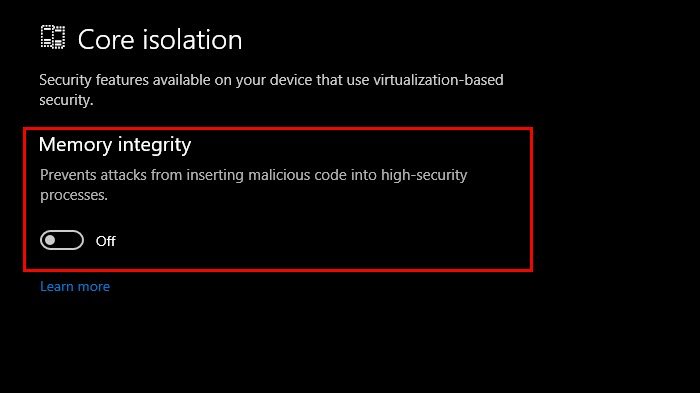
HVCI restricts memory access during hibernation; therefore, disabling it removes this barrier. You can follow the steps mentioned below to do the same.
- You need to search and open Windows Security from the Start Menu.
- Now, go to the Device Security > Core isolation.
- You then have to toggle off “Memory Integrity”.
- Finally, reboot your virtual machine.
Hopefully, this will do the job for you. Please note that if security compliance is critical, you may want to avoid disabling Memory Integrity, as it will make your system vulnerable.
2] Disable Non-essential virtualization features
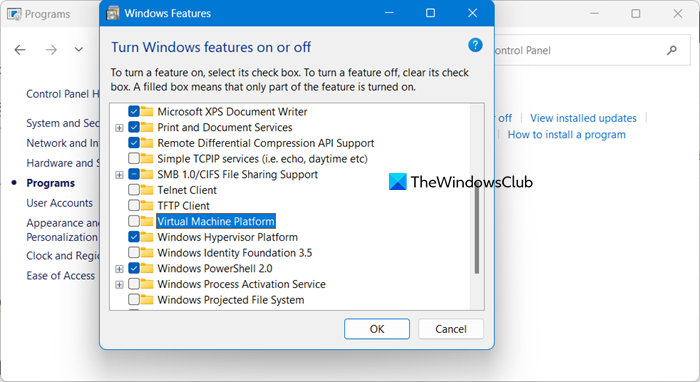
This solution works when Hibernation fails when Virtual Machine Platform (VMP) is enabled. VMP reserves CPU and memory for virtualization, preventing the OS from capturing a full system snapshot during hibernation. Therefore, in this solution, we will disable VMP, which removes these conflicts, allowing the OS to regain full hardware control for hibernation. You can follow either of the methods mentioned below to do the same.
Using GUI
On a Windows computer, search optionalfeatures.exe, and open it. Then, uncheck Virtual Machine Platform and click Ok.
Using PowerShell
# Disable VMP feature

Disable-WindowsOptionalFeature -Online -FeatureName VirtualMachinePlatform

# Force-disable Fast Startup (often re-enabled by VMP)

powercfg /h off

powercfg /h on

# Restart to apply changes

Restart-Computer -Force
Finally, check if the issue persists.
3] Upgrade OS for HVCI Compatibility
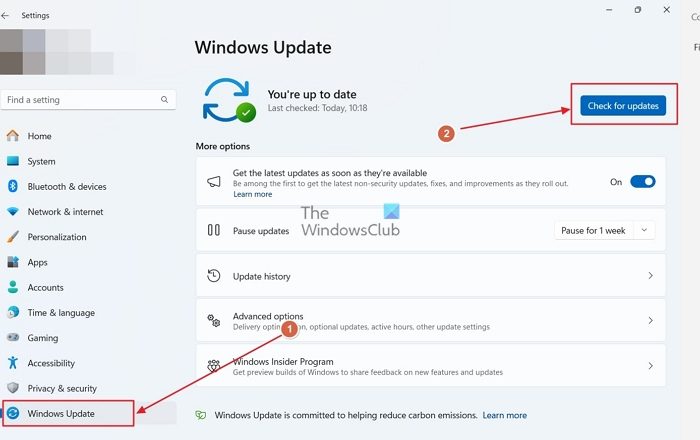
If you read the first solution, we asked you to disable Memory Integrity. Even if it works, it can not be your permanent solution, as that would make your system vulnerable. Therefore, we recommend that you upgrade your OS for HVCI Compatibility. HVCI (Hypervisor-Protected Code Integrity), also known as Memory Integrity, conflicts with hibernation in older Windows builds because it enforces strict memory access controls, blocking hibernation’s ability to capture RAM contents, lacks the necessary driver support for saving/restoring secured memory states during hibernation, and prioritizes security over compatibility, hence, disabling hibernation. To resolve this issue, we recommend you check for updates and download the latest one.
Read: Azure Virtual Machine Agent Status is not ready
4] Repair Azure Hibernate Extension
Azure VMs use the AzureHibernateExtension to manage hibernation states. If this extension fails, and there is an improper hibernation, the metadata prevents resume detection. You can repair the Azure Hibernation Extension using the following Bash command.
The following command will show you the status of the extension.
az vm extension show \
  --resource-group <your-resource-group> \
  --vm-name <your-vm-name> \
  --name AzureHibernateExtension
If the output is something like “statuses.message”: “Hibernation not enabled”, your Extension is not activated.
To repair the extension, run the following command.
az vm repair run \
  --resource-group <your-resource-group> \
  --vm-name <your-vm-name> \
  --run-id win-hibernate
Post-repair, run the following command to validate.
# Start VM
az vm start --resource-group <group> --name <vm-name>
# Trigger hibernation from inside VM (via RDP)
shutdown /h
# Check resume status
az vm get-instance-view \

--resource-group <group> \

--name <vm-name> \

--query "instanceView.statuses[?code=='PowerState/hibernated']"
Finally, check if the issue is resolved.
Hopefully, with the help of these solutions, your issue will be resolved.
Read: Azure Virtual Machine (VM) is shutting down or stopping unexpectedly.
How do I enable hibernation on AVD?
To enable hibernation (Quick Boot) on an Android Virtual Device (AVD), you need to edit your AVD’s config.ini file (found in ~/.android/avd/<AVD_NAME>.avd/). Add or update the line fastboot.forceColdBoot = no to allow the emulator to save/restore snapshots. When closing the emulator, select “Save Quickboot Snapshot” to enable hibernation-like state restoration on next launch. This uses snapshot saving instead of a true OS hibernation.
Also Read: Cannot connect to VM (Azure VDI VM) using RDP.
