
The Azure VM Agent enables VMs to communicate with Azure’s underlying Fabric Controller via the virtual public IP 168.63.129.16. However, when VMs are migrated from on-premises or deployed from custom images without the agent pre-installed. Due to this, we notice that the virtual machine gives the following error message.
VirtualMachineName virtual machine agent status is not ready. Troubleshoot the issue
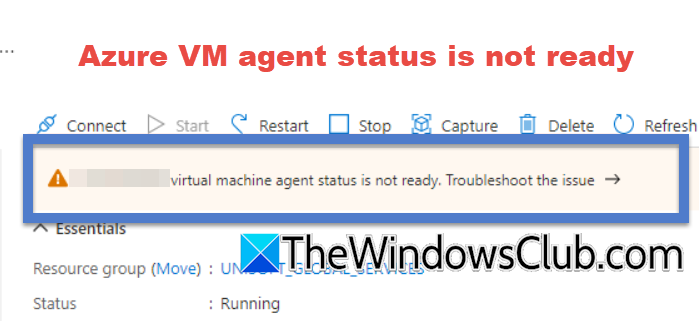
Troubleshoot Virtual Machine Agent Status is not ready
Usually, after migrating on-premises VMs, performing a post-maintenance reboot, or deploying custom images, the virtual machine agent may encounter an issue and display an error message stating that the status is not ready.
If the Azure VM agent status is not ready, follow the solutions mentioned below.
- Check if the VM or its agent has started
- Check the Guest Agent service status
- Install Guest Agent Service
- Reset the Sysprep state of the VM and update the VM
- Redeploy and reapply VM
Let us talk about them in detail.
1] Check if the VM or its agent has started
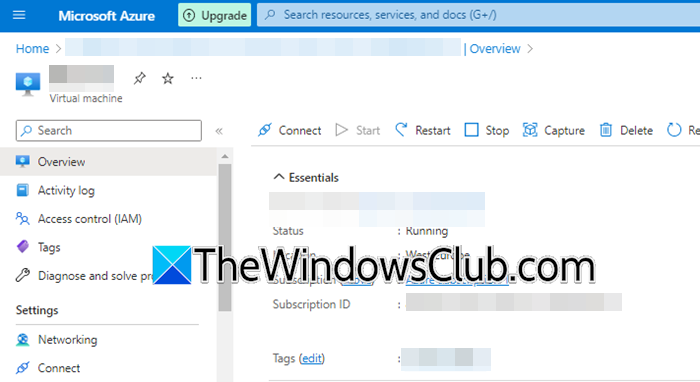
First of all, we need to check if the virtual machine or the agent has started. Let us go ahead and open the Azure Portal from portal.azure.com. You can go through the list of virtual machines, select the problematic VM, and then select Overview. If the virtual machine is not running, click on the Start link.
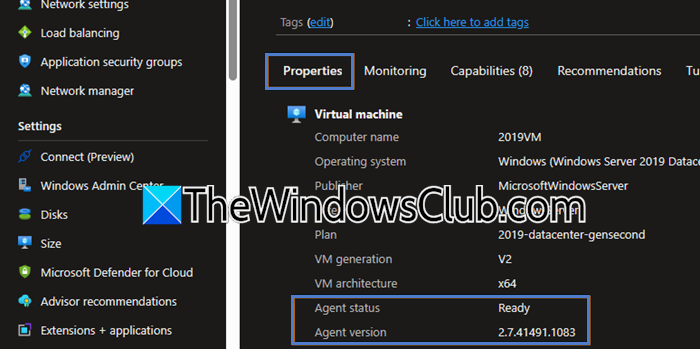
Also, go to the Properties tab and check the Agent status. If the status was Ready, but you encountered this issue, try going to learn.microsoft.com, as there is an issue with your virtual machine extension.
2] Check the Guest Agent services status
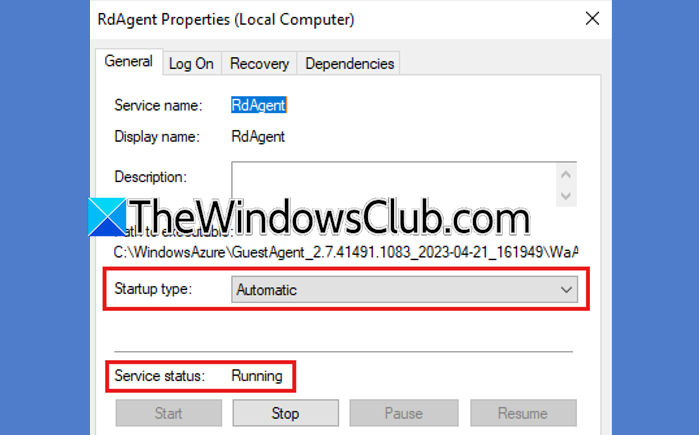
This method only works if you can connect to your virtual machine using RDP. If you can do that, then open the Services app, look for RdAgent, right-click on it, and select Properties. Now, check the Startup type to Automatic and make sure that the Service status is Running. If the service is not running, click on Start. Make sure to check the WindowsAzureGuestAgent service as well.
If the services don’t exist, the Guest Agent probably isn’t installed. You need to manually install the agent. Refer to the next solution for a similar approach.
3] Install Guest Agent Service
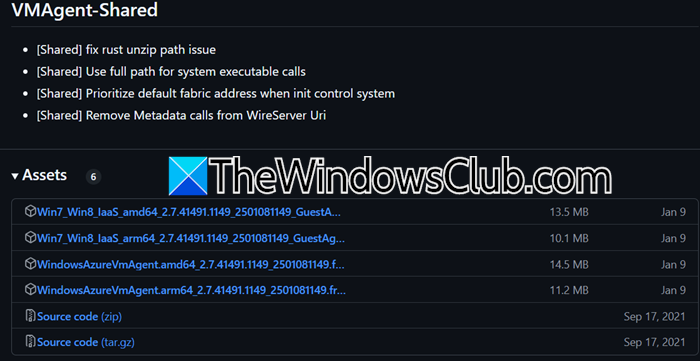
If the Guest Agent Service was not pre-installed, we need to install it manually. First of all, go to github.com and download the latest MSI Installer file. Once downloaded, we need to run the installer on your virtual machine.
To do so, open PowerShell as an administrator and then run the following command.
msiexec /i WindowsAzureVmAgent.msi /quiet /qn /norestart
Once done, check the status of guest agents as mentioned earlier. Hopefully, it will do the job for you.
4] Reset the Sysprep state of the VM and update the VM
Sysprep generalizes virtual machines but can break agent registration. If you have an outdated agent, it may fail to self-heal after sysprep. Therefore, we are going to remove registry residue to clear the corrupted state. And then force an update.
To remove Sysprep registry residue, run the following command in PowerShell.
Remove-ItemProperty -Path "HKLM:\SYSTEM\Setup" -Name "SysprepStatus" -ErrorAction SilentlyContinue
Now, you need to re-register the agent with Azure Fabric.
cd "C:\WindowsAzure\GuestAgent_*\"
.\AgentService.exe /ForceUpdate
Restart-Service RdAgent -Force
Finally, check if the issue is resolved.
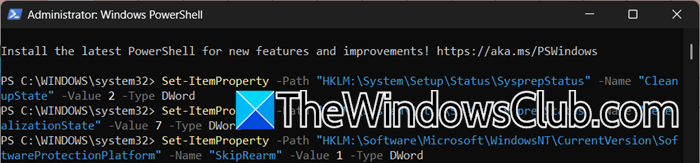
If this doesn’t work, you can try running the following commands in PowerShell (admin).
Set-ItemProperty -Path "HKLM:\System\Setup\Status\SysprepStatus" -Name "CleanupState" -Value 2 -Type DWord
Set-ItemProperty -Path "HKLM:\System\Setup\Status\SysprepStatus" -Name "GeneralizationState" -Value 7 -Type DWord
Set-ItemProperty -Path "HKLM:\Software\Microsoft\WindowsNT\CurrentVersion\SoftwareProtectionPlatform" -Name "SkipRearm" -Value 1 -Type DWord
Essentially, we are setting up CleanupState and GeneralizationState under SysprepStatus and SkipRearm under SoftwareProtectionPlatform as they are required when configuring SysPrep.
This should do the trick for you.
5] Redeploy and reapply VM
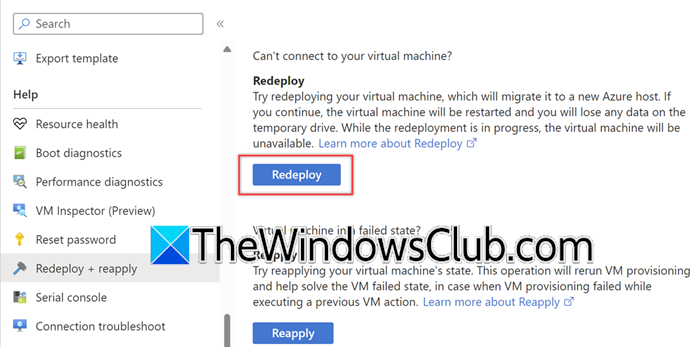
If you are still experiencing issues with the VM agent, we will proceed with redeploying the agent, which resolves underlying hardware or network issues by migrating your VM to a healthy Azure host.
Follow the steps mentioned below to do the same.
- Go to the Azure Portal.
- Now, you need to select the problematic virtual machine.
- Go to the Help section, select Redeploy + reapply, and then select Redeploy to migrate it to a new Azure host.
- You can also click on Reapply, as it fixes platform-level configuration drift without host migration.
Once done, reboot your virtual machine. Hopefully, this will do the job for you.
We hope that you will be able to resolve the issue using the solutions mentioned earlier.
Read: Azure Virtual Machine (VM) is shutting down or stopping unexpectedly
How to fix Azure VM agent status not ready?
If the Azure VM is not ready, first verify the VM is running in the Azure Portal and check the agent status; restart if stopped. For accessible VMs, ensure RdAgent and WindowsAzureGuestAgent services are running (set to Automatic). If missing, manually install the agent via PowerShell. For Sysprep-related failures, reset registry states (CleanupState=2, GeneralizationState=7, SkipRearm=1) and force agent updates. Finally, redeploy the VM to migrate hosts or reapply its state via the Azure Portal to resolve underlying hardware/network issues. You can follow the guide mentioned earlier to know more.
Read: In-place upgrade is not supported on Azure Virtual Machines
How to troubleshoot Azure Monitor Agent?
To troubleshoot Azure Monitor Agent, first verify network connectivity to Azure endpoints (port 443/TCP) using Test-AzConnectivity or Test-NetConnection to ensure communication with Log Analytics. Next, check agent health via PowerShell (Get-AzConnectedMachineAgent -ResourceGroupName <RG> -Name <VM>) for status errors, and validate Data Collection Rules (DCRs) in Azure Portal to confirm proper association with the VM. Inspect agent logs (C:\Packages\Plugins\Microsoft.Azure.Monitor.AzureMonitorWindowsAgent\*\Status\*.json Windows and /var/log/azure/Microsoft.Azure.Monitor.AzureMonitorLinuxAgent/ on Linux) for errors like throttling or credential failures. If issues persist, reinstall the agent or redeploy DCRs.
Also Read: Enable Hotpatch for Azure Edition virtual machines built from ISO.
