
Some Windows laptops, particularly the newer models that come with NVIDIA RTX series GPUs, have been experiencing issues where their headphone jack does not function properly. However, internal speakers continue to work fine. Even with the latest versions of all the drivers, this problem persists. This issue primarily occurs on laptops made by MSI. Since no reliable fix or workaround has been officially announced by the company, we will examine some methods you can use to resolve this issue. In my troubleshooting process, my MSI laptop was running an up-to-date Windows 11 copy.
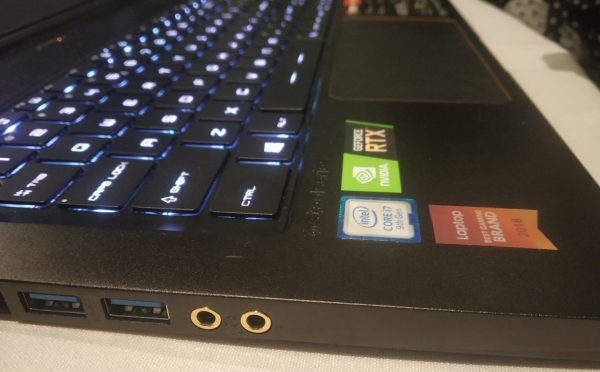
Why are my headphones not working on my Windows laptop?
Dust and dirt could cause this issue, so check the connection between the jack and the headphones, and clean the jack using a cotton swab dampened with some rubbing alcohol. Plug the headphones back in and see if they work.
Headphone jack not working on laptop
The following working fixes will help you if the Laptop Headphone jack not working in Windows 11/10:
- Force reboot your computer
- Clean the headphone jack and plug it again properly
- Update your Audio drivers
- Set the headphone as default
1] Force reboot your computer
This method has turned out to be the most effective of all. Especially for the MSI Laptops.
It is really simple. Ensure that all unsaved work on your computer is saved before proceeding with this method.
Turn on your computer and press and hold the power button for at least 30 seconds in a single go.
Ignore the screen flashing or making any changes.
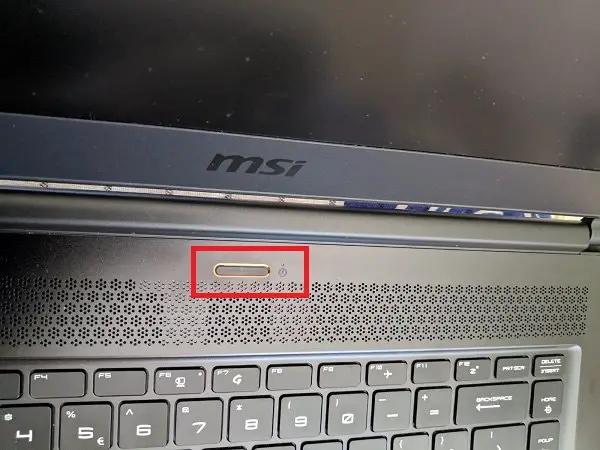
Plug out and plug in your computer and turn it on automatically. It should work perfectly fine.
This is an unconventional solution, but it has proven to be effective consistently.
Read: Front Audio Jack not working.
2] Clean the headphone jack and plug it again properly
You can use a cotton swab to clean the headphone jack. There might be chances that some dust might have settled in the port, resulting in bad or no audio. Also, you can try to change the headphones.
3] Update your Audio drivers
The best resort could be updating the drivers of your computer – Especially the Audio driver. For my MSI laptop, i visited the MSI’s official website to download the latest version of drivers from them.
There might be chances that an updated BIOS or Audio driver might have fixed this issue. So, if any updates to your drivers are available, consider downloading and applying them on your computer to fix this issue.
Read: Fix Headphones not working or detected in Windows
4] Set the headphone as default
Right-click on the speaker icon in the system tray and select Open Sound Settings.
On the rightmost column, select the Sound Control Panel.
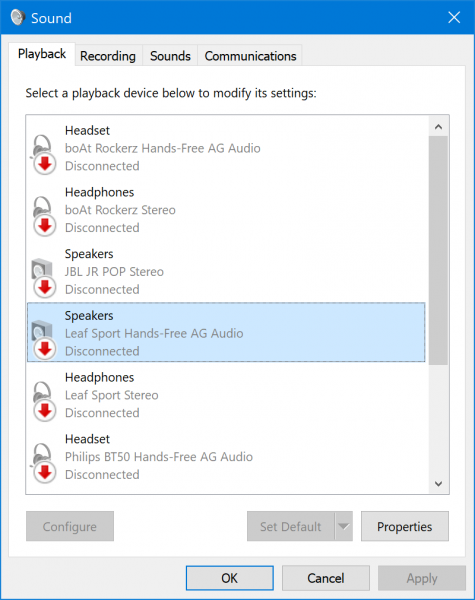
It will open a new mini window.
Under the tab of Playback, select your headphone and click on the Set default button.
Select Apply and then click on OK.
It should get your headphones working totally fine.
All the best!
How do I force my Windows to use headphone jack?
To force Windows to use the headphone jack, restart your PC and reconnect your headphone jack. Also, update or reinstall your audio driver. You should also check your sound settings to make sure the headphones are selected as the default output device.
