
A lot of users when trying to play multiplayer in Halo Master Chief Collection are seeing the following message:
CONTACTING SERVER
Contacting server to get the latest matchmaking data.
Please wait.
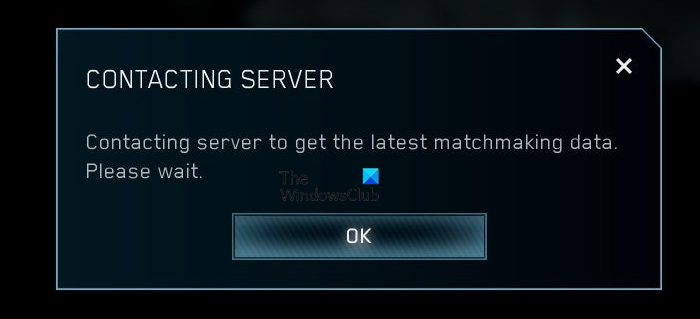
According to the message, it should collect the data and allow you to play the game. But unfortunately, that is not happening. This is a loop that most gamers are stuck in. In this article, we will address this issue. If you see “Contacting Server” in Halo: Master Chief Collection, follow the solutions below.
Why is Halo Master Chief Collection stuck on Contacting Server?
Usually, Contacting Server appears due to a profile glitch. Don’t confuse it with Profile corrupted, your Profile is not corrupted, so, there won’t be any loss of data or progress. This is nothing serious, you will see why.
Since we are discussing multiplayer gaming, slow Internet speeds cannot be ruled out. In addition to slow Internet, there are other network issues, such as DNS or IP glitches, problems with the Router or Network Devices, etc.
Finally, there may be additional issues with the game or the computer. We will discuss all of this in detail. So, let us hop into it.
Halo Master Chief Collection stuck on Contacting Server
If you are seeing Halo Master Chief Collection Contacting Server error message, then try the solutions given below:
- Check your Internet Connection
- Log out and Log In
- Disable or Enable VPN
- Release TCP/IP, Flush DNS, Reset Winsock
- Verify Integrity of Game Files
Let us talk about them in detail.
1] Check your Internet Connection
Let us start with one of the most common solutions. Your Internet Speed is critical if you are trying to play a multiplayer game. First of all, check your bandwidth with the help of an Internet Speed tester. If it is slow, you should restart your Router and other network devices. In case restarting is to no avail, contact your ISP and ask them to resolve the issue. Also, check out our guide to resolve slow Internet.
2] Log out and Log In
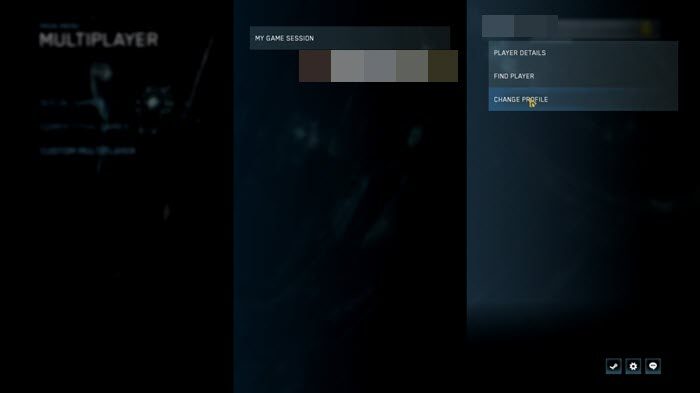
As mentioned earlier, the issue may be due to a profile glitch. The only thing you need to do to resolve this issue is log out and then log back in. Open your game and then click on Gamertag > CHANGE PROFILE. This will sign you out. Please log in with your credentials. This will resolve the issue for you. You can also, sing out and sing from the Xbox Game Bar, both will do the work for you.
Hopefully, this will resolve the issue for you.
3] Disable or Enable VPN
One half of the heading may sound a bit counterintuitive to the other, but what we are trying to say is, if you are connected to a VPN, try disconnecting it. Then check whether the issue persists. If you were not using a VPN, try a good gaming VPN and see if it resolves the issue.
4] Release TCP/IP, Flush DNS, Reset Winsock
You can see the error message because of a network connection issue. What you can do is release TCP/IP, Flush DNS, Reset Winsock from the Command Prompt. Open Run (Win+R) and execute the commands one by one.
ipconfig /release
ipconfig /renew
ipconfig /flushdns
ipconfig /registerdns
netsh winsock reset
Wait for the process to complete and hopefully, this will resolve the issue for you.
5] Verify Integrity of Game Files
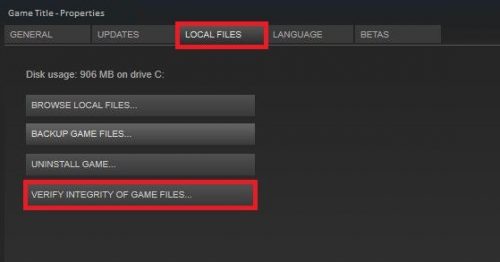
You may be wondering why this is so low down the list. That’s because, usually, if the game files are corrupted, your game will not open. However, there are instances when a file in your game may become corrupted or go missing. And maybe that is why you are seeing a loop. Please follow the steps below to verify the Integrity of the Game Files and see if that helps.
- Open Steam.
- Go to LIBRARY.
- Right-click on your game and select Properties.
- Click on LOCAL FILES > VERIFY INTEGRITY OF GAME FILES.
Hopefully, this will resolve the issue for you.
How do you chat in Master Chief Collection?
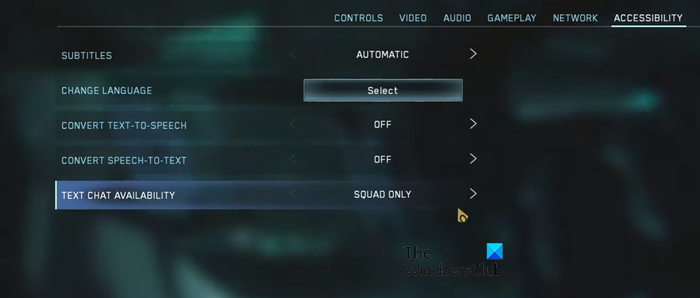
To use the chat feature in the Master Chief Collection, you have to enable the options from the Settings. There are Voice Chat and Text Chat, you can enable both or either of them. Follow the given steps to do the same.
- Open the game and click on Options & Career from the homepage.
- Click on SETTINGS.
- Go to Audio and change the Voice Chat Channel to All, Squad, or Team.
- Then go to Accessibility, and change the Text Chat Availability to All Players, Squad Only, or Team Only.
You can also enable settings such as Convert Text-to-Speed or Speed-to-Text from the Accessibility tab.
Read Next: Optimize Halo Infinite for best Performance on PC.
