
Like any other OS, Windows 11 has its set of problems, but it also comes with a great community and built-in features that help to report those problems. While you should always reach out to experts wherever possible, it is also a good idea to report for anything you face. This guide will show you how to send feedback or report complaints about Windows 11 to the Microsoft team using the Feedback Hub app..
What is Feedback HUB in Windows 11?
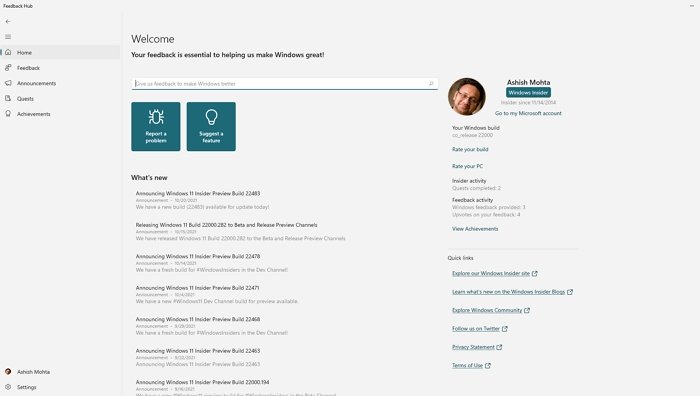
Feedback HUB is an application in Windows that allows users to send their feedback. You can quickly launch it by pressing the WIN key + F but don’t be surprised, as using a keyboard will ask you to input feedback. Also, attach a screenshot of the screen.
Feedback Hub app in Windows 10
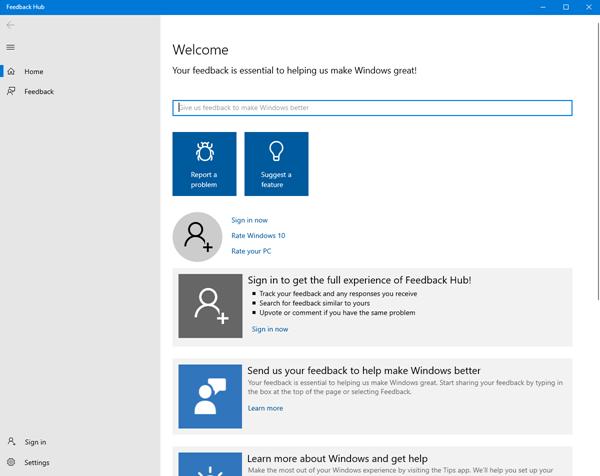
The Windows 10 Feedback Hub App can be launched in the following two ways:
- Click on Windows icon to open the Start Menu
- Click All Apps
- Look for Feedback Hub
- Click on Feedback Hub to launch it
The other method is to type Feedback in the text box on the Windows 10 Taskbar. It will show the Windows Feedback Hub app among other results. Click on it to launch it.
That said, when you launch it from the Start menu, you get a dashboard that guides you through its use. You can search for your problem, learn how to use it, browse the category, and suggest a problem. Therefore, it serves as a central repository for all problems and recommendations that can help Microsoft enhance the user experience.
Feedback HUB offers four broad sections. It includes Feedback, Announcements, Quests, and Achievements. While the last two are designed to help users discover more features and earn points, the former two are helpful.
Send feedback about Windows 11 to Microsoft
While you can send feedback at any time, if you press Win+F as soon as you encounter the issue, the Feedback Hub can also capture a screenshot. However, before you submit, searching for the existing report is a better idea.
Find if your problem has been reported already, and upvote

There is a bright chance that someone has already reported the issue you are facing, which can save a lot of time. Be aware that it will be merged to the first or the most prominent report even if you report it again.
- When in Feedback HUB, click on the Search bar, and type the problem you are facing.
- In the result, look for matching results.
- The next step is to narrow down by using filters and categories.
- If you notice a problem that is close or exact, then you can upvote it.
- If you found a close match but not the same, click on the Give similar feedback link and create a new one.
How to Add a New Feedback
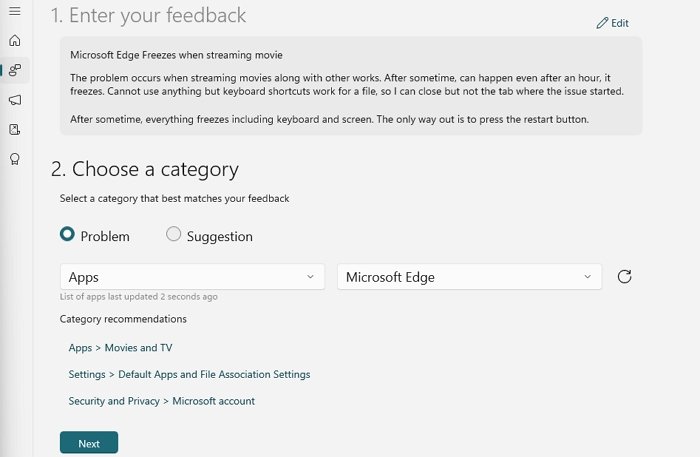
If you are sure that your problem has not been reported, you can submit new Feedback. Follow the steps below:
- Click on the Give new feedback button
- It will open a new form where you can fill in the details about the problem.
- In the Summarize your feedback, add a title
- Then in the following box, enter exhaustive information about it.
- Once done, click on the Next button and then choose a category.
- First select the Problem, then Apps, and select the app with which you have the issue. Then click on the Next button again.
- It will then reveal matching feedback. If there is no match, click on the Next button.
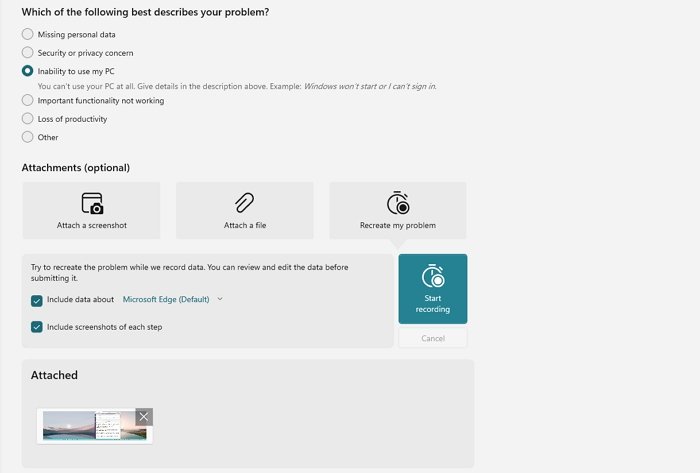
- The next thing the feedback hub will ask you is a Screenshot or attached file for reference or Recreated the Problem.
- While screenshots and attaching a file are very simple, Recreating a problem is going to It will ask you to redo the steps and record the whole event.
- Once complete, submit the feedback.
These should be enough to help you figure out to send feedback about Windows and your experience to Microsoft.
Read next: How to report bug, issue or vulnerability to Microsoft.
Browsing through others’ feedback, suggestions, and complaints
When you open the Feedback Hub App, you will be presented with feedback, suggestions, and complaints from other users. The sorting order, by default, would be based on the trending topics, i.e., users browsing for similar topics.
If you are an Insider, on Insider Builds, you may see this app:
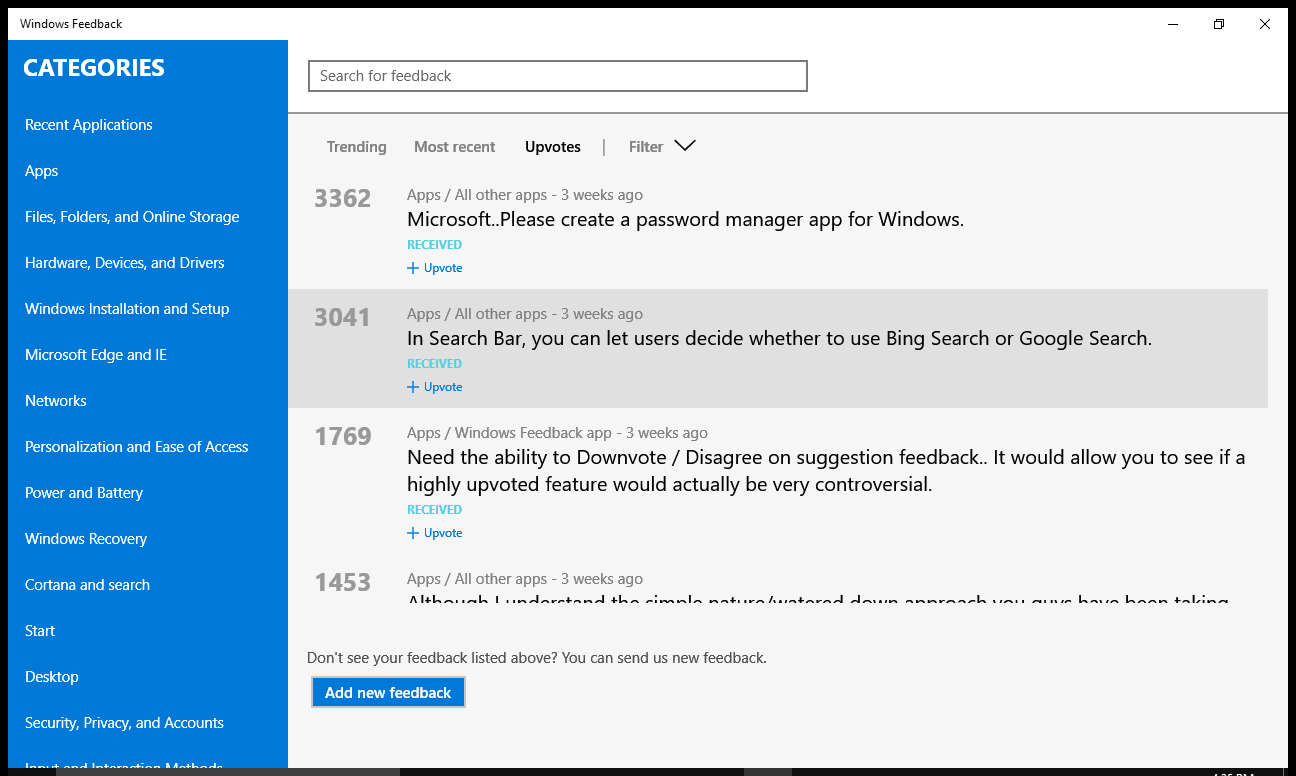
You can select categories in the left panel to view feedback and suggestions about that category. For example, if you wish to complain or suggest a feature for Edge, you might want to check if such a complaint or feature request has not already been posted to the Windows team.
In that case, you have to click on Edge. The right panel will again display a list of suggestions, complaints, or feature requests from other users. Browse through them or use the search box to see if a feature request or post similar to what you have in mind is already there. If it is not there, you can go ahead and submit your own suggestion, feedback or feature request.
Just click on the Add New Feedback button at the bottom of the right panel in the Feedback App. You will be presented with a page containing a text box where you can type whatever you want. You will then have to select the category and subcategory for the text you typed. This will help narrow down search results for other users and direct your feedback to the right person on the Windows 11/10 development team.
Upvoting on Similar Feedback
If what you want to say is already present in the Windows Feedback App, you need not create a new suggestion or feedback. You can click on the suggestion or feedback to open it and then click on Upvote. Remember that issues with more upvotes will receive higher priority, so there is no need to create a separate feedback post that may not receive many upvotes.
How to send Windows 11 Activation Error Reports
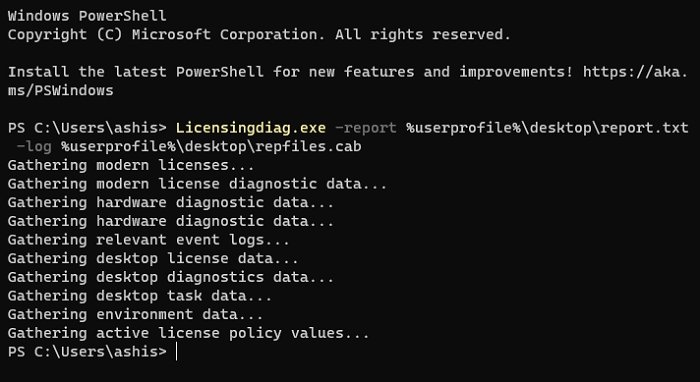
If you have a genuine copy of Windows but are still receiving activation errors, you can submit a report to Microsoft about the issue. Ensure you have run the Windows Activation Troubleshooter at least once before sending the report.
- Open Windows Terminal and execute the following command
Licensingdiag.exe -report %userprofile%\desktop\report.txt -log %userprofile%\desktop\repfiles.cab
- You can then connect with Microsoft Support and submit this file to their chat support.
How to enable Advanced Diagnostics?

Feedback HUB has a built-in setting that allows you to configure and collect the diagnostic information on your device.
- Open Feedback HUB, and click on the settings icon.
- Locate the Diagnostics section, and check the following option
- Save a local copy of diagnostics created when giving Feedback.
- To enable the Advanced Diagnostics page, check the box.
Advanced Diagnostics allows recording the problem. You can select the related option and then click on the Start Recording link to retrace the problem. Once done, you can submit this as feedback.
What does the Windows Feedback Hub App do?
As mentioned earlier, you can use the Windows Feedback Hub App to view what other users have requested as features and reported complaints about specific problems, and to submit your own feedback, suggestions, or complaints to the Windows team. Although you will not receive an answer in person, the Windows team may take notice of your suggestion or feedback if it is well-received. The Windows team will also be compelled to address the issue if it receives a significant number of upvotes.
How to send feedback for Microsoft Office?
Microsoft Office program also offers built-in steps to submit feedback. It is available with the Feedback option available under the File menu. Read our easy guide on how to give feedback about Microsoft Office programs.
Read: How to give feedback and suggestions to Microsoft
I hope the post was easy to follow, and you know how to send feedback, find similarly reported problems, and recommend a feature about Windows 11.
