
In this post, we will talk about different workarounds you can try if Garmin USB (ANT+) Device is not detected or recognized in Windows 11/10. Garmin is a widely used and trusted GPS navigation device available for Windows. It is used to track your fitness progress and manage maps and trips. However, like anything else in the world, it has its own share of problems. But among all, the one that has been troubling users the most is that Windows PCs are struggling to recognize or detect the Garmin USB device. So, if you are facing the same problem, try the solutions mentioned in this post to resolve it.
Why Garmin USB Device not detected or recognized in Windows PC?
After downloading the latest Windows update, many users have reported that certain Garmin wearable devices aren’t working as expected. The problem occurs when connecting them to a USB port. The Garmin device is shown in Device Manager, as well as it is displayed as a connected drive in the Windows File Explorer, but there is no way to access it. While trying to access the device, users get the following message,
Please insert a disk.
The directory name is invalid.
The main reason behind the problem is that the Windows PC cannot recognize the Garmin devices as mass storage devices as they are formatted with FAT12, FAT32, or FAT16 file systems. Continue with the troubleshooting guide to fix the problem.
Garmin USB Device not detected or recognized in Windows 11
Below is a list of effective workarounds you can try if the Garmin USB Device is not detected or recognized in Windows 11/10.
- Restart the Windows PC
- Try different USB Port
- Download the latest USB driver update
- Download the latest Garmin USB (ANT+) driver update
- Change the Power Management Settings
- Contact Garmin Support
Now, let’s take a look at all these solutions in detail.
1] Restart the Windows PC
Before getting into anything technical, restart your Windows PC. As it turns out, the problem may be caused by a temporary error or glitch, and the best way to eliminate it is to restart the process. So, close all background-running applications and restart your system. Once done, connect the Garmin USB device and check if the problem persists. If yes, try the next solution.
2] Try different USB Port
The next thing you can try is to plug the USB device into a different USB port. It may be that the port you are currently using has been damaged for some reason. And in this situation, Windows will struggle to recognize the Garmin USB device. Thus, try a different USB port and check if it’s all the problem. Alternatively, you can clean the port with a soft material, re-plug the device, and check if the problem is resolved.
3] Download the latest USB driver update
An outdated USB driver can be another significant cause of the issue mentioned. You need to regularly update all installed drivers, including the USB driver, to keep your system free of issues. Here are the steps to download the latest USB driver update on Windows 11/10.
- You can update the USB driver using different driver updating software.
- If your system already features an INF driver, follow the below steps.
-
- Open the Device Manager.
- Tap on the Universal Serial Bus to expand the menu.
- Right-click on the USB Root Hub and choose Update Driver.
- Follow the on-screen instructions to complete the update process.
- Repeat the process for other USB Root Hubs as well.
Once the update and installation are complete, connect the Garmin USB device and check whether the problem persists. If yes, try the next solution.
See: How to fix VirtualBox USB not detected in Windows computer
4] Download the latest Garmin USB (ANT+) driver update
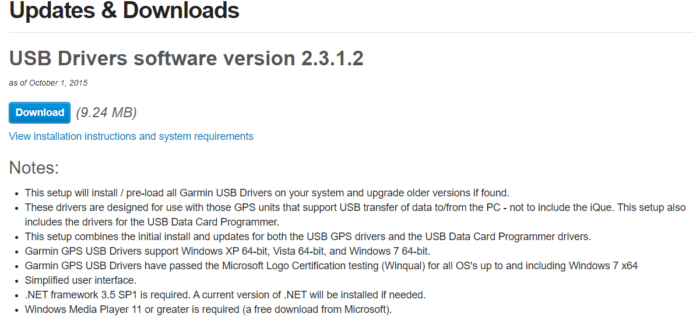
As with the installed drivers, if you are using an older version of the Garmin USB driver, you are most likely to encounter the issue mentioned. You will have to download the latest Garmin USB driver update to solve the problem. Here is how it is done.
- Open your web browser and visit Garmin Updates & Downloads page.
- Click on the Download option present under the USB driver software version section.
- Once the download is complete, install the driver file on your system.
Now, check whether the problem is fixed. If not, try the next solution.
See: Fix Unknown USB Device, Port Reset Failed error
5] Change the Power Management Settings
The next thing you can try is to change the Power Management settings to fix the problem. Below are the steps you need to follow to get the work done.
- Press Windows + X hotkeys to open the Quick Control Center.
- Choose Device Manager.
- Double-tap on Universal Serial Bus controllers to expand the option.
- Right-click on USB Root Hub, and from the context menu, choose Properties.
- Go to the Power Management section.
- Uncheck the box that says Allow the computer to turn off this device to save power.
- Tap on OK, and repeat the process for all the installed USB Root Hubs.
- Exit the window and restart the system.
Check if the problem continues.
Read: External Hard Drive not showing up or detected
6] Contact Garmin Support
If none of the above-mentioned solutions were helpful, the last thing you can try is to contact Garmin customer support. The problem can be severe, and it might need developer attention. Contact them and ask them to solve the problem.
Why is my Garmin device not detected?
There can be multiple reasons why your Garmin device is not being detected. If there’s any fault with the charging cable, you will face the problem. As it turns out, third-party cables may charge the device but will struggle to transfer the data. Thus, make sure you use a Garmin-branded cable to transfer data to or from a system.
Why is my USB device not recognized?
If the system does not recognize your USB device, it’s likely that there’s a fault in the USB cable. Thus, make sure you are using a working USB cable. The problem can also occur if you haven’t downloaded the latest USB driver update. So, download the latest update to fix the problem.
Read Next: USB 3.0 External Hard Drive not recognized in Windows.
