
Fortnite has taken the world by storm. It is one of the best games in the world, however, this doesn’t mean that everything is perfect with the game. A lot of users have said that Fortnite sound lags on their computers. In this article, we will see how to resolve the issue.
Why does my sound keep cutting in and out on Fortnite PC?
There are many reasons why Fortnite sound keeps cutting in and out or lags on your computer. To resolve the issue, we will consider every factor and fix it.
More often than not, the issue occurs when Fortnite, a demanding game, falls down the priority scale. So, now the game, which is supposed to use all your computer’s resources at once, can’t quench its thirst for power and either crashes, freezes, or lags in audio. That’s why we are going to give them the required power and see if that works
Another reason for the issue is corrupted or missing game files. Hence, you should also check whether the game files are corrupted or missing. If they are, then they can be resolved. It’s quite simple, just verify the game from the Epic Launcher, and the issue will be resolved. Sometimes, audio issues occur in Fortnite and other games due to outdated or corrupted audio drivers.
We will also see solutions that account for Windows audio issues and show how to fix them.
Fortnite Sound lags or stutters or Audio cutting out on Windows PC
If Fortnite sound lags on your system, then start troubleshooting by restarting the computer. Restarting the computer will stop all the applications that could have interfered with your program.
After restarting, you should check out these solutions to resolve the issue.
- Disable Audio Enhancement
- Update your Audio drivers
- Change Priority
- Verify your game files
- Troubleshoot in Clean Boot
Let us talk about them in detail.
1] Disable Audio Enhancement
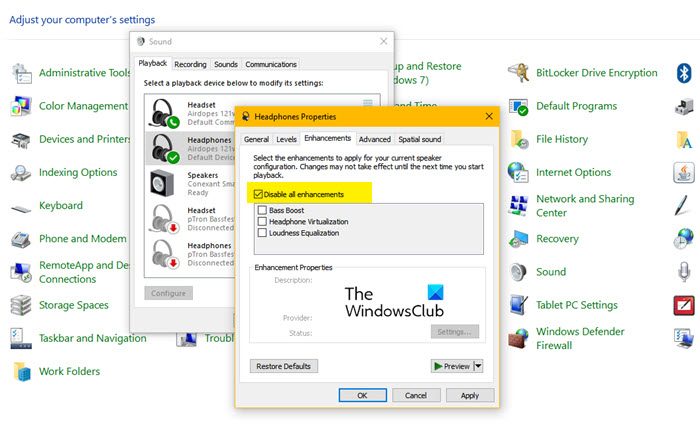
Audio Enhancement is used to improve the audio coming out of your speaker good. Now, the thing is, this can backfire and if you are facing an audio issue, then try disabling Audio Enhancement and see if that works. Follow the given steps to do the same.
- Open Control Panel.
- Change View by to Large icons.
- Click Sound.
- Right-click on your Speaker or Microphone and select Properties.
- Go to Enhancements and tick Disable all enhancements.
- Click Apply > Ok.
Hopefully, this will resolve the issue for you.
2] Update your Audio drivers
You need to make sure that your Audio drivers are up to date, as that can resolve the issue. This solution itself can resolve many audio-related problems. We are going to do the same.
The following are the methods to update your Audio Drivers.
- Update your computer to update your Audio Drivers.
- Go to Device Manager and update your drivers.
- Download the latest version of the driver from the manufacturer’s website.
Hopefully, this will resolve the issue.
3] Change Priority
It is recommended to set your game’s priority manually. This has worked for many users, and that’s somewhat true. We are going to put the priority high, and hopefully, that will work.
- Launch Fortnite and then minimize the game.
- Open Task Manager.
- Go to the Details tab.
- Right-click on your Fortnite file, usually called, FortNiteClient-Win64 and select Set priority > High.
Then open your game and see if the issue persists.
4] Verify your game files
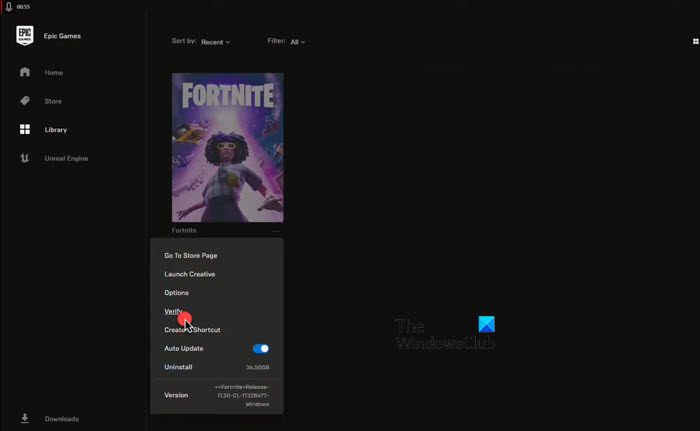
Sometimes the audio may lag due to corrupted or missing game files. However, you can easily verify the integrity of your game files and resolve them. Follow the given steps to do the same.
- Open Epic Games and go to your game library.
- Click on the three horizontal dots of Fortnite and select Verify.
- Wait for the process to complete.
Once your game is verified, restart your computer and see if the issue persists.
5] Troubleshoot in Clean Boot
Fortnite may have audio issues due to another application that interferes with your game. These applications may or may not be visible to you, but they are running in the background. So, you can try troubleshooting in Clean Boot and see which app is causing the issue. Once you know the name of that app, you can remove it, or disable it temporarily and see if the issue persists.
Hopefully, your issue will be resolved.
Read: Fortnite Client Entry Point Not Found, Exception Processing Message.
Why is Fortnite on PC so laggy?
If Fortnite is lagging on your computer, check your computer specifications and make sure they meet the system requirements. The following are the recommended system requirements to play Fortnite.
- Video Card: Nvidia GTX 960, AMD R9 280, or equivalent DX11 GPU
- Video Memory: 2 GB VRAM
- Processor: Core i5-7300U 3.5 GHz, AMD Ryzen 3 3300U, or equivalent
- Memory: 8 GB RAM or higher
- OS: Windows 11/10 64-bit or later.
If your computer matches the requirements, then check out the solutions mentioned above to resolve the issue.
Also Check: How to fix Login Failed in Fortnite.
