
If you see a BSOD error DRIVER_IRQL_NOT_LESS_OR_EQUAL due to Rtu53cx22x64.sys on Windows 11/10 PC, here is how you can fix the problem. This problem primarily occurs due to a faulty Realtek driver. However, as there may be other reasons, we have consolidated all possible reasons and solutions to resolve this problem.

Primary reasons:
- Fault in the Realtek network driver.
- Corrupted audio driver of Realtek.
- Conflict between your updated driver and Windows 11/10.
- Conflict between old hardware and updated driver.
What is Rtu53cx22x64.sys?
Rtu53cx22x64.sys is a part of the Realtek USB GBE Family Controller suite used for managing USB-based Ethernet adapters.
Fix Rtu53cx22x64.sys Blue Screen on Windows 11
To fix the Rtu53cx22x64.sys Blue Screen on Windows 11, follow these solutions:
- Roll back your driver
- Uninstall Network driver
- Uninstall Audio driver
- Disable auto-update of drivers temporarily
- Change power settings.
To learn more about these solutions, continue reading.
1] Roll back your driver
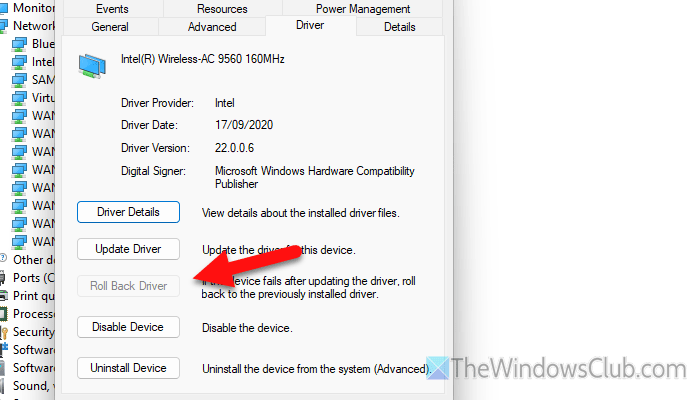
The two main culprits of this error are the Realtek USB GBE Family Controller driver and the Audio driver. If you have started getting this error after updating your driver, it is time to roll back your driver to an older version.
To roll back your driver, follow these steps:
First, open the Device Manager on your computer. For that, press Win+X and select Device Manager from the menu. Alternatively, you can search for Device Manager in the Taskbar search box and click on the individual search result.
Then, find the Realtek network driver, right-click on it, and select Properties.
Then, go to the Driver tab and click the Roll Back Driver button.
You need to do the same with the Realtek audio driver. For that, expand the Audio inputs and outputs section and go through the same steps as above.
However, if the Roll Back Driver option is grayed out, you need to follow this article to get the solution.
2] Uninstall Network driver
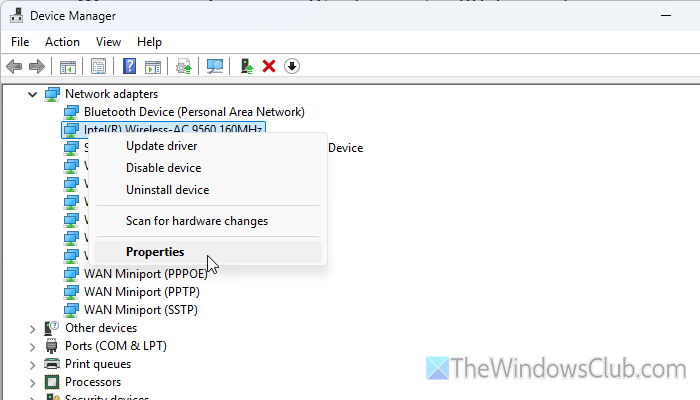
If you use an external Ethernet adapter to connect your laptop to your Ethernet connection, there is a high chance of getting this error. As some of the new drivers do not comply with the external Ethernet adapter or network adapter, they often show the BSOD while accessing your computer.
That is why we recommend uninstalling the network driver from your Windows 11 computer as soon as possible. To uninstall the network driver, follow these steps:
First, open the Device Manager and expand the Network adapters section. Right-click on the network driver and select the Uninstall option.
Then, select the “Delete the driver software for this device” option and click the “Uninstall” button.
Once done, restart your computer.
Read: How to fix LAN Ethernet driver problem in Windows
3] Uninstall Audio driver
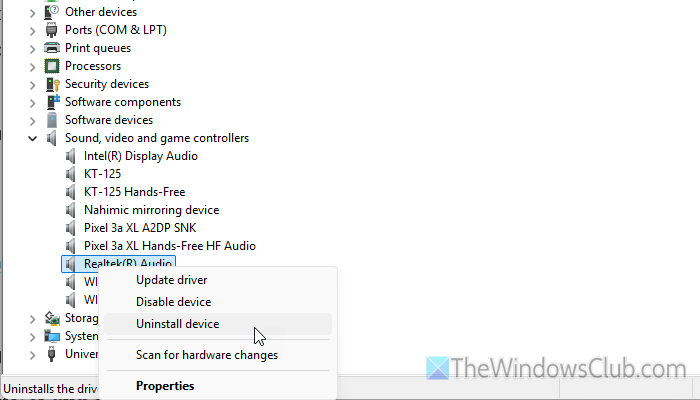
As this problem may be caused by a corrupt Realtek audio driver, we suggest uninstalling the audio driver and checking if it resolves the issue. To uninstall the audio driver, follow these steps:
- Open the Device Manager first.
- Expand the Sound, video, and game controllers section.
- Right-click on the Realtek audio driver and select the Uninstall device option.
- Check the Delete the driver software for this device box and click the Uninstall button.
Following that, restart your computer and check if the issue is resolved. However, if you do not get this problem after uninstalling the driver, it is suggested to download the driver from the official website and reinstall it.
Read: How to download and reinstall Realtek HD Audio Manager
4] Disable auto-update of drivers temporarily
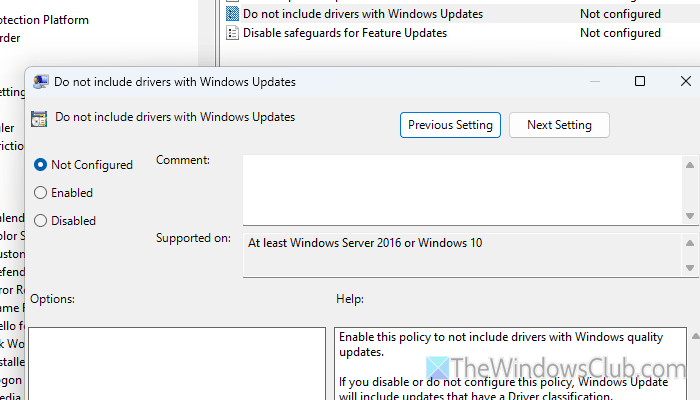
To disable the auto update of drivers temporarily, follow these steps:
- Press Win+R > type gpedit.msc and hit the Enter button.
- Navigate to this path: Computer Configuration > Administrative Templates > Windows Components > Windows Update > Manage updates offered from Windows Update.
- Double-click on the Do not include drivers with Windows Updates.
- Select the Enabled option.
- Click the Apply and Ok button.
Then, close all the windows and restart your computer.
5] Change power settings
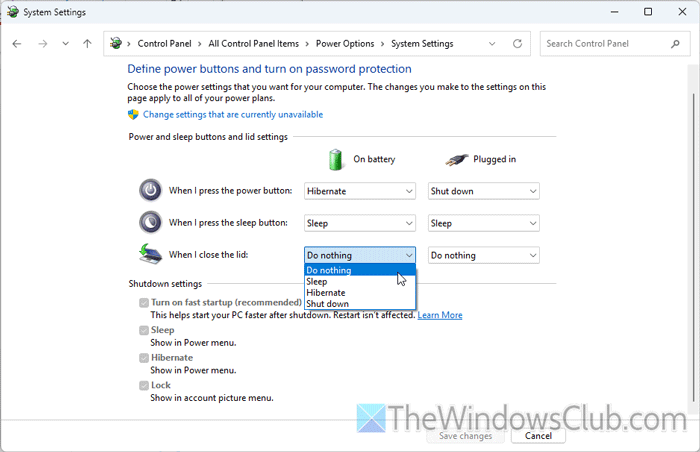
To change the power settings, follow these steps:
- Open the Control Panel on your computer.
- Go to Power Options and click on the Choose what closing the lid does option.
- Head to the When I close the lid option.
- Choose Do nothing for both – On battery and Plugged in.
- Click the Save changes button.
Read: How to f
How do I find out what driver is causing my blue screen?
To find which Driver is causing the Blue Screen on Windows, you need to note down the file name in the What failed section and use it in the Driver Verifier Manager. You can also use the File Signature Verification Tool.
What failed rt640x64.sys?
rt640x64.sys BSOD mainly appears due to having corrupt Realtek audio and network drivers. If the network adapter has issues, you may encounter the same problem.
