
If you get HTTP ERROR 431, This page isn’t working error in Google Chrome; the following tips and tricks will be handy for you. Whether you are a user or administrator of the website, you can follow these troubleshooting suggestions to get rid of the issue and make your website working again.
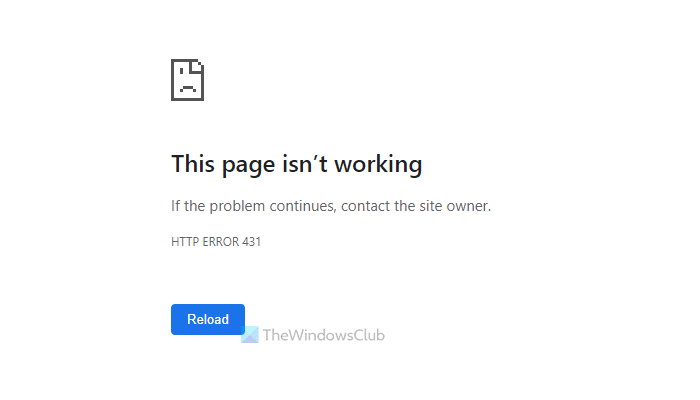
Fix HTTP ERROR 431 in Google Chrome on Windows PC
To fix HTTP ERROR 431 in Google Chrome, follow these steps:
- Clear cookies
- Clear site data
- Try in Incognito
- Disable extensions
- Flush DNS cache
- Scan PC with adware removal tool
- Delete cookies via Cache plugin
- Check htaccess
- Check Header code
- Set website permalink
- Disable URL redirection plugins
Some of these suggestions are for end-users whereas some are for website administrators.
1] Clear cookies
HTTP Error 431 occurs because of incorrect cookie settings in the browser. If your browser has kept old cookies even though the website has changed a lot, including the URL, you might get this problem when accessing the website. Therefore, we recommend clearing your browser cookies and trying again.
2] Clear site data
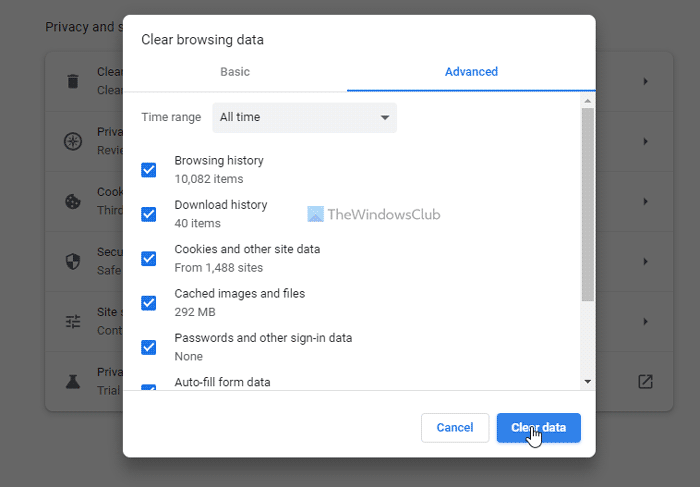
If clearing cookies alone doesn’t help, try clearing the site data. First, delete the data for the specific website. However, if it doesn’t work, you need to clear the entire browsing data of the Google Chrome browser.
In case you don’t know, enter this in the address bar: chrome://settings/clearBrowserData. Then, switch to the Advanced tab and select the All time option. Following that, tick all the checkboxes and click the Clear data button.
After that, check whether it solves your problem.
3] Try in Incognito
If you have changed many settings, installed extensions, or used a proxy or VPN recently, try the same website in Incognito mode. Incognito mode doesn’t keep these settings, which is why it works like Safe Mode. If it works, revert all changes and try normal browsing again.
4] Disable extensions
Sometimes, installing too many extensions can cause the same issue on your computer. Installing multiple proxy and VPN extensions in your browser can create a conflict, so you won’t be able to open any website. Therefore, disable all installed extensions and check whether that resolves the issue. If so, enable one extension at a time to find the culprit.
5] Flush DNS cache
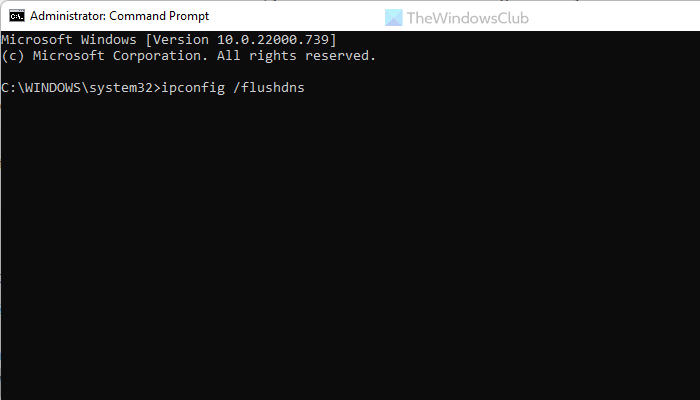
If the website has recently changed the server, your ISP might not cope up with the change soonest. In that case, you might see various HTTP Error codes when opening the website. That is why you can flush the DNS cache and check if that resolves your issue or not. To flush the DNS cache, follow these steps:
- Open Command Prompt with administrator privileges.
- Enter this command: ipconfig /flushdns
- Restart the browser and check again.
6] Scan PC with adware removal tool
If your computer has adware, it might block you from opening different websites. Adware can cause weird behavior on your computer, and this is one of them. Therefore, you can scan your computer with various anti-adware tools. For your information, there is a few options you have, including AdwCleaner, Ultra Adware Killer, etc. However, if you are already using another tool, you can use that as well.
Note: All of the solutions mentioned above are for regular users. However, if you are a website administrator, you can also try the following troubleshooting tips. Most of these solutions are WordPress-based. Nonetheless, you can try them even if you use another CMS.
7] Delete cookies via Cache plugin
As mentioned in the first solution, this HTTP error occurs because of incorrect cookie settings. So, if your Cache plugin is set up incorrectly or isn’t compatible with the server, you might see this problem too. Therefore, you have these things in hand:
- Clear the cache via your cache plugin. No matter which plugin you use, it has an option to delete the cache.
- Disable the Cache plugin and check whether you can open your website.
- Set the Cache plugin correctly. You can take help from your server provider’s support.
8] Check htaccess
If you are using Apache, HTACCESS plays a vital role in setting various things. Therefore, check the .htaccess file for any unnecessary code. You can also use the default .htaccess file. For your information, it is the default .htaccess:
# BEGIN WordPress

RewriteEngine On

RewriteRule .* - [E=HTTP_AUTHORIZATION:%{HTTP:Authorization}]

RewriteBase /

RewriteRule ^index\.php$ - [L]

RewriteCond %{REQUEST_FILENAME} !-f

RewriteCond %{REQUEST_FILENAME} !-d

RewriteRule . /index.php [L]

# END WordPress
You can find this hidden file in the root directory.
Note: Do not delete this file or make any change unless or until you have the correct knowledge.
9] Check Header code
If you have recently installed new code in the header file, and the problem started after that, you need to remove it immediately. In most cases, you may need to add several lines of code to verify your website is using a service. In such cases, remove those codes and check whether it resolves the problem. For your information, you can check the header.php file of your theme.
10] Set website permalink
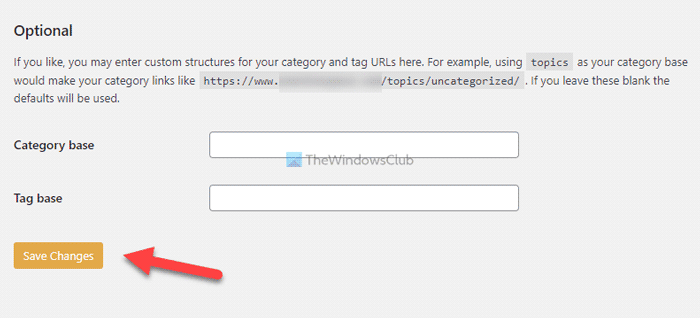
If you have recently moved from one server to another, you might need to set and save the permalink structure. Even if you haven’t changed the structure, click Save Changes to fix this issue. If you are using WordPress, you can log on to the WordPress dashboard with administrator account and go to Settings > Permalinks.
Then, ensure that you are using the correct permalink structure and click the Save Changes button. Once done, you can open the website normally.
11] Disable URL redirection plugins
If you are into affiliate marketing, URL cloaking or masking is a common practice. These plugins mask the original URL and replace it with something more professional and trustworthy. On the other hand, if you use a URL redirection plugin to redirect old URLs or 404 error pages, it can cause the same issue. That is why we highly recommend disabling such plugins and checking whether you can open the website normally.
Read: Fix Http/1.1 Service Unavailable error in Firefox
What is a HTTP error 431?
HTTP Error 431 mainly occurs in two different situations. First, if the website you’re trying to visit has issues with cookies, you may get this error. On the other hand, if the desired URL is too long, Chrome might not be able to process the permalink. In such situations, you can disable the referral code, header.php, URL redirection plugins, etc.
HTTP Error 431 means that HTTP headers are longer than what servers can handle and it states, ‘Request Header Fields too Large response status.’ To fix this, refer to the solutions mentioned above.
Before we look at the solutions, let’s understand why this error code appears. There are several reasons you might see HTTP Error 431. We have mentioned some of them below:
- Website or browser cache tends to get corrupted and is the sole reason behind the error code. You can delete the website’s cookies. If that doesn’t work, you can delete the site’s data or Chrome History. Either works.
- If the account is corrupted, you’re more likely to see the error message. Therefore, you need to create a new user account and see whether the issue persists.
- More often than not, a corrupted Chrome installation causes problems when using websites; reinstalling Chrome can remove these error codes.
What does Request header too large mean?
You may see a Request header or Cookie Too Large when the server thinks that the size of the cookie for that domain is too large or it is corrupted. As a result of which, it will refuse to serve you the web page. This will force your browser to show 400 Bad Request, Request Header or Cookie Too Large or Big error. If you want to fix it, check our guide on how to fix 400 Bad Request, Cookie Too Large – Chrome, Edge, Firefox.
Read: How to fix HTTP Error 503, The service is unavailable.
