
In this post, we will show you how to fix the Media Player app error code 0xc00d4e86 that may appear when you try to play a music file on your Windows 11 or Windows 10 PC.
Why does the Media Player app keep crashing?
The Media Player app may crash for various reasons, such as a corrupted app or cache, incorrect time and date settings, etc. Whatever the case, you can quickly resolve the issue using our guide to Media Player app abrupt crashes on Windows computers. So, try the solutions above, and you will be able to resolve the issue in no time.
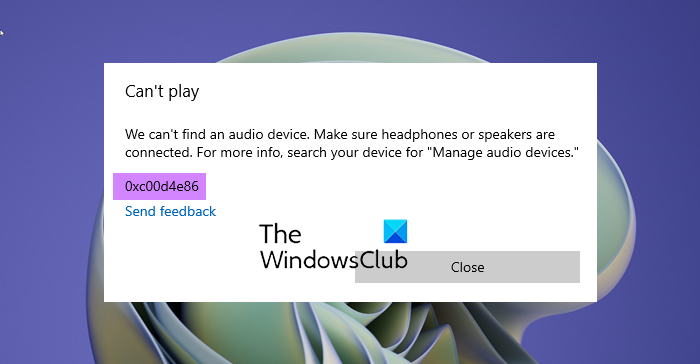
Fix Media Player app error 0xc00d4e86 in Windows 11
Use the following solutions to resolve the issue if you see Media Player app error code 0xc00d4e86 on your Windows 11/10 PC. Make sure to go through our solutions in the given order.
- Allow Audio in Sound Properties Settings
- Restart the Media Player app and your computer
- Use Windows App Troubleshooter
- Repair or Reset the Media Player app
- Use some other app
1] Allow Audio in Sound Properties Settings
If you see Media Player app error code 0xc00d4e86 on your Windows 11/10 PC, then the first thing you need to do is:
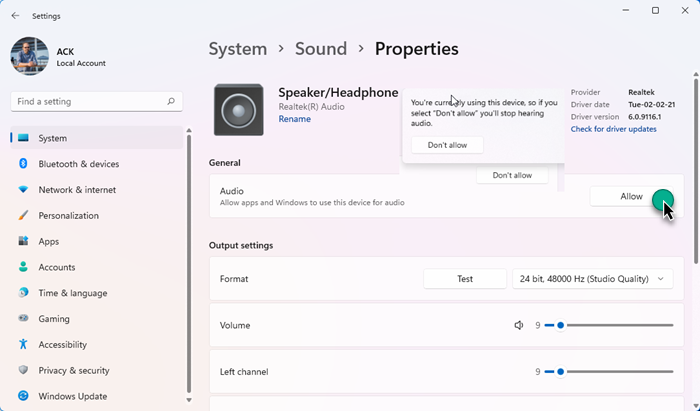
- Open Windows Settings
- Under System settings, click on Sound on the right side
- Next, under General > Audio, if you see Allow, you need to click on it and change it to Disallow.
- Now try to play the music file again on the Media Player app and see.
It should work!
2] Restart the Media Player app and your computer
Restart the Media Player app and try playing that track. If that doesn’t work, restart your computer. Restarting your system can close all the applications that could potentially interfere with the Media Player app.
Related: Error 0xc00d11d1 (0x8007007e) while playing music in the Media Player app.
3] Use Windows App Troubleshooter
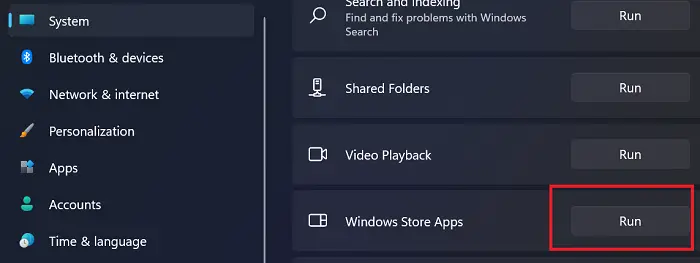
If the issue persists, it is time to deploy Windows App Troubleshooter. It’s a built-in program that can help you fix the Media Player app. You can use it on Windows 11/10.
To run Windows App Troubleshooter in Windows 11, follow the given steps.
- Open Settings.
- Go to System > Troubleshooter.
- Click Other troubleshooters.
- Finally, click Run placed next to the Windows Store Apps.
To run Windows App Troubleshooter in Windows 10, follow the given steps.
- Open Settings.
- Go to Update & Security > Troubleshooter.
- Click on the Additional troubleshooters.
- Select Windows Store Apps and click Run the troubleshooter.
Let them run and resolve the issue for you.
4] Repair or Reset the Media Player app
Repairing an app can resolve most issues. You need to see if it can do the same in this case. You can use the following steps to reset the Media Player app in Windows 11/10.
- Open Settings.
- Click Apps > Apps & features.
- Look for the Media Player app
- For Windows 10: Select the app and click Advanced Options.
- For Windows 11: Click on the three vertical dots and click Advanced Options.
- Finally, click Repair.
- If that does not help, select Reset.
If this does not help, then reinstall the Media Player app. You can easily uninstall the application from Windows Settings and install its fresh copy.
5] Use some other app
Sometimes the track that you are trying to play can get corrupted. To check if that’s the issue, use another music player to see if it can play the track.
There are various freeware that can play your track. Spotify is one of the most popular options for listening to a track online. However, you also have veterans such as VLC Media; even the built-in classic Windows Media Player is more than capable of playing any track of your choice.
Related: Error 0xc00d11d1 (0xc00d4e86) when playing native Windows Music apps.
Hope this helps.
How do you fix Windows Media Player Cannot play this?
The Windows Media Player does not support the file type, so it cannot play any file. You either need to download a codec for the file type that integrates with Windows Media Player or use another player to play that video. Third-party apps are easy to manage and support a variety of fuel types, including the codecs required by those file types.
