
When signing into a Microsoft account, if your browser gives you Error 400, Bad request, this article will be handy for you. Since it can happen in any browser, including Google and Microsoft Edge, on any device, here are some common solutions you can try to fix it.
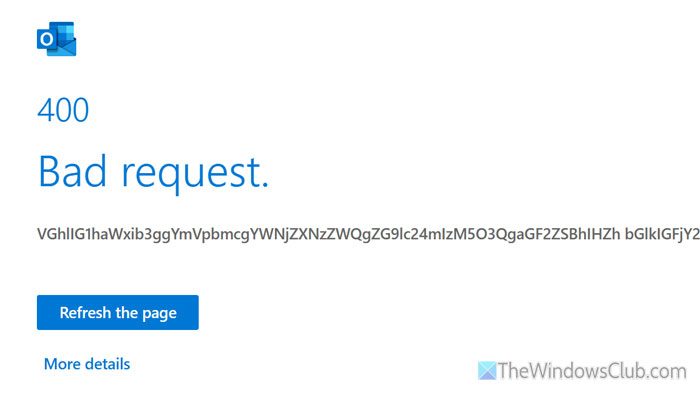
Why does browser show Error 400 when signing into Microsoft account?
The browser shows Error 400 when signing into a Microsoft account for these reasons:
- You have entered the wrong passwords many times within a small span of time.
- Your browser has some cache and cookies issue.
Fix Error 400 when signing into Microsoft account
To fix Error 400 when signing into a Microsoft account, follow these solutions:
- Use a different way to sign in
- Delete browser cookies and cache
- Flush DNS cache
- Change your browser, device, and network
To learn more about these solutions, continue reading.
1] Use a different way to sign in
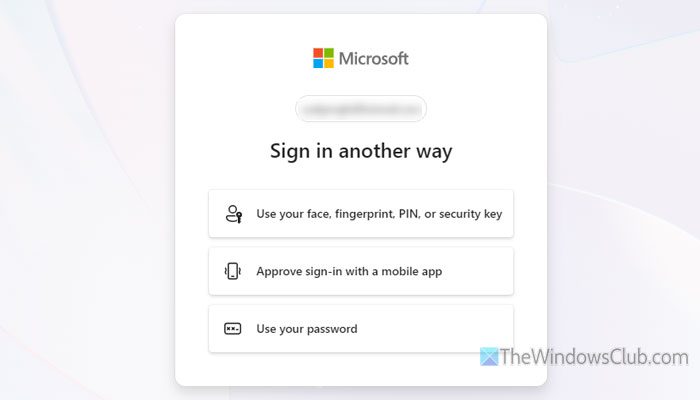
Microsoft gives you different options to sign into your account, no matter whether you use a computer or a mobile browser. For instance, if you use a computer browser on Windows 11, you can verify your credentials by entering your biometric data, PIN, security key, password, QR Code, etc. Apart from that, you can sign in with a mobile app as well.
If you have problems with PIN, fingerprint, or password, use another method.
2] Delete browser cookies and cache
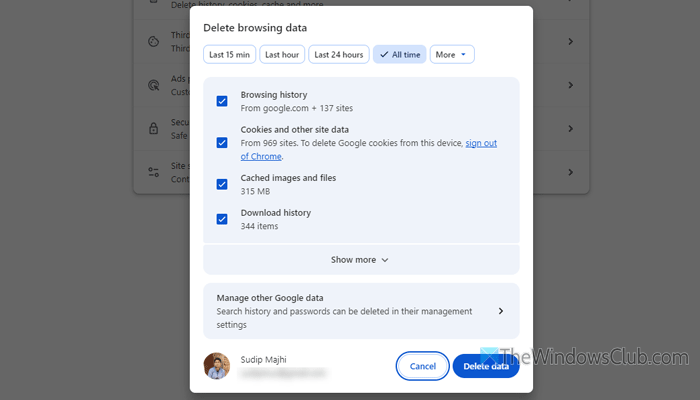
At times, this problem occurs when your browser stores old cache to create a conflict. In that case, you can go through these guides to delete browser cache and cookies on Google Chrome and Microsoft Edge browsers.
3] Flush DNS cache
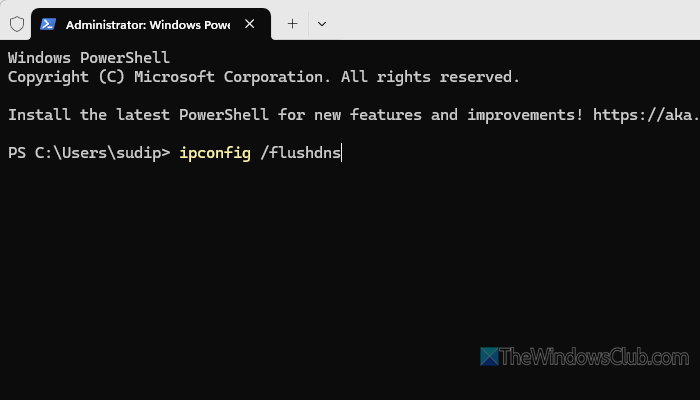
To flush DNS cache, follow these steps:
- Open Terminal with administrator permissions.
- Enter this command: ipconfig /flushdns
4] Change your browser, device, and network
If you get this problem with Google Chrome, use Microsoft Edge and vice versa. On the other hand, if you find this issue on your computer, you can try it on your mobile or switch to a different internet source.
Pro tip: Use a VPN to mask your original IP address. At times, using a VPN works same as changing your network.
Read: Can’t sign into Microsoft account in Windows 11
How do I resolve 400 errors?
To resolve Error 400, switch to a different browser. You can even change your network. If nothing works, try using a VPN.
Read: 400 Bad Request, Cookie Too Large in Chrome, Edge browsers
How to fix Microsoft account login error?
To fix the Microsoft account login error, you can use the Forgot password option if you do not remember it. On the other hand, you can change the browser, device, and network if you find Error 400.
Read: 400 Error, Your client has issued a malformed or illegal request.
