
While a Windows 11/10 upgrade is underway, several components participate in the process. There is the Network, CPU, Disk, and even more. Thus, it makes the Windows upgrade process intensive. However, if there is an issue with your upgrade process, you may see error code 0x800701E3. This is mainly caused by the ‘disk’ part of this process. It is caused by a conflict with the computer’s storage.
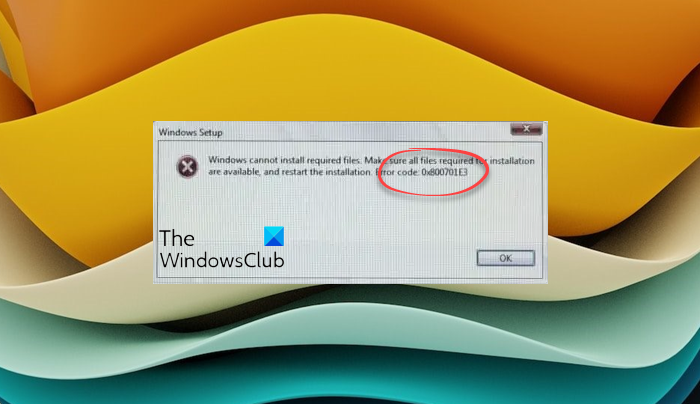
Windows cannot install required files. Make sure all files required for installation are available, and restart the installation. Error code: 0x800701e3.
Today, we will discuss how to fix error 0x800701E3 during Windows Setup.
Fix Error code 0x800701E3 during Windows Setup
To resolve this error code 0x800701E3 during Windows Setup, we will be carrying out the following fixes:
- Delete System Files related to both the components.
- Use System File Checker and DISM.
- Use CHKDSK.
Exit the setup process and boot normally into Windows.
Error 0x800701E3, Windows cannot install required files, during Windows Installation
1] Delete System Files related to both the components
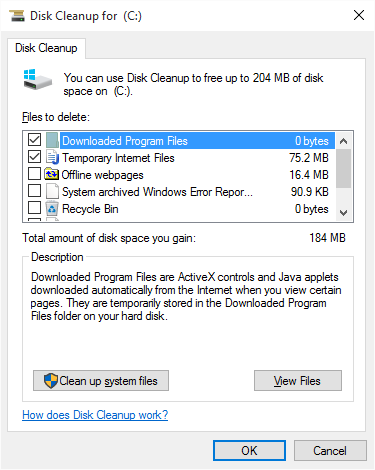
Some residual junk system files like Cache files and driver residue can block an upgrade. Hence, I would recommend you to run Disk Cleanup to delete the files and data that is safe to be removed from your computer. The main files that you need to remove here should be Previous Windows Installations.
You can also use third-party software like CCleaner to clean up System and Registry junk that might be causing a conflict.
Related post: Fix The request failed due to a fatal device hardware error
2] Use System File Checker and DISM
Run CMD as Administrator and then execute the following command to run System File Checker:
sfc /scannow
Restart your system after the scan is completed.
You can also use our freeware FixWin to run the System File Checker utility with a click.
Now, to fix Windows Update files using DISM, open Command Prompt (Admin) and enter the following three commands sequentially and one by one and hit Enter:
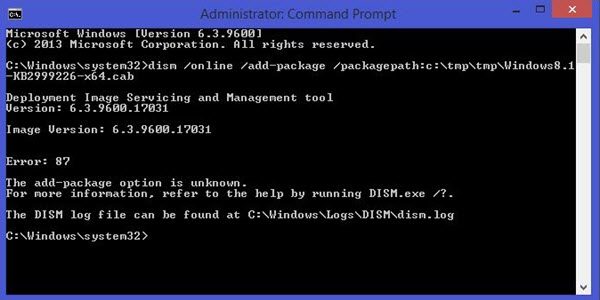
Dism /Online /Cleanup-Image /CheckHealth
Dism /Online /Cleanup-Image /ScanHealth
Dism /Online /Cleanup-Image /RestoreHealth
Let these DISM commands run and once done, restart your computer and try again.
Related: Error 0x800701e3 in External Hard Drive while copying files
3] Use CHKDSK
To run ChkDsk, open This PC. Right-click on your Operating System Partition for Windows and select Properties.
Navigate to the tab labeled as Tools. Under the section for Error Checking, click on Check.
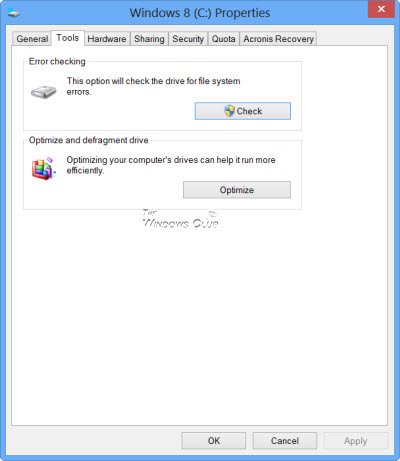
A new mini window will now pop up. Click on Scan drive.
Let it scan your disk drive partition and after that reboot your computer for the changes to take effect.
Having done this, try running Windows Setup again.
Read:
- Windows cannot install required files, Error Code 0x8007025D
- Windows cannot install required files, Error Code 0x800701B1
- Error 0x80070001, Windows cannot install required files
- Error Code 0x80070570, Windows cannot install required files
