
If when you try to update Windows with a new Feature Update you encounter the error code 0x8007025D or 0x80070003 with the accompanying error message Windows cannot install required files, Make sure all files required for installation
are available then this post is intended to help you. In this post, we will identify possible causes of this update error and provide solutions you can try to help mitigate it.
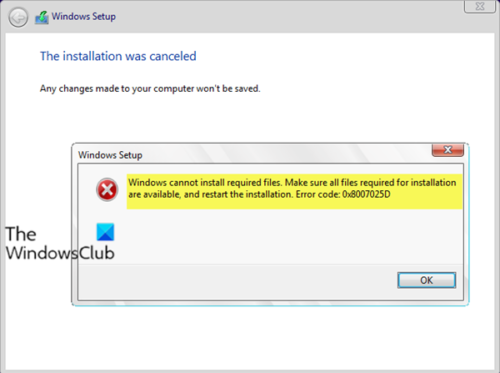
When the update fails, you will receive the following error message prompt:
Windows Setup
Windows cannot install required files. Make sure all files required for installation
are available, and restart the installation. Error code: 0x8007025D
On investigation, the error code 0x8007025D = ERROR_BAD_COMPRESSION_BUFFER, which translates to the specified buffer containing ill-formed data.
USB 3.0 uses the Message Signaled Interrupt (MSI) mode for communications with the system. Whereas, USB 2.0 uses the much older Interrupt Request (IRQ) system. One feature of the new MSI system that USB 3.0 devices use is asynchronous handling of data transfer between the device and system. This requires a buffer through which data is streamed at high rates, then decoded by the system. If you receive error 0x8007025D during the feature update process, then it’s likely your PNY devices are sending bad or corrupted data to the buffers, your device’s buffers are choked or your device can’t decode the data properly.
Corrupt data on the USB drive prevents it from being decoded properly, thus throwing this error. Corrupt data may be from the corrupt ISO image file used to create the bootable USB drive. If the file to be copied is missing or corrupted, you will see this error. The issue might also arise from a bad flash drive that is corrupt of unreadable at a certain section. If you plugged in another USB device that is recognized as another disk drive, the data sent to the buffer by that device might cause the error.
Also, if the HDD or SSD has a bad sector or record and the Windows installation tries to copy files to that space, the copy fails and the error 0x8007025D is returned to the buffer. Faulty RAM is also likely to cause this error. If data is copied to a bad section of RAM, the buffering technology will detect an error and display error 0x8007025D.
Why Windows cannot install required files?
The error will occur when reinstalling or updating the operating system. This issue can occur if your installation media is damaged. Make sure that your DVD disc isn’t damaged. You may create an installation media on USB flash drive and install Windows again.
How to fix the Error Code 0x8007025D in Windows?
The first thing to do is to run the Windows Update Troubleshooter and see if that fixes the problem. Troubleshoot Your RAM. You may also check and update your BIOS. If that doesn’t work, you may create a bootable Windows 11/10 image on another flash drive.
Windows cannot install required files, Make sure all files required for installation are available, Error Code 0x8007025D
If you’re facing error code 0x8007025D or 0x80070003, try the recommended solutions below, in no particular order, to see if they help resolve the issue.
- Unplug any external devices
- Reduce the size of HDD or SSD disk space and format it
- Download a fresh Windows 10 ISO image and create a bootable drive on another USB
- Run a memory diagnostic on your RAM and replace a bad RAM stick (if applicable).
Let’s take a look at the description of the process involved in relation to each of the listed solutions.
1] Unplug any external devices
This solution requires you to unplug all your USB devices and other peripheral devices including the internet cable. Most of the time, the Windows installation will throw the error 0x8007025D because of bad hardware drivers or outdated drivers.
It also turns out that after copying the files to your computer, the Windows installation might no longer need your USB drive. Just unplug your drive and see if the installation will continue from where it left off.
If you still encounter an error, continue to the next solution.
2] Reduce the size of HDD or SSD disk space and format it
You only need around 20GB of space to install Windows. So, if you encounter this error while installing the new feature update from USB drive, you can try reducing your installation partition to around 125GB. This will reduce the chances that the space you are copying to is corrupted.
You can reduce the disk space by clicking on the Extend option after choosing the Custom Install option in Windows 11/10. Make sure, however, that your hard drive is healthy and not damaged in any way.
If you are performing a clean install, make sure that you format the partition you intend to install on. This will iron out the bad sectors and records. You can format the partition, by clicking on the Format option and accepting to format, after choosing the Custom Install option
Afterward, retry the installation. If the issue persists, proceed to the next solution.
3] Download a fresh Windows ISO image and create a bootable drive on another USB
There is a possibility that Windows ISO image you downloaded has a corrupt file that would not be decoded or copied. It is entirely possible that the file is missing from the USB drive or the disk especially if you downloaded the file via image creation.
Additionally, it’s possible that your USB drive is corrupt or has an unreadable section, then the buffering technology will detect this error and you’ll receive 0x8007025D – Windows cannot install required files error message.
In this solution, you will need to download a fresh Windows ISO image, create a bootable drive on another USB drive and then retry the installation. If the installation still fails with the error, continue with the next solution.
If you were using USB 3.0 earlier, you could try using a USB 2.0 port since it uses a different technology from USB 3.0 to read the data.
4] Run a memory diagnostic on your RAM and replace the bad RAM stick (if applicable)
You might be experiencing this error message because Windows 11/10 setup would rather not install Windows on your device if it finds bad RAM than crash all the time after installation.
So, if you have two RAM sticks, each at least 1GB, you can try removing either and reinstalling (swap if the first one returns an error). You can also check for RAM errors using the inbuilt Memory Diagnostics Tool. Replace any faulty RAM, then retry the installation.
Related reads: Windows cannot install required files:
- Error Code 0x800701B1
- Error code 0x800701E3
- Error code 0x80070006
- Error code 0x80070001
- Error Code 0x80070570.
Hopefully, one of these solutions will work for you!
