
At times, some features of Discord such as audio, overlay, microphone fail to work when they open a game. But when they close the game and join the call, it works just fine. If Discord mic stops working when in-game in Windows 11, then this post will help you.

Why did my Discord stop working in-game?
There are not many reasons that can trigger this issue. So, rectifying it won’t be a problem. The most obvious cause is the lack of permission. You are either opening the app without administrative privileges or the app doesn’t have permission to access the Microphone. That’s not it, in some computers, this error can be caused by Discord Overlay. We will explain why and how in the following sections. You should also check your drivers and ensure that they are in perfect working condition. Because if there is an issue with them, you will face audio-related problems.
Fix Discord stopped working in game
If Discord is not working or has stopped working in-game, then try the solutions mentioned below to resolve the issue. This usually affects audio, overlay, microphone, etc.
- Give Discord permission to access Microphone
- Disable Discord Overlay
- Troubleshoot in Clean Boot
- Run Discord as an administrator
- Check Discord Sound Settings
- Check your game’s settings
- Fix your Audio Driver
Let us talk about them in detail.
Discord mic stops working when in game in Windows 11
1] Give Discord permission to access Microphone
You need to make sure that Discord has permission to access your Microphone. if not, you won’t be able to talk in Discord. Although when you install the app, you grant Discord all the required permissions. However, sometimes, due to a third-party app or manual intervention, this permission can be removed. Therefore, we will verify if Discord has the required permissions to resolve the issue.
For Windows 11
- Open Settings by Win + I.
- Go to Privacy & security.
- Click on Microphone.
- Enable Let apps access your Microphone and then enable the toggle of Discord.
For Windows 10
- Open Settings by Win + I.
- Go to Privacy.
- Click on Microphone.
- Enable Allow apps to access your Microphone and then enable the toggle of Discord.
Then restart your computer, open Discord, and check if the issue persists.
2] Disable Discord Overlay
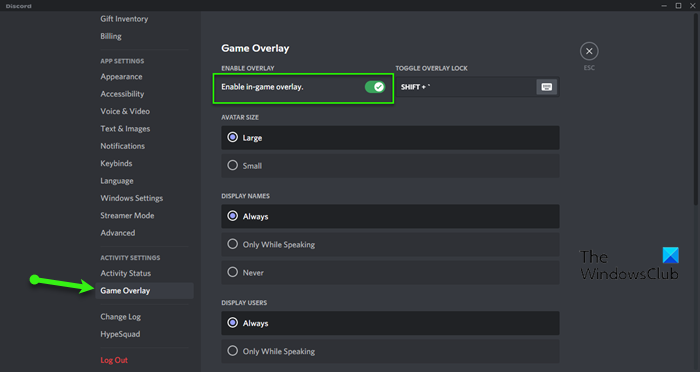
Overlay in Discord is meant to improve your gaming performance, but sometimes, it can cause trouble for you. Therefore, if you have enabled the feature, it’s time to disable it. Follow the given steps to do the same.
- Open Discord.
- Click on the Cog button to go to its Setting.
- Now, click on Game Overlay from ACTIVITY SETTINGS.
- Then turn off the toggle of Enable in-game overlay.
Now, restart your computer and see if the issue is resolved.
3] Troubleshoot in Clean Boot
For many users, the issue occurred due to a third-party application. However, most of us can’t fathom which application is causing the issue. Therefore, we have Clean Boot. In this, we disable all the processes except the game, and then turn them one by one and see what’s causing the issue. After knowing the name of that app, we can decide what should be done with that program. You can either uninstall it, if it’s not important or disable it when you are playing the game.
4] Run Discord as an administrator
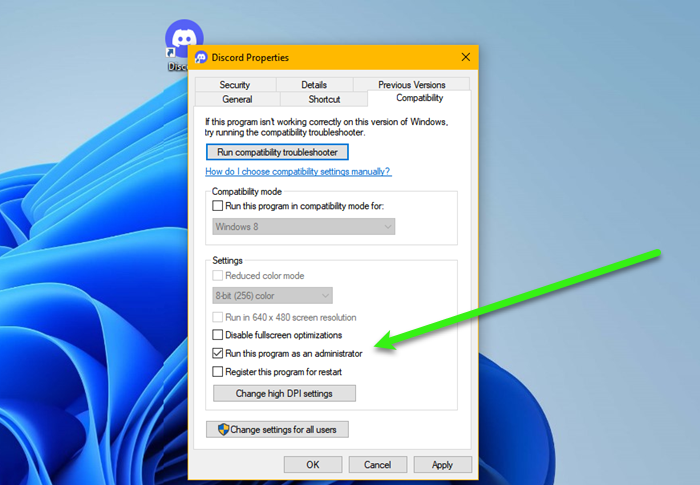
You need to make sure that you are running Discord as an administrator if you want to use it in-game. To do that, just right-click on the shortcut and select Run as administrator.
But if you want to always run Discord as an admin, follow the prescribed procedure.
- Right-click on the Discord shortcut.
- Select Properties.
- Go to the Compatibility tab.
- Tick Run this program as an administrator.
- Click Apply > Ok.
Finally, relaunch the app and see if the issue persists.
5] Check Discord Sound Settings
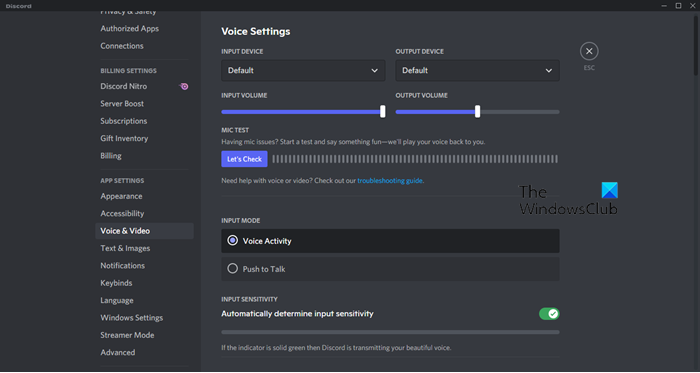
Don’t forget to check your Discord Voice & Video settings and ensure they are set correctly. To do that, follow the given steps.
- Open Discord.
- Go to the Settings by clicking on the Cog button.
- Go to Voice & Video option from the left panel.
- Then check your INPUT DEVICE and OUTPUT DEVICE to make sure that they are set correctly. Also, check their volume levels.
Then reopen the app and see if the issue persists.
6] Check your game’s settings
There are some games that by default override Windows Settings. So, you need to go to the game’s settings and see if there is an option that’s triggering this issue. Then you need to change it to resolve the issue.
7] Fix your Audio Driver
Last but not least, the issue may be caused by the Sound or Audio Drivers. They can be corrupted, buggy, or are outdated and to fix them, you need to go reinstall, rollback, or update the driver respectively. So, do that and see if the issue persists.
Hopefully, these solutions have made Discord run in-game.
Related: Fix Discord keeps disconnecting and reconnecting on Windows PC.
Why does my Discord audio randomly stop working?
If your Discord audio randomly stops working the cause could be a faulty driver. Improper audio settings or an unselected audio device can also cause this issue to appear. You can try disabling Quality of Service on Discord and see if that resolves the issue.
Read Next: Discord Screen Share Audio not working on Windows.
