
Discord is more than just a tool for gaming, as we have said a million times before. One of Discord’s most-used features is the ability for users to create Events. You can do this in multiple ways, depending on what you want to do. Events on Discord let members of your server keep up with what is happening and when. You can choose to create a Voice Event, which is the most popular, a Text Event, or a Physical Event.
Create, edit, and delete Events on Discord
Creating an event requires several mouse clicks, so don’t expect to finish in just a few seconds.
How to create a Discord Voice event
As mentioned above, voice events are the most commonly used option, so we’ll focus on them.
- Open the Discord app, and from there, visit your server.
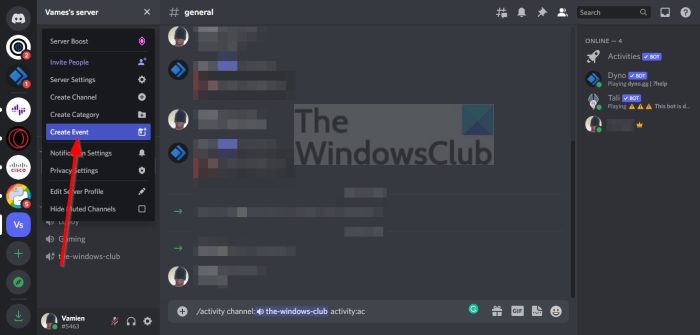
- From the top of the screen, you will want to select your server’s name.
- When you see the Create Event button, click on it.
- From the Where is your event section, select Voice Channel.
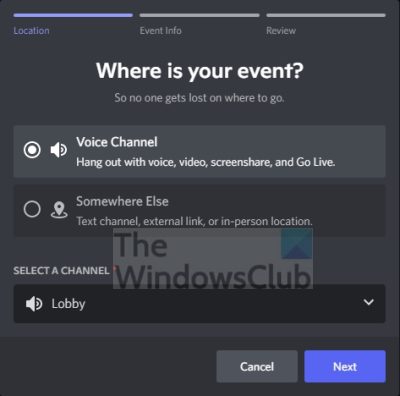
- To select another voice channel, click the arrow to reveal the list.
- Enter the event information.
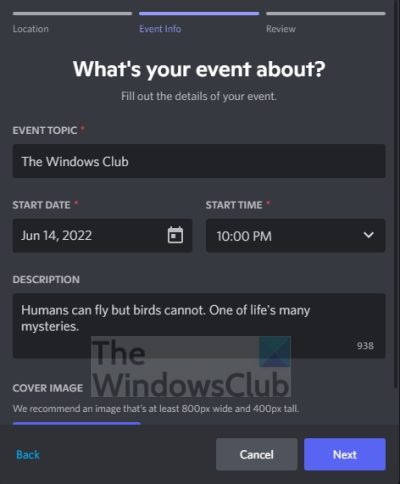
- Upload a cover photo if you feel the need.
- Hit the Next button to move forward.
- Finally, click on Create Event to complete the task.
How to create a Physical or Text event on Discord
For those who are not interested in talking much over the Discord platform, we believe you will all prefer to create text or physical events. Let’s go over how to create these events in no time.
- As usual, you must launch the Discord app.
- Select your server from the list.
- Navigate to Create Event and click on it.
- This time, avoid Voice Channel and choose Somewhere Else.
- Enter a location for the planned event.
- The location can either be a physical location or a link to a chat channel.
- Enter the relevant information for the vent.
- If needed, upload a cover image.
- Click on the Next button.
- Finally, you can click on Create Event to complete the task at hand.
After you create your event, you can copy the provided link to share it on Discord or the web.
How to edit Events on Discord
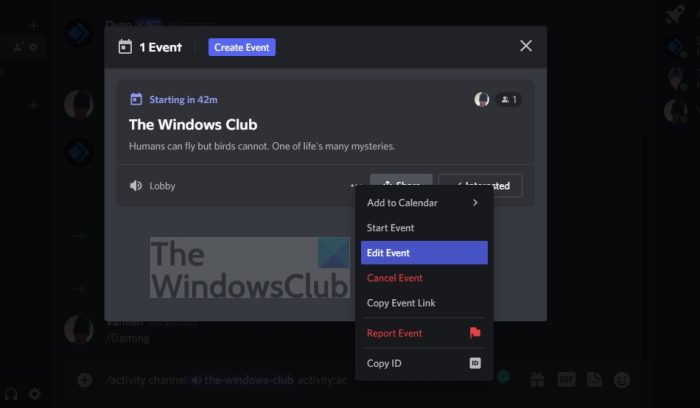
If you made a mistake when creating an event, you should not fret because the option is there to edit many of the details.
- Open the Discord server promptly.
- At the top of the screen, click on Events.
- Click the More icon (the three-dot button).
- Select Edit Event via the context menu.
- Make the relevant changes to your event.
- Finally, click the Save Event button to complete the task.
How to delete Events on Discord
At some point, you will want to delete the events you’ve created, so how can we accomplish that? It’s relatively easy if you ask us.
- First, open your Discord server.
- You will see the Events button right away, so click on it.
- If you see the three-dotted button, select it.
- From there, click on Cancel Event.
- Next, confirm you want to cancel by pressing the Cancel Event button.
Read: How to export Discord chat messages using DiscordChatExporter
What do events mean in Discord?
Discord events are great because they give your community the chance to get advance notice of things happening on the server. Whenever the event goes live, community members will also receive a notification.
How do you create events in Discord?
How to Create an Event in Discord on Desktop
- First, you must open the Server Menu. From there, go to your server or a server you have permission to manage. Then click the server dropdown menu.
- Select Create Event.
- Choose your Event Location.
- Add all the relevant information.
- Review what you’ve done, then click Create Event if you feel comfortable.
What activities can you do on Discord?
The activities below are available to users right now.
- Poker Night
- Chess in the Park
- Sketch Heads
- Letter League
- Checkers in the Park
- Spellcast
- Blazing 8s
- Land-io
- Putt Party
- Watch Together.
Also read: How to make Discord channel Read-only.
