
Some users cannot apply a filter in their Excel worksheets because the filter option is greyed out. This issue can occur for multiple reasons, such as a protected worksheet. In this article, we will discuss some common causes of this problem and provide solutions to fix it. If you encounter this problem, the methods explained here will help.
Filter option is greyed out in Excel
Use the following fixes if the filter option is greyed out in Excel:
- Update Office
- Check your table design
- Do you have grouped worksheets?
- Is your worksheet protected?
- Disable Add-ins
- Repair Office
All these fixes are explained in detail below.
1] Update Office
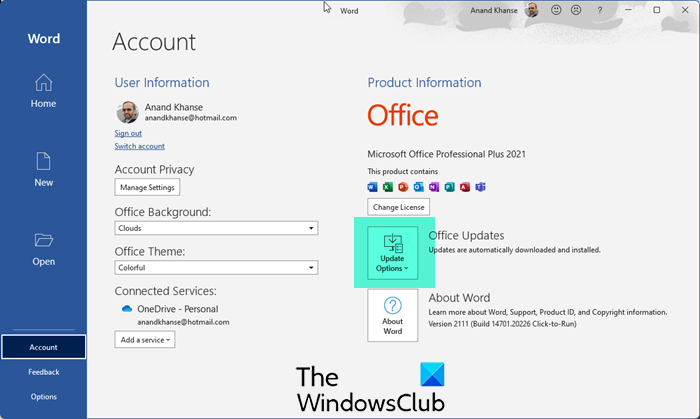
The issue might be a bug. Although Microsoft Office checks for and installs the latest updates automatically, you can also check for updates manually.
2] Check your table design
If the table is not created properly in Excel, you may encounter this issue. When we create a table, Excel highlights the entire table with a particular table style. You can change this table style in the Table Design tab.
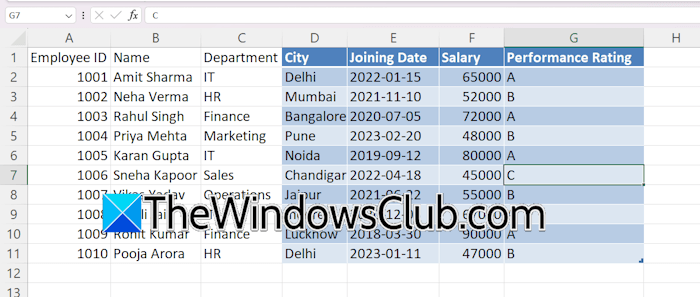
As you can see in the above screenshot, the table has been created for a portion of the dataset, while the rest of the dataset remains in a normal worksheet range. This inconsistency can cause some features, like the Filter or Sort, to behave unexpectedly. In this case, when you select the entire data set to apply a filter, the Filter option will be greyed out. To fix this issue, remove the table, then apply it to the entire dataset.
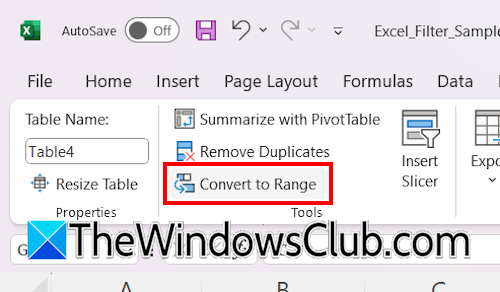
Follow these instructions to remove the table:
- Click anywhere inside the table.
- The Table Design tab will become visible on the ribbon.
- Select the Table Design tab and click Convert to Range.
- Click Yes in the confirmation box.
Sometimes, a table exists in a worksheet but remains invisible. This happens when the Table Style is formatted to None. In this case, such a problem occurs. To identify whether your Excel worksheet contains an inconsistent table, click on some random cells. When the Table Design tab appears when you select a cell, it means your dataset contains an inconsistent table. Now, go to Table Design and select Convert to Range.
3] Do you have grouped worksheets?
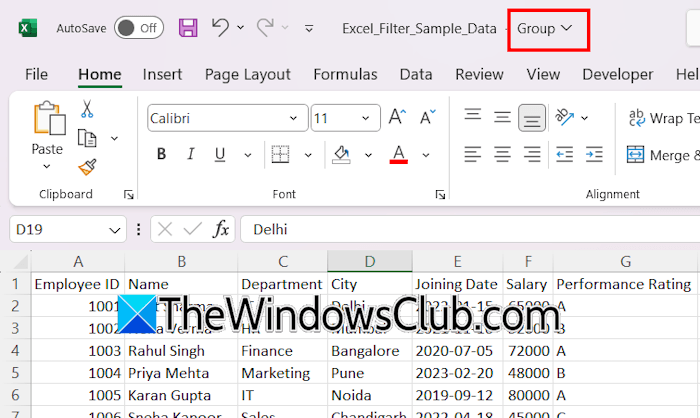
If your worksheets in the Excel file are grouped, the filter option remains disabled. To check if your Excel worksheets are grouped, read the name of your file on the Title Bar. If you see Group written there, this means your worksheets are grouped.
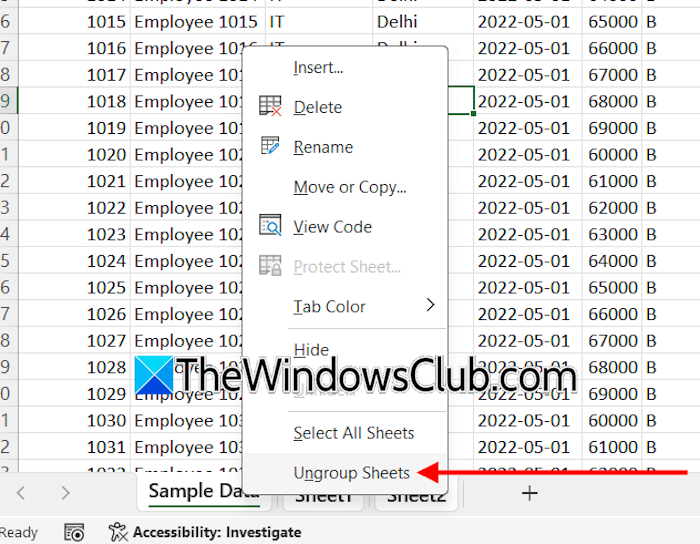
Now, right-click on any of the grouped worksheets and select Ungroup Sheets. After ungrouping the sheets, the filter should start working again.
4] Is your worksheet protected?
Excel provides users with the ability to protect sheets in an Excel file with a password. When you protect a sheet, you cannot use a Filter in that sheet. The Filter option remains greyed out in this case. This can be the case with you.
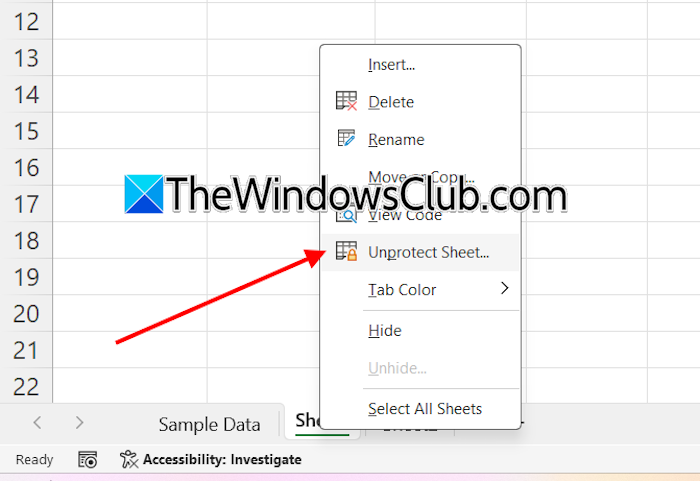
To check if the sheet is protected, right-click on that sheet and see whether the Unprotect Sheet appears in the right-click context menu. If yes, click on that option to unprotect that sheet. If the sheet is password-protected, you need to enter the same password to unprotect it. If you do not know the correct password, you cannot unprotect it. In this case, copy the entire dataset on the protected sheet and create a new blank sheet in the same Excel file. Now, paste the copied dataset into the new sheet.
5] Disable Add-ins
Some of the installed Add-ins might be causing this problem. To check this, disable all installed add-ins and see if the issue is resolved. To disable add-ins, follow these steps:
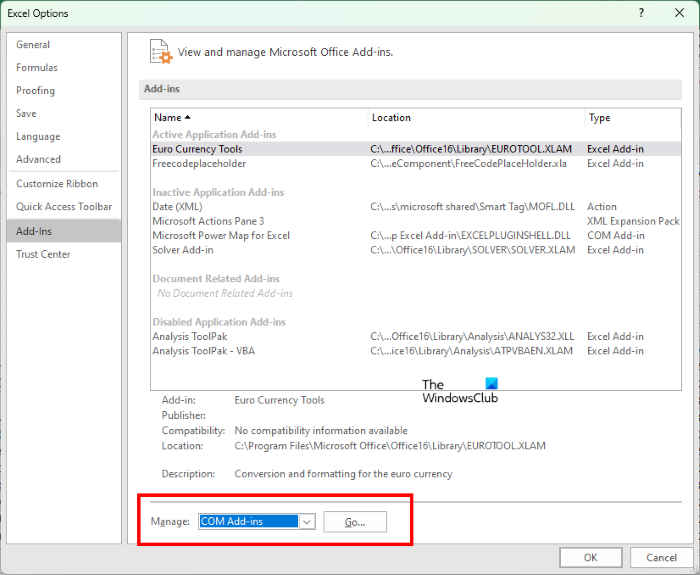
- In Excel, go to File > Options.
- Select Add-ins > COM Add-ins and click GO.
- Check all the selected checkboxes to disable all the add-ins.
- Close and reopen the Excel file.
Now, check if the issue is resolved. If yes, you need to find the problematic add-in. For this, enable one add-in at a time and check if the issue reappears. When the issue reappears, the add-in you have just enabled is the culprit. Now, remove that add-in and look for its alternative.
6] Repair Office
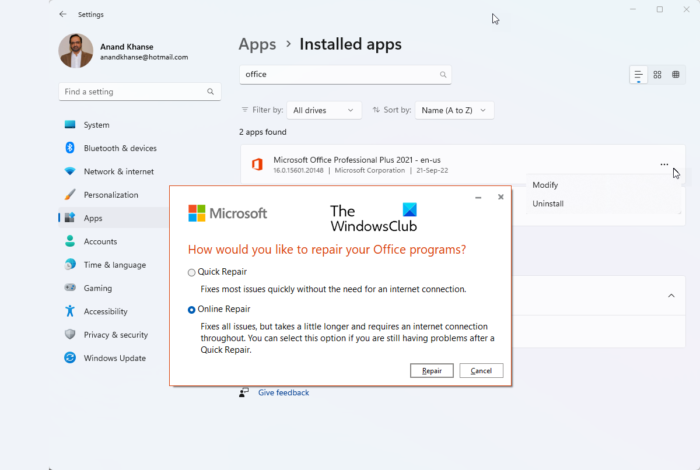
If the issue persists, your Office suite might have some corrupted files. In this case, repairing the Office suite helps. Run an online repair.
That’s it. I hope this helps.
How to unlock filter options in Excel?
The Filter option remains unlocked by default. You do not need to do anything to unlock the filter options. However, if you cannot use the filter in Excel or it is greyed out, check if the worksheets are protected or grouped. If the dataset contains a table, make sure that it is created properly.
How to enable a filter in a locked Excel Sheet?
You cannot enable a filter in a locked Excel sheet. This is because when you protect an Excel sheet, the filter option becomes greyed out. To enable the filter, you need to unlock the Excel sheet by unprotecting it.
Read next: Copilot is missing, not showing, or working in Excel.
