
The built-in speakers of laptops do not sound good. Even if they sound good, they sound low. They are not suitable for watching movies or listening to music. Their peak sound would be effective in only a few environments. That’s why most people connect external or portable speakers to their laptops for better sound. The sole reason for connecting external speakers is to get good sound that we can hear perfectly in any environment. It would be a frustrating experience when we see the external speakers’ sound too low. If you’re experiencing the same issue, follow this guide to fix it when the external speakers’ volume is too low on a Windows laptop.
External speaker volume too low on Windows laptop
If the external speakers connected to your Windows 11 PC are too low, you can fix the issue using these methods.
- Check the connections
- Run Audio troubleshooter
- Disable audio-related third-party programs
- Reset Sound devices and volumes
- Disable Audio Enhancements
- Update the output format to the best settings
- Reinstall audio drivers
Let’s get into the details of each method and fix the issue. Before that, make sure the external speakers are working properly.
1] Check the connections
Check if the external speakers are properly connected using the 3.5mm audio jack. Check for any damage to the cable. If the connection is weak, you might experience low or broken sound, which does not serve the purpose of connecting external speakers to your laptop. If the sound does not change with a better connection, try connecting it via Bluetooth and see if it fixes the issue. If already connected via Bluetooth, try connecting it using a cable.
2] Run Audio troubleshooter
For all audio-related issues, you can fix them easily on a Windows PC using the audio troubleshooter. It scans for audio issues and fixes them automatically. Open the Settings app, click System, and select Troubleshoot. Go to Other troubleshooters and click Run beside Audio.
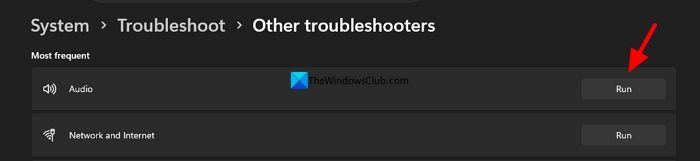
Wait for it to scan for audio issues and fix it.
Read: Fix Sound and Audio problems and issues in Windows 11
3] Disable audio-related third-party programs
If you have installed programs to boost volume or enhance sound on your Windows laptop, they might be causing the external speakers to sound low. Open the third-party audio enhancer program you have installed and disable it.
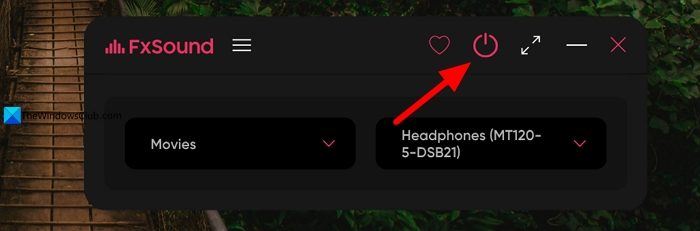
Now, play the audio via external speakers without any program in between, except for the media players. If the audio is still playing low, reset the media player in its settings, and see if it helps.
4] Reset Sound devices and volumes
If there are any misconfigurations with the sound devices and their volumes, you may experience low-volume issues. The only way to fix misconfiguration-related issues is by resetting the sound devices and volumes.
To reset Sound devices and volumes on Windows 11, open the Settings app, click System, and select Sound. Then, under the Advanced section, click Volume mixer. Under the Apps section in the Volume mixer, click Reset beside Reset sound devices and volumes for all apps to the recommended defaults.
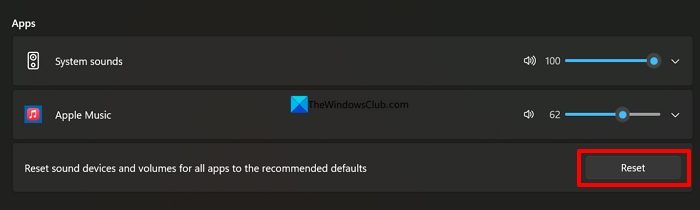
It will fix the issue with the audio sounding too low on the external speakers connected to your laptop.
5] Disable Audio Enhancements
If you have enabled audio enhancements and set it to Device Default Effects, it might be making the external speakers sound too low. Disabling audio enhancements can fix the issue. In the Settings app, go to Sound settings, click All sound devices under the Advanced tab. Then, click on the external speakers listed there. Scroll down to Advanced settings and click the dropdown beside Audio enhancements. Select Off to turn off audio enhancements.
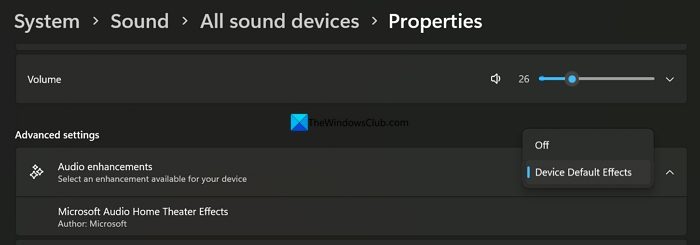
The external speakers will now play audio without any enhancements.
6] Update the output format to the best settings
The output format for your speaker might be set to the lowest audio quality. It can cause the external speakers’ sound to be too low on a Windows PC, since the lowest audio quality produces the worst sound. Open the Settings app, go to Sound settings, open All sound devices, and select your external speakers. Under Output settings, click the dropdown next to Format and select the highest quality available.
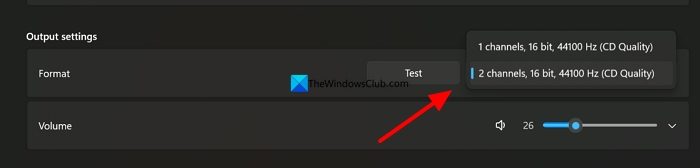
Now, the speakers will start playing the best quality audio at the volume you select.
7] Reinstall audio drivers
If there are any issues with the audio drivers, you will experience audio issues on Windows 11. Open the Settings app, and check for Windows updates. If there are any pending updates available, install them to update the audio drivers.
If not, open the Device Manager, expand Sound, video and game controllers. Right-click on the audio driver and select Uninstall device.
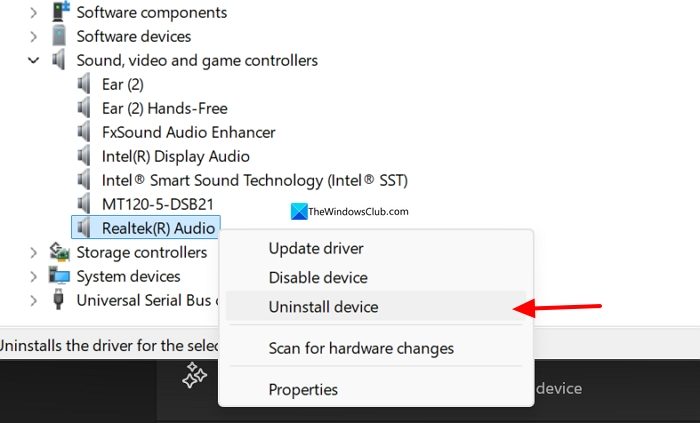
Then, restart your PC to make Windows 11 install the missing drivers automatically. Make sure your laptop is connected to the internet.
Read: How to download Audio driver for Windows 11.
Why does my speaker sound so low on my Windows laptop?
If the speakers connected to your Windows laptop are sounding too low, check whether they are working properly. Then, it could also be an issue with the connection. Then, make sure to set Output quality to the highest, disable audio enhancements, and disable third-party audio enhancement programs.
Read: Set up different Speaker, Microphone for different Apps in Windows 11
How do I boost the speaker volume on a Windows laptop?
The best way to boost speaker volume on a Windows laptop is to use the best output format and connect the speakers via a wired connection rather than Bluetooth. You can play audio using the VLC media player to increase the volume up to 200.
Related read: No Sound on computer; Audio not working in Windows 11.
