
In this tutorial, we will show you how to extend the C drive in Windows 11 with unallocated space. If there’s insufficient space to install system updates, maintain or improve performance, prevent crashes, etc., extending the C drive or system drive can be helpful. You can safely extend the C drive space without losing any data or formatting your SSD or HDD. Whether the unallocated space is directly adjacent to the C drive (which is a must) on the right-hand side or not, you can increase the C drive space. This post covers both scenarios using different methods with step-by-step instructions.
Why is my C drive not showing the Extend Volume option?
You will be unable to extend the C drive due to the Recovery partition or another partition present between the C drive and unallocated space. If the unallocated space is not adjacent to the C drive, the Extend Volume option is greyed out or disabled. You either need to delete the recovery partition or another partition, or move the unallocated space next to the C drive.
How to extend C drive in Windows 11 with unallocated space
You can extend the C drive with unallocated space in Windows 11 using the following options:
- Extend the C drive in Windows 11 with Adjacent Unallocated Space using the Disk Management tool
- Extend the C drive with Non-Adjacent Unallocated space in Windows 11 using a third-party tool.
Let’s check these options.
1] Extend the C drive in Windows 11 with Adjacent Unallocated space using the Disk Management tool
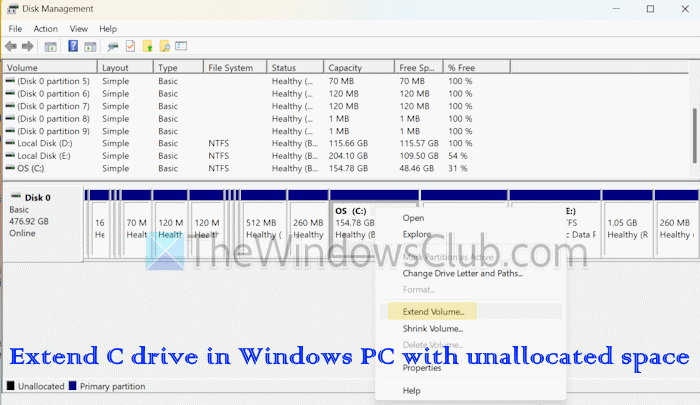
Disk Management is a built-in utility in Windows 11/10 to create new partitions, resize, and extend partitions. However, this option is helpful only if there’s contiguous unallocated space directly next to the C drive. If there’s, say, 10 GB unallocated space after the D drive or E drive, then Disk Management and other native tools won’t be helpful. Here are the steps:
- Open the Disk Management tool using the Search box or another preferred way
- Right-click on the C drive and select the Extend Volume option
- An Extend Volume Wizard window will open. Press the Next button
- You will see a Select the amount of space in MB option, where you can keep the default size to extend the C drive or change the amount of space as per your needs
- Press Next
- Press Finish.
TIP: You can also use the Diskpart command-line utility to resize a partition in Windows 11/10. But this utility also helps only if the unallocated space is available next to the C drive on the right side.
2] Extend the C drive with Non-Adjacent Unallocated space in Windows 11 using a third-party tool
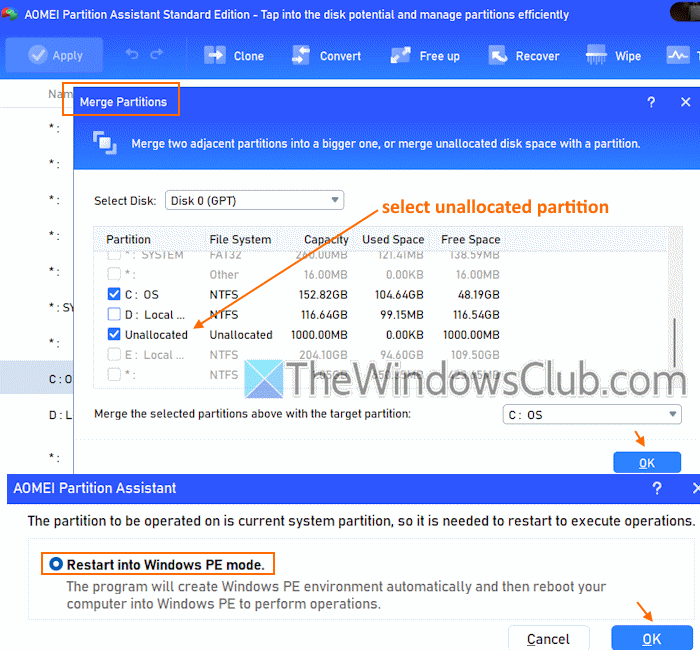
We need to use a third-party tool to extend the C drive with non-adjacent unallocated space in Windows 11. One such tool is AOMEI Partition Assistant (free Standard Edition), which I used and tested for this purpose. With its user-friendly interface, I was able to extend the C drive with non-adjacent space in minutes. It automatically creates Windows PE (Preinstallation Environment) and will enter Windows PE to complete the operation.
Before you proceed, it is advised to clone your hard drive or use some imaging, recovery, and backup software. You should also create a bootable USB drive and keep it ready, just in case. Also, turn off Device Encryption and BitLocker to act. Here are the steps to extend the C drive with non-adjacent unallocated space using this tool:
- Open the interface of the AOMEI Partition Assistant tool, and you will see a list of all the hard drives
- Right-click on the C drive > Advanced > Merge Partitions. A new window will open. In that window, select a disk if there is more than one disk
- Select the Unallocated partition(s) from the list
- Press OK
- Press the Apply button in the top left corner of its main interface
- A Pending Operations box will open. Here, you can check the operations (Move Partition and Resize Partition) that will be performed, and other details
- Press the Proceed button
- The operation requires a PC reboot. Press the OK button to confirm to restart into Windows PE mode
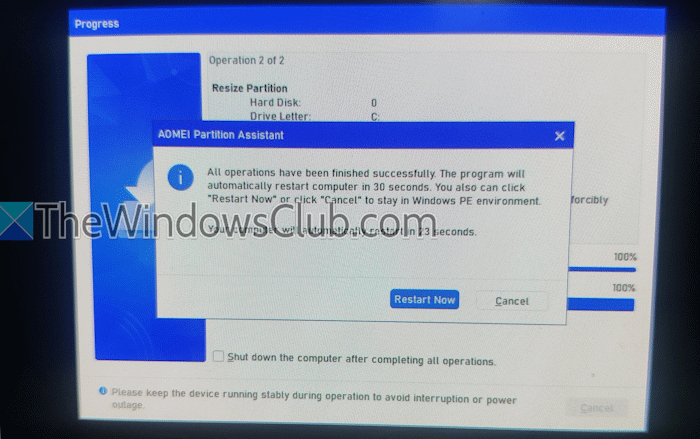
- Now this tool will automatically create Windows PE mode and boot into it to start performing operations one by one
- Press the Restart Now button once all the operations are completed successfully. Your PC will boot into normal mode.
After logging in to your PC, open the File Explorer or Disk Management tool, and you will see that the C drive is extended successfully.
Likewise, there are some best disk and partition manager software for Windows 11 to resize and extend the C drive with non-contiguous space you can try.
That’s all. Hope it helps.
Related: How to partition the C drive in Windows 11 without formatting
Can’t extend C drive with unallocated space in Windows 11
If you can’t extend the C drive with unallocated space in Windows 11/10, it’s usually because the free space isn’t directly next to the C partition. Windows Disk Management only allows extending into contiguous unallocated space. If another partition (like Recovery or D:) sits between, the option to extend will be greyed out. You may try to delete or move the adjacent partition using third‑party partition tools to address the issue.
Read: How to allocate Unallocated Space in Windows 11
How to extend the C drive with unallocated space from the D drive?
If the unallocated space is created or extracted from the D drive and is on the right side, move it to the left of that drive. While the built-in tools aren’t helpful in this case, you can use disk partition tools like AOMEI Partition Assistant, EaseUS Partition Master, etc., to move the unallocated space and merge it with the C drive.
Read next: How to partition a Hard Drive in Windows 11 without erasing data.
