
Is File Explorer crashing the moment you try to open a large folder in Windows 11 /10? Opening a large folder shouldn’t cause a system crash; however, if you face this issue, you are not alone. The good news is that it’s an easy fix. In this guide, we will walk through the key steps.
Explorer crashing when opening large folder in Windows 11
If you experience Explorer crashing when opening large files on Windows 11/10 PCs, execute the given solutions.
- Disable folder preview and thumbnail
- Change View to Lists or Details
- Disable Non-Microsoft Shell Extensions
- Disable the Folder-type Template for media
- Run SFC and DISM
- Increase Shell Heap size via Registry
Let’s get started with the troubleshooting guide.
1] Disable folder preview and thumbnail
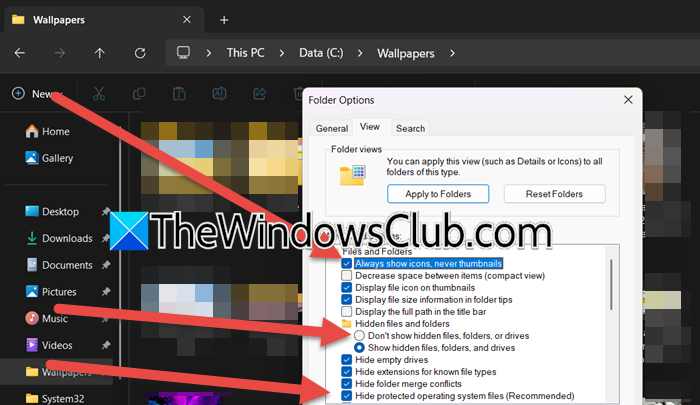
The primary cause of Explorer crashing is its attempt to create visual previews and scan metadata for every file simultaneously. To fix this, we will force Windows to use simple icons and reduce the number of items it must process.
- Open File Explorer, click on the ellipses (…) button, and click on the Options button.
- In the new window, navigate to the View tab, and in the Advanced Settings list, check the boxes for Always show icons, never thumbnails, and Hide protected operating system files (Recommended).
- Next, select the Don’t show hidden files, drives, or folders option, and then click Apply to Folders option at the top of the list. Lastly, hit OK to close the window.
Go to the next solution if the issue continues.
2] Change View to Lists or Details
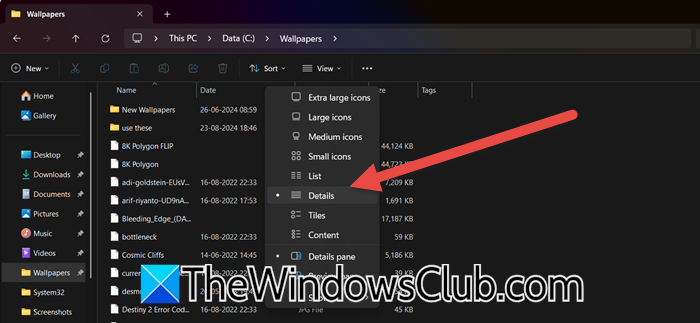
If crashes occur only when opening a specific folder, we can change the folder view to Details mode in such cases. This prevents Explorer from generating heavy previews.
- Open File Explorer, and navigate to the location that contains the large folder causing the crash. Do this from the folder that contains the problematic one and not from the large folder itself.
- In the parent folder, click on the View tab and select Details.
- Then, locate and double-click the large problematic folder to open it.
- To ensure the folder always opens up in the Details view, click on the ellipses (…) icon, click on the Options button, and then navigate to the View tab.
- Click the Apply to Folders option and hit the OK button.
Move to the next solution in case the issue persists.
3] Disable Non-Microsoft Shell Extensions

Third-party apps add extra content menu handlers or shell extensions to File Explorer. These extensions can conflict with Windows when handling large folders and, hence, result in crashes. Using the Microsoft Autoruns tool, we will disable non-Microsoft entries to determine if one of them is the cause of the issue.
- Go to the Official Microsoft Sysinternals website and download the Autoruns tool. Extract the ZIP file, right-click on Autoruns64.exe, and select Run as administrator.
- In the Autoruns window, click on the Explorer tab to see all programs, and uncheck the box next to one or two non-Microsoft entries.
- After unchecking the boxes, restart the File Explorer by going to the Task Manager and restarting the process.
Check if the larger folder opens without crashing. If it still crashes, go to Autoruns, re-enable the previously disabled items, and disable a different set. Repeat the process until the crashing stops. If doing so didn’t help at all, see the next solution.
4] Disable the Folder-type Template for media
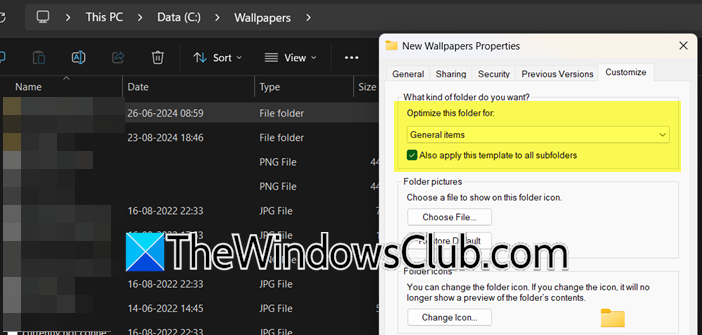
Windows assigns folders a specific template, like Pictures or Videos, which makes Explorer load extra metadata and thumbnails. If a large folder is incorrectly optimised for media files, it can easily crash during loading. To ensure that Explore treats it as a standard file, we will change the folder’s optimization to General Items.
- Launch File Explorer, find the larger folder that is causing Explorer to crash, and right-click on it.
- Select the Properties option, and click on the Customise tab.
- Look for the section titled Optimise this folder for, click the dropdown menu, and select General Items.
- Check the box titled Also apply this template to all subfolders, and click the Apply and OK buttons to close the Properties window.
Verify and slide to the next solution if the Explorer continues to crash when opening large folders.
Related: File Explorer keeps crashing, freezing or has stopped working
5] Run SFC and DISM
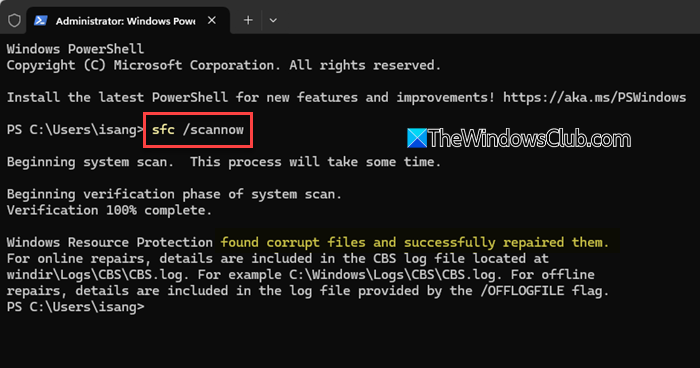
Corrupted or missing Windows system files can also be one of the factors triggering File Explorer crashing. DISM and SFC are two built-in tools that are recommended to use in this scenario to repair the system image and replace damaged files with fresh copies.
- Open an elevated Command Prompt or PowerShell, and then execute the following command to run DISM.
DISM /Online /Cleanup-Image /RestoreHealth - Let the process complete, and once the DISM finishes, type this command and press Enter:
sfc /scannow - After both commands have run successfully, restart the device for repairs to take full effect.
Test if the larger folder still causes a crash, and if it does, proceed to the next solution.
Read: Explorer crashes or freezes when creating New folder
6] Increase Shell Heap size via Registry
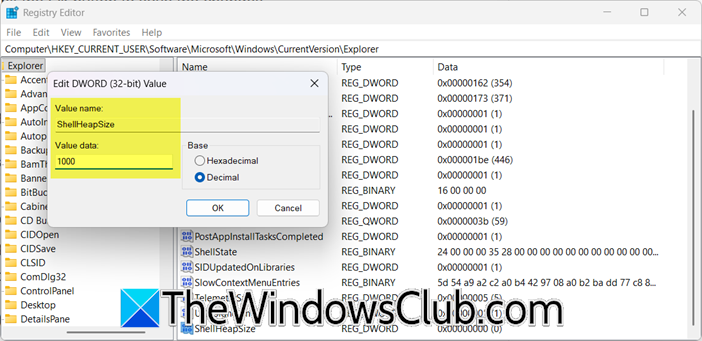
The default memory limit assigned to File Explorer when handling large files. Therefore, it crashes when loading them. To fix this, we will create a new ShellHeapSize entry in the registry to increase the memory Explorer can use, thereby helping it stay stable when loading large files.
- Click Win + R, type regedit, and hit Enter to open the Registry Editor.
- Navigate to the location mentioned below, and right-click on the right-hand pane.
HKEY_CURRENT_USER\Software\Microsoft\Windows\CurrentVersion\Explorer
- Now, select New, click on DWORD (32-bit) value, and name this new value ShellHeapSize.
- Double-click on the new ShellHeapSize value, and select the Decimal base option.
- In the Value data field, enter 1000 to allocate more memory to the Explorer process, and hit the Ok button to save the changes.
Once done, reboot the PC to apply the changes, and hopefully, the Explorer will no longer crash.
Read: Right click crashes File Explorer in Windows
How to find large files in Windows 11 File Explorer?
To locate large files, open File Explorer and navigate to the folder or drive. In the top-right search bar, use a precise size filter, such as “size > 1GB” or “size > 500 GB”. This step is useful because oversized files within a folder often cause File Explorer to become unstable or crash when loading previews. Identifying and moving such files to a different location can reduce the load and help prevent crashes.
Read: Explorer crashes or freezes when accessing Network Drive
Can faulty RAM cause File Explorer issues?
Yes, faulty RAM can be one of the reasons for File Explorer issues. When RAM is unstable or damaged, it leads to corrupted data handling, frequent crashes, and system instability. To check if it is faulty, launch Windows Memory Diagnostic, and if an error appears, reseat the RAM sticks, or test one module at a time.
Also Read: File Explorer keeps restarting in Windows.
