
If Excel is not recognizing functions after a reboot, here is how you can fix the issue. If your functions are not working after an Excel restart or a computer restart, you can try these solutions to fix them.
Why is Excel not recognizing functions after reboot?
If Excel is not recognizing functions after rebooting, these could be the reasons:
- You have changed the calculation settings to Manual instead of Automatic.
- Your spreadsheet or Workbook is opened in compatibility mode.
- You have enabled the Show Formulas functionality, which doesn’t calculate anything but shows the actual formula or function.
- Your Microsoft 365 subscription has expired.
- The Microsoft 365 installation is corrupt and outdated.
Excel not recognizing functions after reboot
If Excel is not recognizing functions after a reboot, follow these instructions:
- Set calculation settings to Automatic
- Disable Show Formulas option
- Set cell to General
- Check subscription status
- Repair Microsoft 365
- Update Microsoft 365 installation
To learn more about these solutions, continue reading.
1] Set calculation settings to Automatic
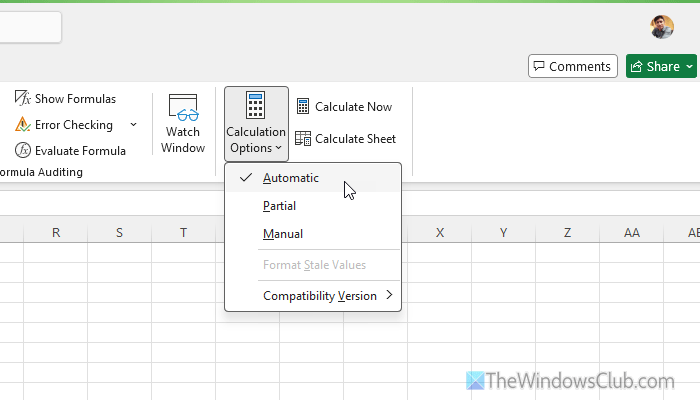
By default, Excel calculates all formulas automatically. However, there is an option that can change this behavior. If you have enabled this option and Excel is stuck to it for some reason, you can find the aforementioned error.
Therefore, follow these steps to set the calculation settings to Automatic:
- Open Excel on your computer and go to the Formulas tab.
- Head to the Calculation section.
- Click on Calculation Options and select the Automatic option.
Once done, try restarting Excel and the computer to see if it resolves the issue.
Read: Use Excel Troubleshooter to fix Excel problems on Windows 11
2] Disable Show Formulas option
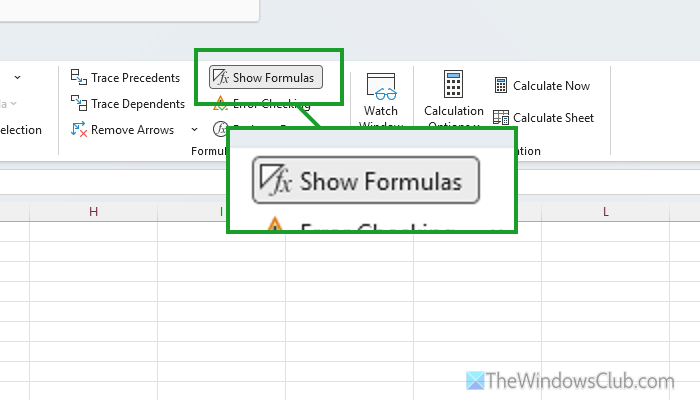
Excel lets you view all formulas in text format, so you can make any changes if required. Like the calculation settings, if Excel is stuck at the “Show Formulas” option, you can find the same error as above.
That is why it is suggested to verify and disable it by following these steps:
- Open Excel and go to the Formulas tab.
- Find the Formula Auditing section.
- Check the Show Formulas option.
- If it is enabled, click on it to disable.
If it is already disabled, there is no need to do anything.
Read: How to use the Not function Excel
3] Set cell to General
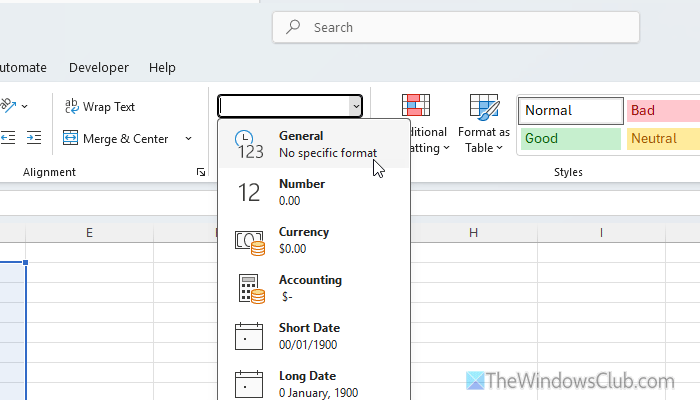
When you type, a formula appears as text and disappears when you hit the Enter button. By default, this process comes under the General category. In other words, Excel treats results as General. However, if you have used a different category, such as Percentage, Number, Currency, Accounting, or anything else, and Excel doesn’t recognize the output entirely, there is a chance of getting this problem.
Therefore, click on the formula cell in your Excel spreadsheet and make sure that you are in the Home tab.
Then, head to the Number section, expand the drop-down menu, and choose the General option.
Read: How to hide Formula in Excel
4] Check subscription status
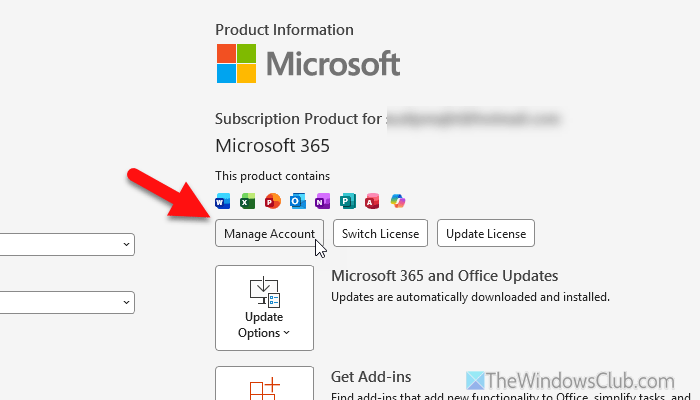
If your subscription has expired, Excel might not save your formulas or execute them at all. Therefore, it is important to check the current status of the Microsoft 365 subscription by following these steps:
- Open Excel and go to File > Account.
- Click on the Manage Account option.
- Check if the subscription has expired or not.
If it has expired, you must purchase or renew it.
Read: How to change Microsoft Office 365 Subscription Plan
5] Repair Microsoft 365
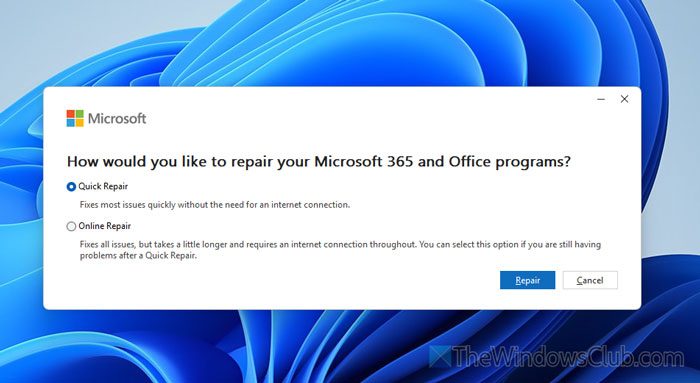
To repair Microsoft 365, follow these steps:
- Press Win+I to open Windows Settings.
- Go to Apps > Installed apps.
- Click the three-dotted button of Microsoft 365 and select Modify.
- Choose the Quick Repair option and click the Repair button.
However, if it doesn’t work, choose the Online Repair option. In that case, it takes a little bit more time.
Read: How to repair Microsoft 365 using Command Prompt in Windows 11
6] Update Microsoft 365 installation
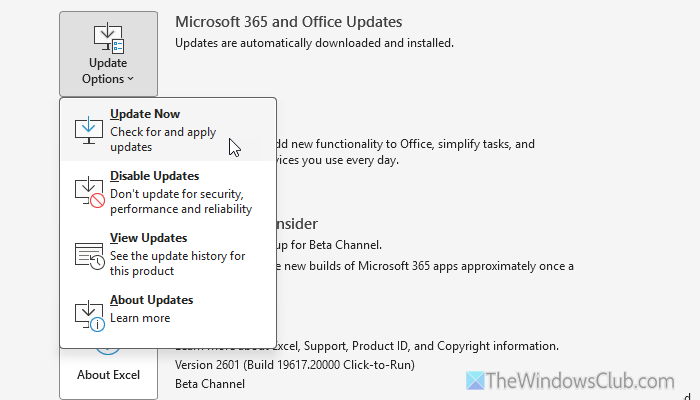
To update the Microsoft 365 installation, follow these steps:
- Open Excel and go to Account.
- Click on Update Options > Update Now.
For your information, it takes a few minutes to complete the update installation.
Read: Excel cannot open the file because the file format or extension is not valid
Why are my formulas suddenly not working in Excel?
If the calculation setting is set to Manual instead of Automatic, this problem may occur. On the other hand, if you have enabled the Show Formulas option, Excel will display the formula rather than execute it.
Why is Excel not recognizing user-defined functions?
The main reason why Excel does not recognize user-defined functions is syntax errors. Apart from that, if you have made a typing mistake, used an incorrect parameter, etc., there is a chance of getting this error.
