
If Microsoft Excel is freezing when applying a filter on a large data set, the solutions provided in this article will help you. The same issue can also occur when removing the applied filters. This is an annoying issue because it hampers productivity.
Excel is freezing when applying a filter on a large data set
Use the following suggestions if Excel is freezing when applying a filter on a large data set:
- Disable installed add-ins
- Disable automatic calculation
- Turn off the freezing pane
- Disable touch screen driver (if applicable)
- Convert table format into range format (if applicable)
- Troubleshoot in a Clean Boot state
- Disable your antivirus
- Repair Office
All these fixes are explained in detail below.
1] Disable installed add-ins
Some installed add-ins might be conflicting with Excel and causing this issue. To check this, disable all the installed add-ins and check if the issue persists.
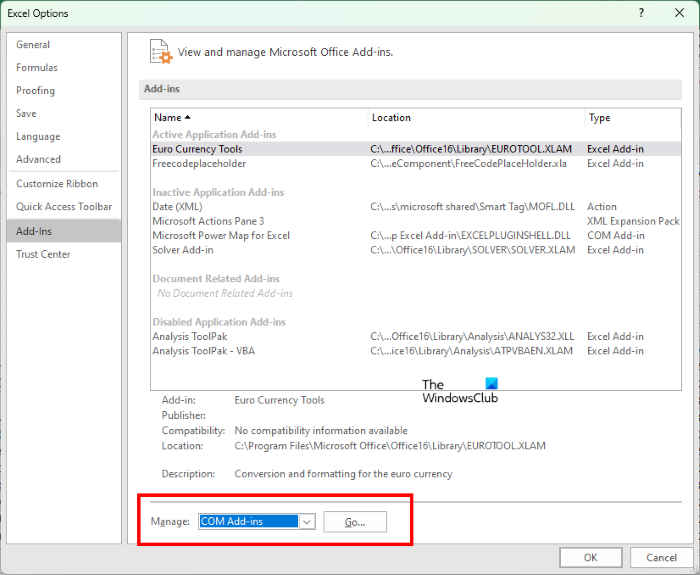
Follow these steps to disable add-ins in Excel:
- In Excel, navigate to File > Options.
- Select Add-ins from the left side.
- Select COM Add-ins in the Manage drop-down and click GO.
- Uncheck all checkboxes and click OK.
Now, relaunch Excel and see if you can apply or remove filters. If the issue disappears, you need to identify the problematic add-in. For this, enable the add-ins one by one and check for the issue after enabling each add-in. When the problem reappears, the add-in you have just enabled is the culprit.
2] Disable automatic calculation
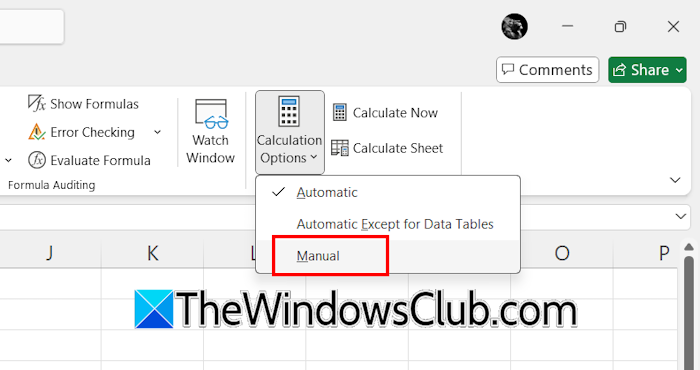
Excel performs calculations every time you make changes to your spreadsheet. If your Excel file contains huge amounts of data, Excel may freeze. To address this issue, enable the Automatic Calculation option in Excel. For this, select the Formulas tab, and then click Calculation Options > Manual.
3] Turn off the freezing pane
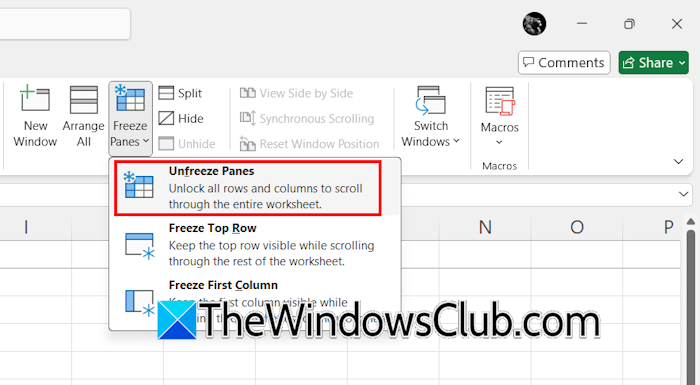
If you have activated the Freezing Pane, that might be triggering this error. To check this, disable it. If this works, you can turn it on after applying or removing the filters. Select the View tab, then click Freezing Panes > Unfreeze Panes.
4] Disable touch screen driver (if applicable)
If you have a touchscreen laptop, you can try disabling the touchscreen and pen driver. Follow these steps:
- Open the Device Manager.
- Expand the Human Interface Devices branch.
- Right-click on the HID Compliant touch screen driver and the HID Compliant pen driver.
- Select Disable device.
5] Convert table format into range format (if applicable)
If your data is formatted as an Excel Table, this issue may occur, especially when working with a large dataset or applying multiple filters. This is because Excel Tables include additional features that can increase processing. When an Excel Table is combined with additional actions, such as filtering or sorting, Excel may need to perform repeated calculations, leading to slow performance or temporary freezing.
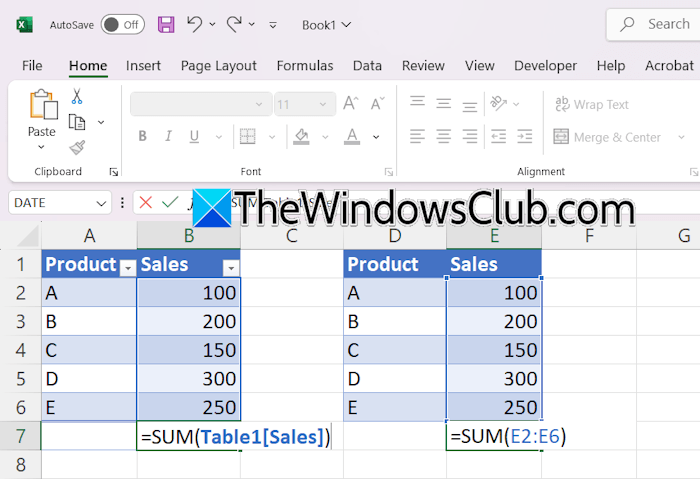
The screenshot above shows the same data in both Table and Range formats. In the Table format, Excel has to understand the table structure before calculating the sum, which increases the load. However, in the Range format, Excel only needs to add the values in the selected cells.
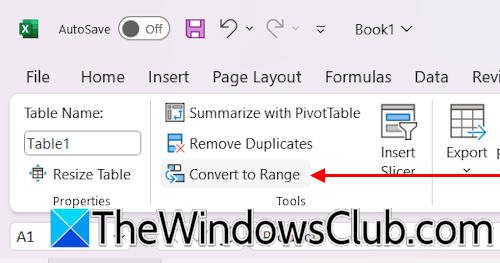
Therefore, if your data is in Table format, convert it into Range format. Create a new sheet in the same spreadsheet or create a new spreadsheet. Copy all the data to the new sheet or spreadsheet. Now, convert the Table format into the Range format. To do so, follow these steps:
- Click anywhere inside the table.
- The Table Design tab will appear on the ribbon. Click on it.
- Click Convert to Range.
- Now, you can add or remove filters. If this works, you can continue to work in the new sheet or spreadsheet.
6] Troubleshoot in a Clean Boot state
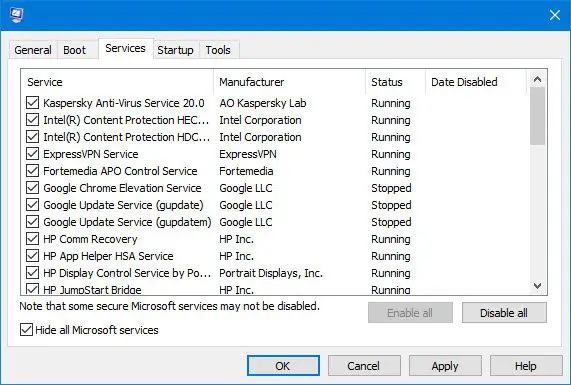
A third-party application or service might be responsible for this issue. To confirm this, troubleshoot in a Clean Boot state. Use MSConfig to enter the Clean Boot state. Once you are in the Clean Boot state, launch Excel and see if the issue appears. If not, your next step is to find the problematic third-party service.
Enable some of the disabled services and restart your computer. Launch Excel and check if it freezes while applying or removing filters. If not, enable some more services and restart your computer. When the issue reappears, one of the services you have just enabled is the culprit.
7] Disable your antivirus
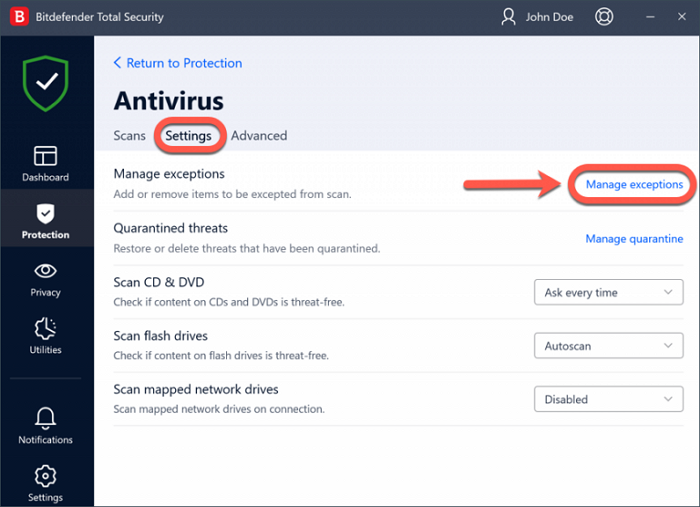
Your antivirus might be causing this issue. To check this, temporarily disable your antivirus and then apply or remove filters in Excel. If Excel does not freeze this time, you need to add the Excel exe file to your antivirus exception list. If this does not help, contact your antivirus support. If you use a free antivirus, you can switch to another one.
To find the Excel exe file, click in Windows Search and type Excel. Right-click on Excel in the search results and select Open file location. The File Explorer window will open, highlighting the Excel shortcut or exe file. If it shows the Excel shortcut, right-click the shortcut and select Open file location.
8] Repair Office

If the issue persists, some of the Office files might have been corrupted. In such a case, repairing Office can help. Run an online repair.
That’s it. I hope this helps.
How to apply a filter in Excel for large data?
To apply a filter in Excel to your data, first select the range of data you want to filter. Now, look for the Editing group under the Home tab. You will find the Sort & Filter option there. Click on it and select Filter.
How do I stop my Excel from freezing?
If Excel keeps freezing on your system, that might be due to an add-in. First, disable all the add-ins and check if the issue persists. You can also check the issue in the Clean Boot state. If this does not work, repair the Office.
Read next: There’s a problem with this formula Excel error.
