
If you have encountered the error message “There’s a problem with this formula” in Microsoft Excel, you are not alone. Many users report this error appearing even when the formula looks perfectly fine at first glance. In this post, we will show you how to fix this error on your Windows 11/10 PC.
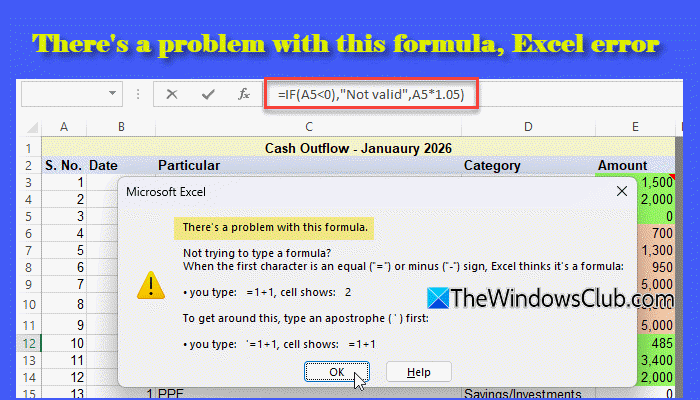
Normally, when you enter a formula, Excel first checks whether it is written correctly. If the structure is valid, Excel calculates the result. However, if there is a syntax mistake, Excel cannot interpret the formula and displays the following error:
There’s a problem with this formula.
Not trying to type a formula?
When the first character is an equal (=) or minus (-) sign, Excel thinks it’s a formula:. you type: = 1 + 1 , cell shows: 2
To get around this, type an apostrophe (‘) first:
. you type: = 1 + 1 , cell shows: = 1 + 1
In most cases, the issue is not with the calculation itself but with how the formula is written. Even a small mistake, such as a missing parenthesis, an extra comma, or an incorrect separator, can prevent Excel from understanding the formula. When this happens, Excel cannot interpret the syntax and stops before performing any calculation.
Fix There’s a problem with this formula Excel error
To fix the Excel error, “There’s a problem with this formula” on Windows 11/10, use these solutions:
- Make sure the formula starts with an equal sign
- Check for unmatched or missing parentheses
- Ensure the formula is correct
- Check Windows regional settings
- Check system separators in Excel
Let us see this in detail.
1] Make sure the formula starts with an equal sign
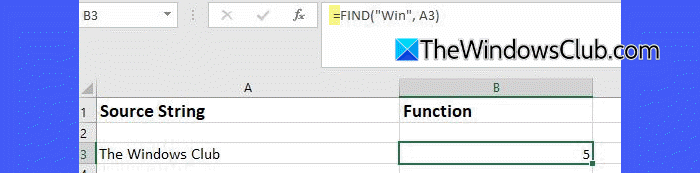
Excel only recognizes an entry as a formula if it begins with an equal sign (=). If the equal sign is missing, Excel may treat the entry as plain text or fail to interpret the expression correctly.
Click the cell that shows the error. Look at the formula in the Formula Bar. If it does not begin with =, add the equal sign at the beginning.
Press Enter to apply the formula. If the formula is written correctly, the error should no longer appear.
2] Check for unmatched or missing parentheses

Excel functions use parentheses to define arguments. If a bracket is missing or extra, Excel cannot parse the formula and shows the error dialog.
Click OK on the error message. Excel will return to the formula in Edit mode. Carefully check each opening parenthesis (. Make sure it has a matching closing parenthesis.
Press Enter after correcting the formula.
3] Ensure the formula is correct

Carefully review the entire formula and ensure the following:
- The formula is syntactically valid.
- The function name is spelled correctly (for example, SUM, not SUMM).
- All required arguments are present in the correct order.
- There are no missing commas or semicolons between arguments.
- Any text values inside the formula are enclosed in straight double quotation marks (” “).
- There are no extra or misplaced symbols.
Even a small mistake can prevent Excel from understanding the formula and trigger the error.
Tip: Excel shows a tooltip with required arguments as you type a function.
After reviewing the formula, correct any issues you identify and press Enter to see if the error disappears.
4] Check Windows regional settings
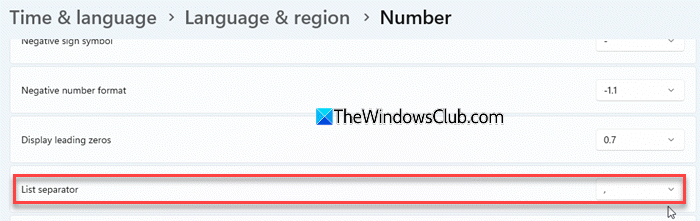
Excel follows your system’s regional configuration to determine which symbol is used as the list separator (comma or semicolon). If your Windows settings use a semicolon (;) as the list separator, but you enter formulas using commas (,), Excel may not be able to separate the arguments correctly and will display the “There’s a problem with this formula” error. Ensuring the correct list separator in Windows allows Excel to interpret function arguments properly.
Follow these steps to check the list separator on your Windows PC:
Press Win + I to open Settings. Click Time & language in the left pane. Then select Language & region in the right pane.
Scroll down and expand the Regional format section. Then select Number format. Again, scroll down and locate the List separator field:
- If the symbol shown is “,” → Excel uses commas in formulas.
- If the symbol shown is “;” → Excel uses semicolons in formulas.
Click OK to close the windows.
After adjusting the setting, reopen Excel and test your formula again.
5] Check system separators in Excel
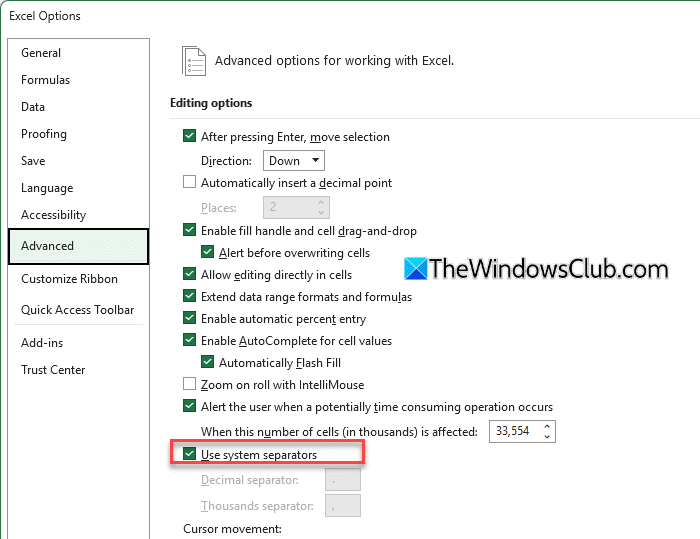
Excel also has its own separator configuration. If Excel is not set to use system separators, it may apply custom decimal and thousands separators that conflict with Windows regional settings. This mismatch can sometimes interfere with how formulas are interpreted.
Enabling system separators ensures Excel follows the same formatting rules defined in Windows, preventing separator-related formula errors.
Open Excel. Click File > Options.
Select Advanced from the left pane of the Excel Options window. Make sure Use system separators is checked under the Editing options section.
After enabling this option, re-enter the formula and check if the error is resolved.
I hope this helps.
Read: What is IFERROR function in Excel.
Why is Excel not accepting my formula?
Excel may not accept your formula if it cannot interpret its structure. This can happen when the formula contains a syntax error, such as a missing parenthesis, incorrect argument separator, or a misspelled function name. Carefully review the formula and ensure it follows Excel’s required format.
How can I fix my formula in Excel?
You can troubleshoot your formula by selecting Formulas > Show Formulas to display all formulas instead of their results. This helps you compare the problematic formula with surrounding cells and identify inconsistencies. If needed, use Formulas > Trace Precedents to see which cells are feeding into the formula and check whether the referenced ranges are correct.
Read Next: Excel showing formulas, not results.
