
In this post, we will show you how to enable or disable Spatial Sound in Windows 11. Spatial Sound is an advanced audio feature that creates an immersive, 3D sound experience, without requiring special hardware. It makes audio feel as if it’s coming from all directions (left, right, above, and behind), much like how sound behaves in the real world.
Windows 11 includes built-in spatial audio features that can enhance how sound is delivered on your PC. This feature works best with headphones and supported apps, where sound direction and depth are most important. However, it may not be useful in every setup, which is why Windows lets you easily turn Spatial Sound on or off.
When should you enable or disable Spatial Sound on PC?
Spatial Sound works best when using headphones, watching movies, or playing games that benefit from directional audio. It can make sound feel more immersive and realistic. However, if you are using basic laptop speakers, listening to music that prefers stereo sound, or notice audio distortion or compatibility issues with certain apps, you may turn off Spatial Sound.
Enable or disable Spatial Sound in Windows 11
To enable or disable Spatial Sound on your Windows 11 PC, you may use the following methods:
- Use the Settings app
- Use Control Panel
- Use Quick Settings Volume Mixer
Let us see this in detail.
1] Use the Settings app
You can turn Spatial Sound on or off directly from the Windows 11 Settings app.
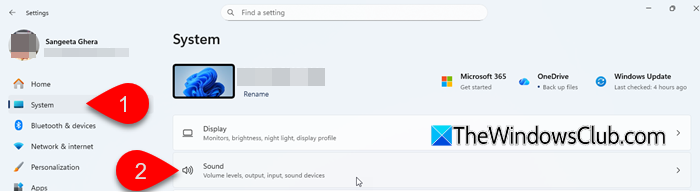
Press Win + I to open the Settings app. In the left pane, select System. In the right pane, select Sound.
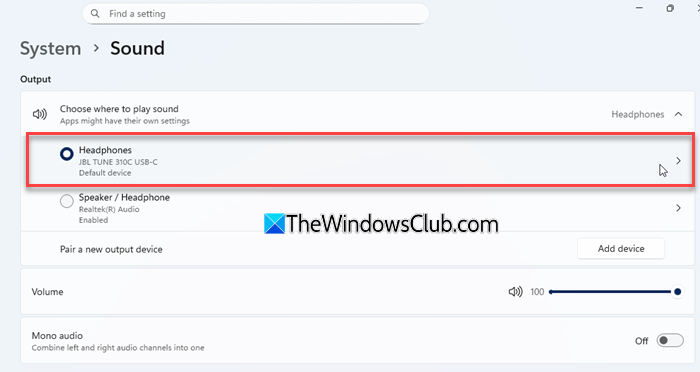
Under the Output section, select the audio device you are currently using (for example, speakers or headphones).
Scroll down to the Advanced settings section. Click the drop-down menu next to Spatial sound. To enable Spatial Sound, select Windows Sonic for Headphones.
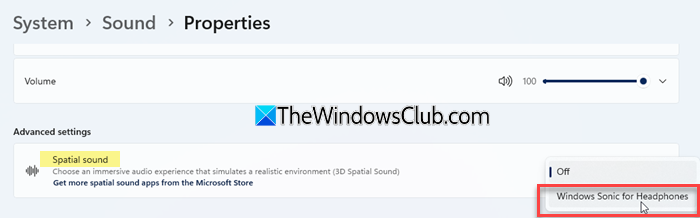
Note: Windows Sonic for Headphones is Microsoft’s built-in and free spatial sound format in Windows 11. You can also access additional spatial sound options, such as Dolby Atmos for Headphones or DTS:X, by downloading the Dolby Access or DTS Sound Unbound apps from the Microsoft Store.
To disable Spatial Sound, select Off from the list.
Close the Settings app once you’re done. The changes are applied immediately.
2] Use Control Panel
If you prefer the classic Windows interface, you can also manage Spatial Sound through the Control Panel.
Press Win + R to open the Run dialog box. Type ‘control’ and press Enter to open the Control Panel. Set View by to Large icons or Small icons, then select Sound from the list of Control Panel items.
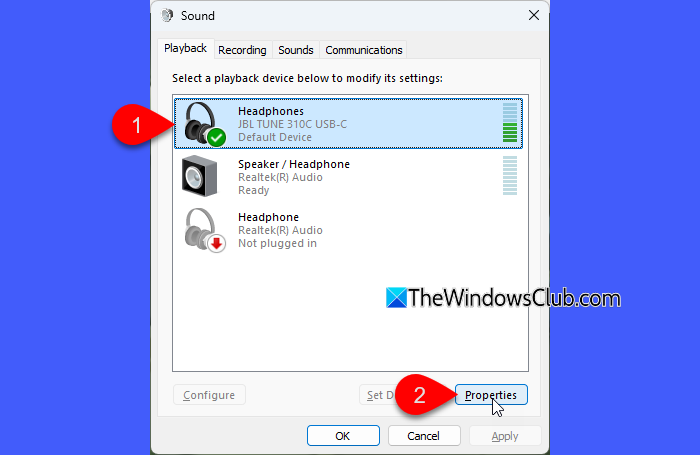
In the Sound dialogue, select the Playback tab. Then select your active audio device. Click the Properties button at the bottom.
In the Speaker/ Headphone Properties window, switch to the Spatial sound tab. Select Windows Sonic for Headphones from the dropdown under Spatial sound format.
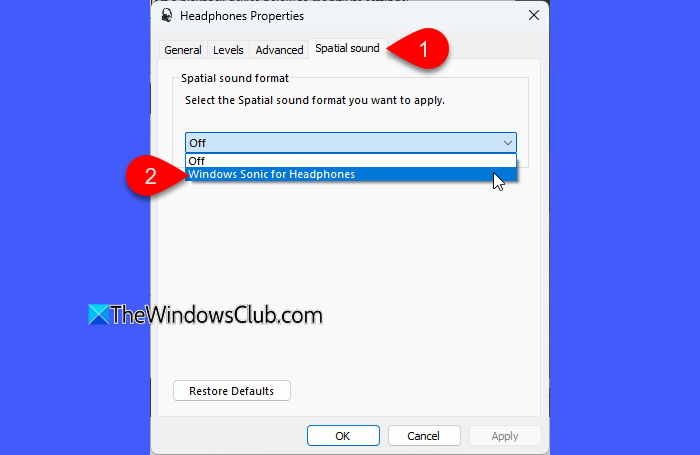
Click Apply, then OK to save the changes. Click OK again to close the Sound window.
To turn off Spatial Sound, simply select Off from the Spatial sound format drop-down menu.
3] Use Quick Settings Volume Mixer
Windows 11 also allows you to manage Spatial Sound quickly through the Quick Settings panel without opening full system settings. This option is available starting with Windows 11 version 22H2 (KB5030310, Build 22621.2361).
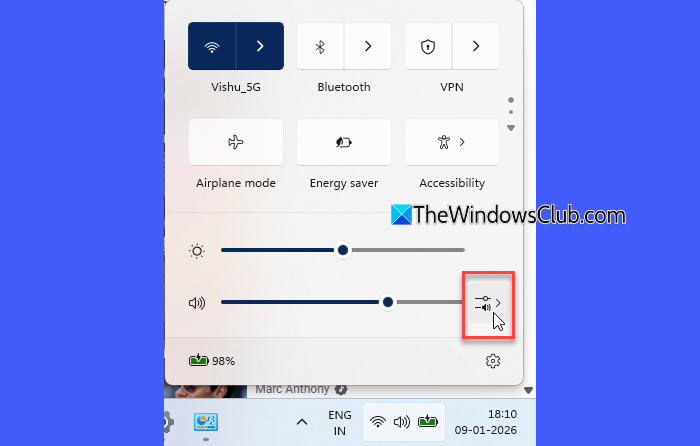
Click the network, sound, or battery icon on the taskbar to open Quick Settings. Click the volume arrow (>) next to the volume slider to open the Volume Mixer.
Under the Output device section, locate the Spatial sound option under your active audio device. Select Windows Sonic for Headphones to enable it, or choose Off to disable Spatial Sound.
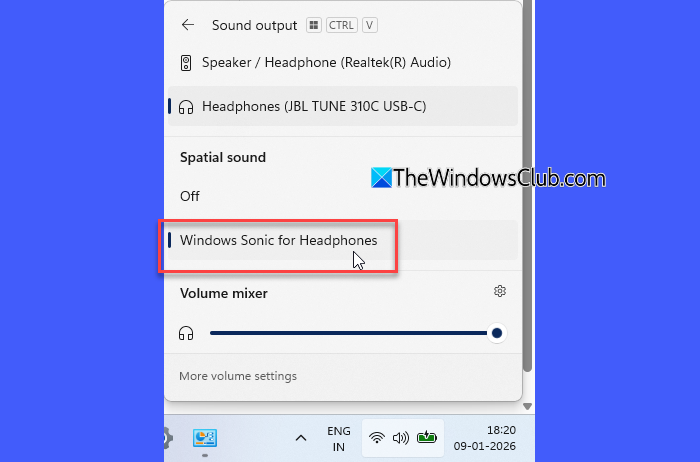
Close the Quick Settings panel once you’re finished.
NOTE: Windows Sonic is Microsoft’s free built‑in spatial audio solution, while Spatial Sound is the broader Windows 11 category that includes Windows Sonic, Dolby Atmos, and DTS Headphones.
What to do if Spatial Sound is missing or greyed out
If the Spatial Sound option is missing or greyed out on your Windows 11 PC:
- Ensure your device supports spatial sound
- Ensure the correct audio output device is selected
- Update your audio drivers
- Turn off Mono Audio, as enabling Mono Audio automatically disables Spatial Sound
Read: Spatial Sound keeps switching to Windows Sonic.
Should I turn on spatial sound in Windows 11?
You should turn on Spatial Sound if you use headphones and want a more immersive audio experience. It works best for movies and games. It helps create a sense of direction and depth in sound. However, it may not make much difference with basic laptop speakers. If you prefer standard stereo audio or notice sound distortion, you can keep it turned off.
How to get louder sound on Windows 11?
Open the Volume Mixer and make sure the volume sliders for all running apps and your output device are set to their maximum. You can also enable Audio Enhancements like Loudness Equalization in the speaker’s properties to make the sound louder and more consistent. For significant gain, you can use third-party volume booster apps designed to increase overall system sound.
Read Next: Something went wrong while trying to turn on Spatial Sound.
