
Are you frustrated with the empty HP Hotkey Support blank pop-ups appearing frequently on the screen? You are not alone in this situation; many Windows 11 users are experiencing the small, blank, or transparent pop-up window that flickers on the screen. It is often triggered by using function keys, such as volume or brightness controls. However, this is not a dire situation, and can be easily resolved by disabling the pop-up. In this guide, we will walk through the steps to disable the blank pop-up for HP Hotkey Support in Windows 11.
Disable HP Hotkey Support blank pop-up in Windows 11
HP Hotkey Support is part of the HP Driver packages that control function keys like brightness, volume, screen switching, aeroplane mode, and so on. The blank trigger, instead of the normal on-screen indicators, can be triggered due to software glitches. These glitches usually occur after a Windows update, a corrupted driver file, or a mismatch between the HP driver and Windows 11’s latest build.
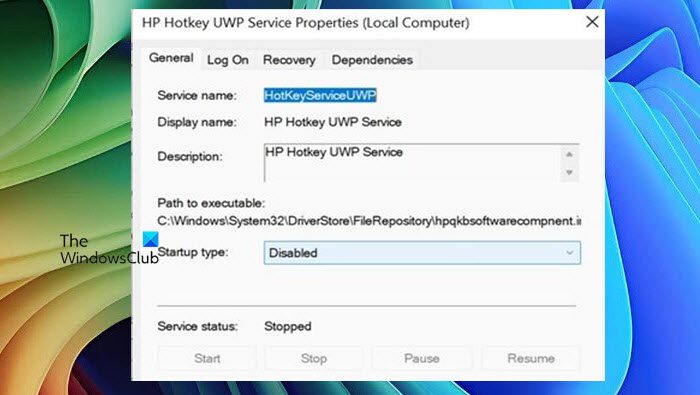
To disable the HP Hotkey Support blank pop-up in Windows 11, follow the steps outlined below.
- Click Win + R to open the Run dialogue box, type services.msc, and hit Enter to open the Windows Service Manager.
- Scroll down to find HP Hotkey UWP Service, right-click on it, and select the Properties option.
- In the Properties window, navigate to the Startup Type dropdown menu, and switch it to Disabled from Automatic. If the service is running, click the Stop button, located below the Startup Type.
- Click Apply and OK to apply the changes. Next, to ensure that no service is running in the background, click Ctrl + Shift + Esc to open the Task Manager.
- Hit the Startup tab, and then look for the HP Hotkey Support entry. Click on it to select and hit the Disable button. After the process is completed, reboot the PC to allow Windows to load with the new configuration.
To fix the issue at the root, users can start with a simple solution like updating the HP Hotkey driver.
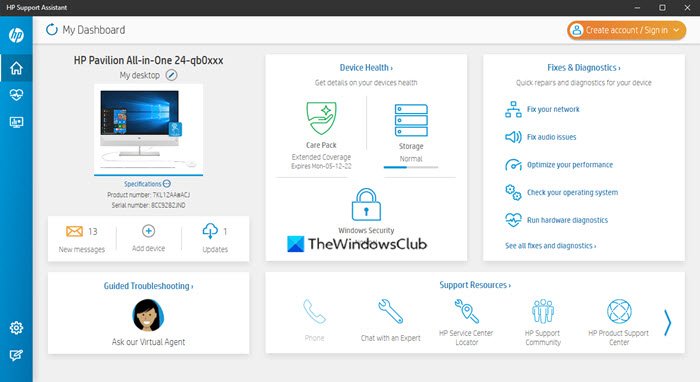
Doing so will resolve the conflict if you have recently updated Windows. Open the HP Support Assistant, look for updates, and install everything related to keyboard control or hotkey features. Once done, restart the device, and see if the issue persists.
If it does, the next step is to repair the driver. For that, click Win + I to open Settings, go to Apps, select Installed Apps, and search for HP Hotkey Support. Click on it, and select the Repair button. This will rebuild any missing or corrupted components. Now, verify if the pop-up is still appearing on the screen.
Block HP Support Notification
If you still notice the pop up, a simple workaround is to block the HP Hotkey Support through the Notification settings. To do the same, navigate to Settings, select System, and click on Notification. There, look for the HP Hotkey Support and turn off its notification permissions. This won’t fix the underlying glitch, but it will prevent the frustrating pop-up from disrupting the workflow.
Reinstall HP Hotkey Support
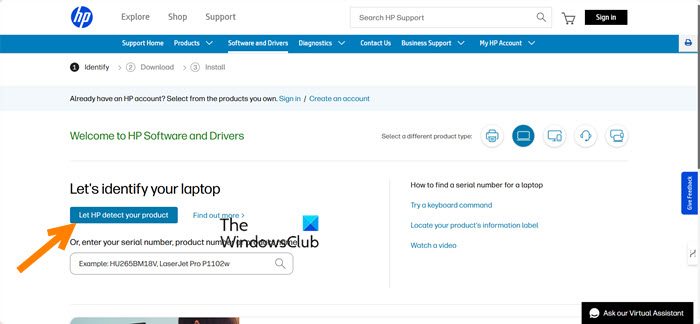
If nothing works, uninstalling is the last resort. To do it, open Settings, go to Apps, and then select Installed apps. Search for HP Hotkey Support or a similar name, like HP Hotkey UQP Services, click the three dots beside it, and select Uninstall. After reinstalling and rebooting the PC, test the function keys. The blank pop-up should be completely resolved. If you want the on-screen display back, just reinstall the HP Hotkey Support from the official HP Support website (support.hp.com)
Hopefully, with these solutions and workarounds, you will be able to get rid of the HP Hotkey Support blank pop-ups.
Read: HP Software Framework is not installed in the System
How do I remove HP Support Assistant?
HP Support Assistant is a standalone app that provides updates, diagnostics, and support tips. If a user no longer wishes to use it, they can simply uninstall it as it doesn’t affect any computer’s core activities. To do so, open Settings, go to Apps, and click on Installed Apps. Please search for the app and select the three dots option beside it. Lastly, click the Uninstall button, and follow the on-screen prompts to complete the procedure. Users can always download it again from the Microsoft Store or HP’s website if they change their mind.
Read: Browser keeps opening HP Support tabs
Can I uninstall HP Hotkey support?
Yes, we can uninstall HP Hotkey Support. Windows 11 manages most basic hot key functions on its own, and HP don’t fully rely on this for everyday use. The keys will still function; uninstalling it will just remove the visual on-screen displays for the function keys. To uninstall HP Hotkey Support, just follow the steps mentioned above.
Also Read: HP HotKey UWP Service High Memory and CPU Usage.
