
HP Support Assistant (HPSA) helps HP users manage their computers by checking for driver updates, running diagnostics, and providing troubleshooting tools. However, some users have reported that HP Support Assistant keeps popping up on the taskbar, displays unwanted notifications, or launches automatically whenever they sign in to Windows.
Although these notifications can help keep your HP device up to date, repeated pop-ups can become annoying, especially when they appear while you are working. In this article, we will look at some ways to stop HP Support Assistant from repeatedly appearing on the taskbar or launching automatically.
HP Support Assistant keeps popping up on Taskbar in Windows 11
To fix HP Support Assistant if it keeps popping up on your Windows 11 taskbar, use these solutions:
- Unpin HP Support Assistant from the Taskbar
- Turn off problematic HP Support Assistant settings
- Disable HP Support Assistant notifications
- Change the HP Support Assistant Quick Start task trigger
- Uninstall and reinstall HP Support Assistant
Let us see these solutions in detail.
1] Unpin HP Support Assistant from the Taskbar

Windows lets you unpin apps from the taskbar. If you do not use HP Support Assistant very often, you can simply unpin it from the taskbar. Doing so will prevent unnecessary taskbar notifications from popping up.
- Right-click the HP Support Assistant icon on the taskbar.
- Select Unpin from taskbar.
2] Turn off problematic HP Support Assistant settings
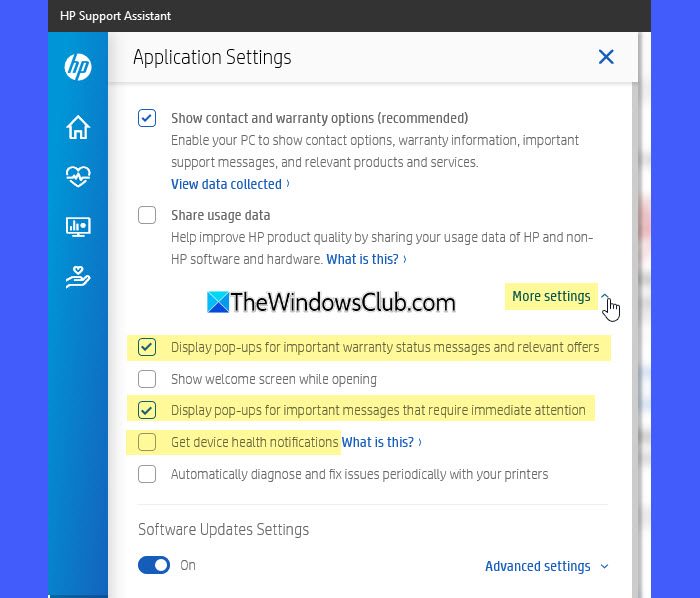
HP Support Assistant includes several notification settings that control warranty alerts, support messages, and pop-ups. If you only want to remove specific notifications, you may turn them off from the app’s settings page.
- Open HP Support Assistant.
- Click the Settings icon in the left pane.
- Under Application Settings, turn off Show contact and warranty options (recommended).
- Expand More settings.
- Turn off the relevant notifications:
- Display pop-ups for important warranty status messages and relevant offers
- Display pop-ups for important messages that require immediate attention
- Get device health notifications
Close HP Support Assistant and check whether the pop-ups stop appearing. The available settings may vary depending on the version of HP Support Assistant installed on your computer.
3] Disable HP Support Assistant notifications
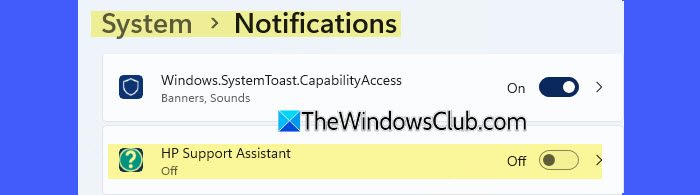
Windows 11 lets you manage notifications for individual apps. To stop all notifications from HP Support Assistant, you may turn off its notification permission in Windows Settings.
- Press Win + I to open Settings.
- Go to System > Notifications.
- Scroll down to the list of applications.
- Locate HP Support Assistant.
- Turn off its notification toggle.
4] Change the HP Support Assistant Quick Start task trigger
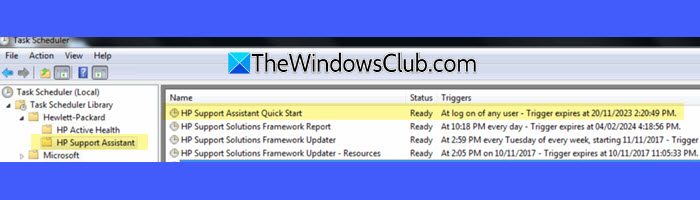
If HP Support Assistant keeps opening a few minutes after you sign in to Windows, a scheduled task may be launching the application. A user reported that the HP Support Assistant Quick Start task was configured to run three minutes after boot. Disabling its trigger reportedly stopped the application from popping up in the lower-left portion of the screen. You can check whether a similar task exists on your computer.
- Press Win + R, type taskschd.msc, and press Enter. This opens the Task Scheduler app.
- Expand Task Scheduler Library in the left pane.
- Expand the HP folder and select the HP Support Assistant folder.
- Locate HP Support Assistant Quick Start in the top center panel.
- Right-click the task and select Properties.
- Open the Triggers tab and select the trigger that starts the task when you sign in or start Windows.
- Click Edit.
- Under Advanced settings, clear the Enabled checkbox.
- Click OK, and then click OK again to save the change.
Restart your PC and check whether HP Support Assistant still opens automatically.
5] Uninstall and reinstall HP Support Assistant
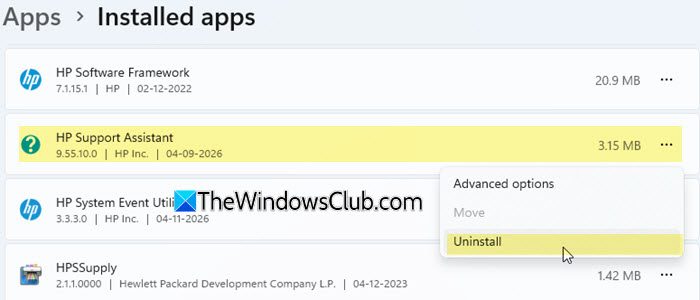
If HP Support Assistant continues to display unexpected pop-ups, its installation may be experiencing an issue. Reinstalling the application can replace corrupted or missing program files and help resolve software-related problems.
- Press Win + I to open Windows Settings.
- Go to Apps > Installed apps.
- Locate HP Support Assistant in the list.
- Click the three-dot menu next to it and select Uninstall.
- Follow the on-screen instructions to remove the application.
- Remove leftover files, if any.
- Restart your PC.
- Download the latest version of HP Support Assistant from the official HP website.
- Run the downloaded installer and follow the setup instructions.
I hope this helps.
Read: Fix HP Support Assistant Important action needed error.
How do I stop my HP Support Assistant from popping up?
To stop HP Support Assistant from repeatedly popping up on your Windows 11 desktop, check its notification settings and turn off the alerts you do not need. You can also prevent it from launching automatically by disabling its trigger in Task Scheduler.
Is it safe to remove HP Support Assistant?
Yes, it is generally safe to uninstall HP Support Assistant if you do not use it. It is a support utility that helps find HP updates, run diagnostics, and access troubleshooting tools. It is not required for Windows to run. However, after uninstalling it, you will lose convenient access to these HP-specific features. If you rely on HP Support Assistant to manage your device, consider disabling unwanted notifications instead of removing the app.
Read Next: Cannot install HP Support Assistant on Windows PC.
