
If you find that the DCFWinService.exe process is using high CPU, Disk, Power, or Memory Resources, this post will show you how to resolve the issue effectively on your Windows computer.
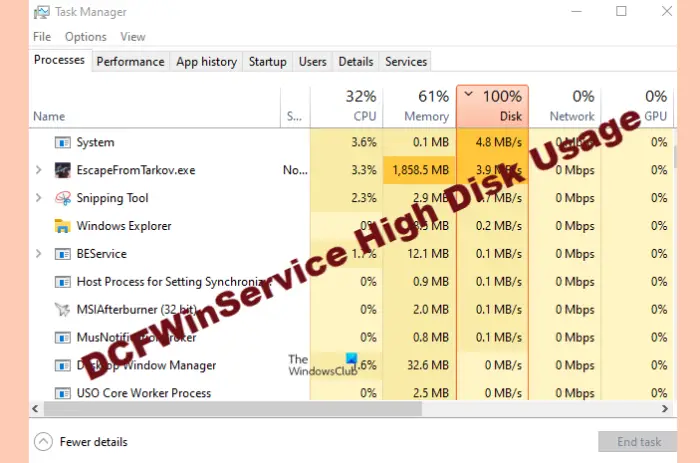
What is DFCWinService?
DFCWinService is a service of Dell Foundation Software. It is designed to provide you with exclusive Dell messaging and support functions. So, they are not essential for your computer, and hence, removing them won’t cause any trouble to your computer.
Fix DCFWinService High Disk Usage on Windows 11/10
Sometimes, when Dell Foundation Software services are active, you will see DFCWinService consuming some resources but if it’s consuming a lot of it we need to fix it immediately. These are the steps you can take to resolve DCFWinService Issues with High CPU, Disk, Power, or Memory usage on Windows systems.
- Disable DFCWinService
- Troubleshoot in Clean Boot State
- Remove the Culprit
- Scan for Virus and Malware
Let us talk about them in detail.
1] Disable DFCWinService
Let’s start troubleshooting by disabling the main culprit of this unusual CPU hike. We will disable DFCWinService to prevent it from placing an undue strain on your CPU.
To do that, follow the given steps.
- Launch Services from the Start Menu.
- Look for DCFWinService.
- Right-click on it and select Stop.
Now, reboot your system, open Task Manager, and see if the issue persists.
2] Troubleshoot in Clean Boot
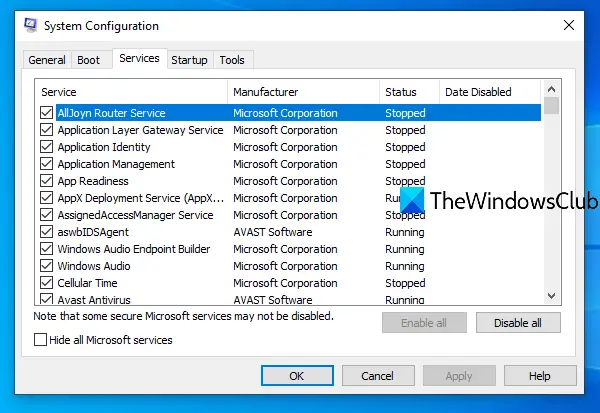
If stopping service didn’t fix the issue, you need to check which application is causing the issue, for that you need to troubleshoot in Clean Boot.
3] Remove the culprit
If you have boiled down the issue and exactly know what’s causing it, you can remove the culprit. Most probably, Dell Foundation Services is the reason behind this CPU spike. Therefore, follow the steps below to uninstall the application and resolve the issue.
- Launch Settings by Win + I.
- Click Apps.
- Look for Dell Foundation Services and click Uninstall.
After completing the uninstallation process, reboot your computer and check if the issue is fixed. Hopefully, your issue will be rectified.
4] Scan for Virus and Malware
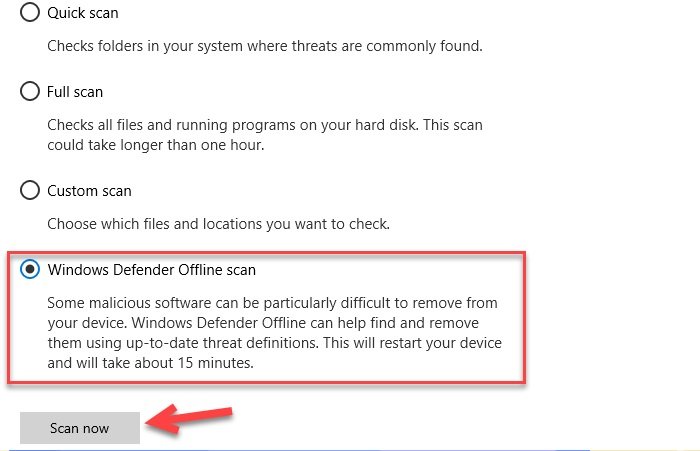
If you are still experiencing the Dell Foundation service taking a toll on your CPU, a virus may be masquerading as a genuine process. We will run the Microsoft Defender Offline Scan to see if it can resolve the issue.
To do so, follow the steps provided.
- Search “Windows Security” from the Start Menu.
- Click Virus & threat protection > Microsoft Defender Offline Scan > Scan now
Wait for the process to complete and see if the issue persists.
Why is Disk usage 100%?
There can be multiple reasons why you may experience 100% Disk/CPU usage. Outdated drivers, corrupted system files, and Cloud-based protection are some of the most common reasons for this issue. However, we have created a guide to fix 100% Disk usage, so, check it out and rectify your issue.
