
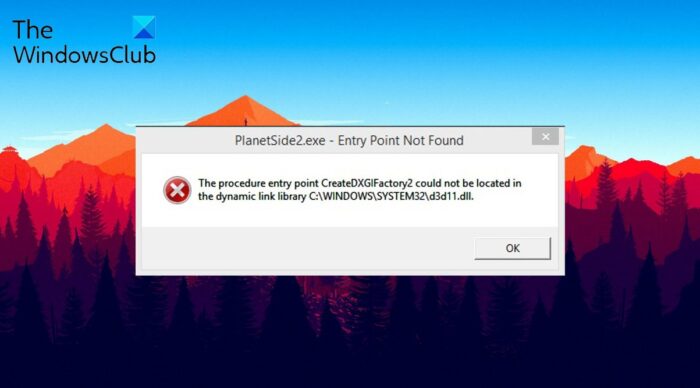
While opening a game on a Windows PC, many users have reported facing the following error message. The error message is primarily caused by SweetFX and prevents the user from launching the game.
The procedure entry point Createdxgifactory2 could not be located in the dynamic link library C:\WINDOWS\SYSTEM32\d3d11.dll.
CreateDXGIFactory2 is a Windows API function provided by Microsoft’s DirectX Graphics Infrastructure (DXGI). It’s part of the programming interface developers use when working with graphics on Windows.
Some users have also reported that the game normally launches when they click OK, but crashes suddenly after a few attempts. This post features several solutions you can try to avoid the issue mentioned.
What is SweetFX?
Windows PC features Direct3D API, and it takes into use the installed graphics card to process and render 3D images in the games. To be very specific, Direct3D enables options such as texture filtering, anti-aliasing, shaders and more across different games. Comes to SweetFX: it injects shader parameters to process and adjust in-game settings.
In most games like Minecraft, you can install different mods. These mods modify the game files and enhance the game’s original quality. On the other hand, SweetFX only adjusts the game’s saturation, color and shadow. In short, SweetFX enhances the cinematic gaming experience without affecting the FPS.
What causes Createdxgifactory2 could not be found or located?
There can be multiple reasons you are seeing the error screen. But among them, the following are the major reasons triggering the issue.
- The problem will occur if you have installed the game incorrectly.
- If the dxgi.dll available in the associated game folder has been corrupted, you will face the other message.
- If the installed graphics driver isn’t compatible with the game files.
- Corrupted system files can be another major cause of the error message mentioned.
Now that you know all the major reasons causing the issue, let’s check out how to fix them.
Createdxgifactory2 could not be found or located
Below is the list of effective solutions you can try if you come across Createdxgifactory2 could not be found or located error on your PC:
- Copy the dxgi.dll file in the game folder
- Rename the dxgi.dll file
- Rollback the Graphics Driver
- Perform SFC scan
- Reinstall SweetFX
Now, let’s check out all these solutions in detail.
1] Copy the dxgi.dll file in the game folder
The first solution you can try is to copy the dxgi.dll file in the game folder. The mentioned message is related to the dxgi file, which by any chance gets corrupted, you will face the error screen. To solve the problem, you will have to replace the file. Here’s how it’s done.
To begin with, open File Explorer using Win + E shortcut key.
Navigate to the location mentioned below.
C:\Windows\System32
Click on the search icon present at the top-right corner, type dxgi and press the enter key.
Copy the dxgi.dll file.
Go to the location where you have installed the game.
In the location, paste the copied file.
If Replace or Skip Files prompt pops up, click on Replace the file in the destination.
Now restart your system, and launch the game. Check whether the problem persists; if so, try the next solution.
2] Rename the dxgi.dll file
The next thing you can try to solve the problem is to rename the dxgi.dll file. Here’s how it’s done.
Note: If you haven’t moved dxgi.dll to the SweetFX folder, you won’t find it there. First, in this case, follow the above-mentioned method to move the file.
- Go to the location where you have installed the game.
- Click on the search icon at the top-right corner to locate the dxgi.dll file.
- Right-click on the file and choose the rename option from the context menu.
- Name it d3d11.dll, and press the enter key.
That’s it. Refresh the system, and launch the game. Check if you are still facing the problem.
See: How to fix or repair corrupted or damaged Registry
3] Rollback the Graphics Driver
As per users, the Createdxgifactory2 could not be found or located has started to occur after downloading the latest graphics card driver update. Thus, you can roll back the installed graphics driver to solve the problem.
4] Perform SFC scan
As mentioned, the problem can also occur due to corrupted system files. And the best thing you can do to repair these files is to perform an SFC scan. Go through the process and check if it is also a problem.
5] Uninstall SweetFX
If none of the solutions were helpful, the last thing you can try is to uninstall SweetFX. Here’s how it’s done.
- First off, open the location where you will install the game.
- Select all the SweetFX files, and choose the Delete option.
- Now, restart your system and launch the game.
Read: Fix combase.dll missing or not found error
How do I fix Procedure entry point could not be located?
To solve the problem, you can try these solutions: run SFC, re-register the DLL file, run Registry Cleaner, use Dependency Walker, and check details in Event Viewer. If none of the steps was helpful, you could reinstall the program. For more information about how to fix Procedure entry point could not be located, check out our dedicated guide on the issue.
How do I fix a dll error?
Most dll errors can be fixed by following these steps: Performing an SFC scan, repairing the associated application, downloading the OS files from Microsoft, copying the dll file from another system, and restoring it on your PC. You can even download the dll files from a third-party website.
