
In Windows 11/10, you can use MakeWinPEMedia to create multiple partitions on a USB drive. Windows 11/10 now also allows you to create multiple FAT32 and NTFS partitions on a USB or External drive using Diskpart & MakeWinPEMedia. You can create multiple partitions on a USB drive, allowing a single USB key with a combination of FAT32 and NTFS partitions. You can also use Disk Management Tool or freeware Bootice to create multiple partitions on an external drive.
How to partition USB drive in Windows 11
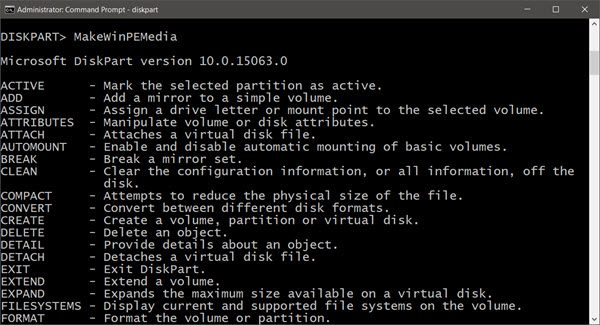
Use MakeWinPEMedia to create multiple partitions on a USB
To work with USB drives that have multiple partitions, your PC must be running Windows 11 or Windows 10 with the most recent Windows ADK installed.
Windows Assessment and Deployment Kit offers tools to help you customize Windows images for large-scale deployment and to test the quality & performance of the system.
MakeWinPEMedia can format your drive to FAT32, which has a 4 GB file size limit. Since you can create a USB drive with both FAT32 and NTFS partitions, you can use a single physical drive to boot into Windows PE and store large custom images.
The following creates two partitions on a USB drive: one 2GB FAT32 partition and one NTFS partition that uses the rest of the available space on the drive:
diskpart
list disk
select <disk number>
clean
rem === Create the Windows PE partition. ===
create partition primary size=2000
format quick fs=fat32 label="Windows PE"
assign letter=P
active
rem === Create a data partition. ===
create partition primary
format fs=ntfs quick label="Other files"
assign letter=O
list vol
exit
For more information on how to create a Windows PE (WinPE) bootable USB flash drive or an external USB hard drive visit Microsoft here.
Create multiple partitions on External drive with Disk Management
Partitioning a USB drive in Windows 11 is simple with Disk Management Tool. Shrink the existing volume, create a new partition, and format it with the right file system for your needs. To do this, connect your USB drive or external drive, then from the WinX Menu open Disk Management and follow the same process as you would for partitioning any disk.
Windows 11/10 with ADK installed allows you to partition USB drives too, using the Disk Management Tool.
Use Bootice to create multiple partitions on a USB
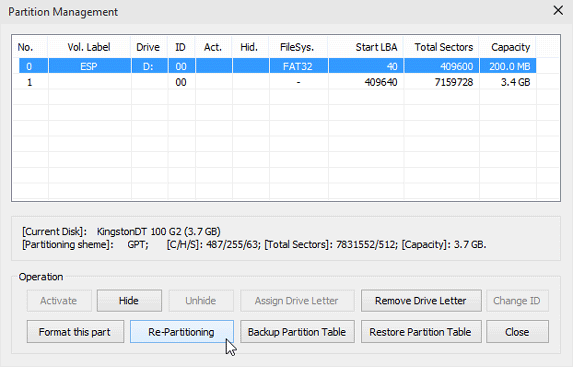
Incidentally, you can also use freeware like Bootice to create using Parts Manage > Re-Partitioning > USB-HDD mode (Multi-Partitions option under the Physical disk tab).
Hope this helps!
UPDATE: Microsoft is removing the 32GB size limit for FAT32 partitions from the format command line in Windows 11. Although FAT supports volumes up to 2TB, Windows has a 32GB limit in place.

Quite easy, just few lines :)