
If you are looking to automate tasks that don’t require much human intervention, use Microsoft Scout Background automation. It allows you to move routine activities such as checking for new project updates, generating daily reports, reviewing folders for new files, or reminding your team about upcoming deadlines to the background and let Microsoft Scout take over. In this post, we will see how you can configure Microsoft Scout Background automation in your Windows 365 workflow.
How to configure Heartbeats and Automations in Microsoft Scout
Before automating anything, sort out which of your tasks are actually recurring. Start with one or two simple workflows that save you real time each day, then add more once you’re comfortable with how Scout handles them. Keeping automations narrow also makes them easier to debug when something breaks, and it means you’re not troubleshooting five moving parts at once the first time something goes sideways.
Create your first heartbeat
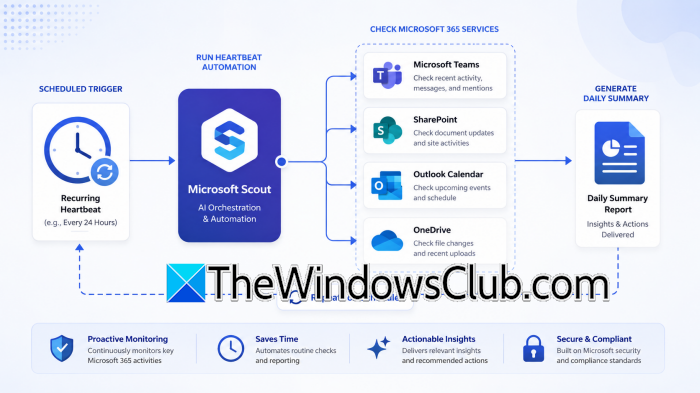
Heartbeats are automations that run on a schedule (hourly, daily, or whatever custom interval you set) instead of you asking Scout to do the same thing every morning. A common first one is checking a SharePoint library for new uploads. Once it’s set up, Scout keeps running it until you change or turn it off. Keep each heartbeat doing one thing; a heartbeat that tries to do three things at once is harder to fix when it fails. If you’re not sure where to start, pick whatever task you currently do first thing every morning out of habit. That’s usually your best candidate.
Read: Microsoft Scout for Developers: Automating Git and Shell Commands
Configure condition-based triggers
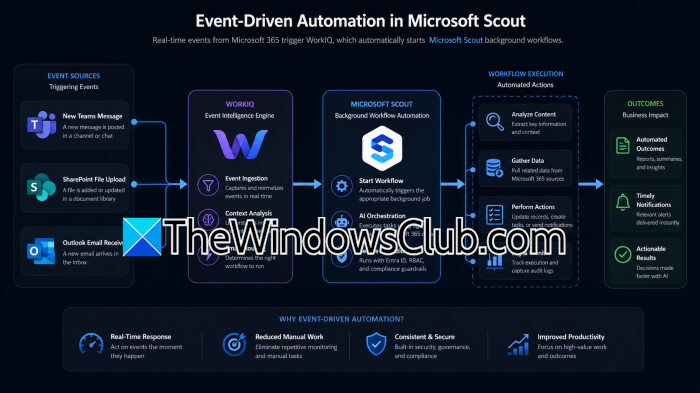
Some tasks only make sense in response to an event, not on a timer. That’s what condition-based triggers are for: Scout waits until something specific happens (a new file lands in a folder, a document changes, a Teams message comes in) and only then does the work. It won’t run unless the condition is actually met, so you’re not burning cycles checking things that haven’t changed. This matters more than it sounds like it should. A heartbeat checking a folder every 15 minutes adds up over a month; a trigger tied to the actual file-drop event doesn’t.
Delegate tasks to sub-agents
Scout can split a job across several sub-agents. One might summarize a Teams thread, another pull supporting files from SharePoint, a third draft the follow-up email, each handling one piece before the results come back together. Breaking a big automation into smaller pieces like this makes it easier to maintain and less likely to fail outright when one part misbehaves.
Connect multiple Microsoft 365 services
Automations get more useful once they cross app boundaries. A workflow can watch a Teams conversation, pull related files from OneDrive, and draft a status email once your calendar’s clear, all without you touching separate apps yourself. Reusing the same information across steps also cuts down on repeated lookups.
Test every automation before deployment
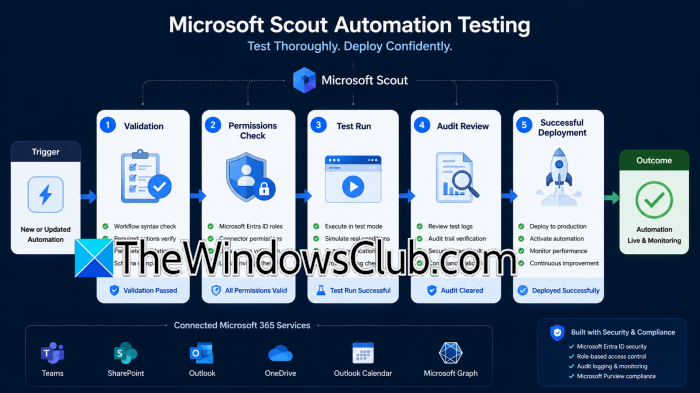
Run each automation manually before you trust it to run unsupervised. Check that it’s pulling the right data and following the order you expect, then watch for missing permissions or incomplete output. Catching these now is a lot less annoying than catching them after the automation’s been running for a week.
Monitor running automations regularly
Don’t set these and walk away. Check logs and execution history periodically, especially as your team’s needs shift. If an automation stops being useful, or needs more permissions than it originally had, update it instead of letting it keep running on autopilot. This is also usually where you’ll spot slow steps or repeated failures.
Read: How to manage Local File System autonomously with Microsoft Scout
Expand your automation library gradually
Once the basics are running reliably, start layering in more advanced heartbeats, triggers, and sub-agent workflows. Adding them one at a time makes it easier to catch permission issues and check that each one actually works before you build on top of it.
Scout can take a lot of the repetitive Microsoft 365 work off your plate. Heartbeats, triggers, and sub-agents combine to keep things running while you’re focused elsewhere. Start small, test as you go, and expand once you trust what you’ve built.
That’s it!
Read: How to find best MCP Servers for your AI framework?
What’s the difference between a heartbeat and an automation in Microsoft Scout?
A heartbeat runs on a fixed schedule, like every hour or once a day. An automation runs when a condition is met, such as a new file landing in a folder. Use heartbeats for routine check-ins and automations for anything that should only fire in response to an event.
Read: How to set up Administrative Governance for Copilot Cowork
Does Microsoft Scout cost anything to run in the background?
Yes. Both heartbeats and automations use GitHub Copilot Business or Enterprise credits, so every background run has a cost attached. Scout itself doesn’t run on a standard Microsoft 365 Copilot license; your organization needs a Copilot Business or Enterprise plan for it to work at all.
Also Read: Secure Autopilot Agents: How Microsoft Scout uses Entra Agent IDs.
