
In this post, we’re going to look at different workarounds you can try if you can’t launch Google Drive for Desktop on Windows 11/10. Google Drive is one of the most popular Cloud services available in the market. Not only does it offer cheap storage plans, but it also makes synchronization between different devices and platforms a cakewalk. The best thing is that it is available on the web as well as in app form for desktop. However, many users have reported issues launching the Google Drive app on their Windows PC. So, if you are also experiencing the same issue, follow the troubleshooting guide to resolve it.
Can’t launch Google Drive for Desktop
Here are some fixes you can try if you can’t launch Google Drive for Desktop on your Windows 11/10 PC.
- Restart the PC
- Clear the Google Drive cache data
- Change the Google Drive Proxy Settings
- Run Google Drive in Administrator mode
- Allow Google Drive through the Windows Firewall settings
- Run SFC scan
- Reinstall Google Drive
Now, let’s take a look at all the solutions in detail.
1] Restart the PC
The first thing you should do is restart your Windows PC. As it turns out, restarting is the best way to resolve launch-related issues in any application. So, restart your Windows PC, open the Google Drive for Desktop client and check if the problem is fixed or not. If yes, you are good to go. However, if you are still experiencing the launch issue, try the technical solutions below.
2] Clear the Google Drive cache data
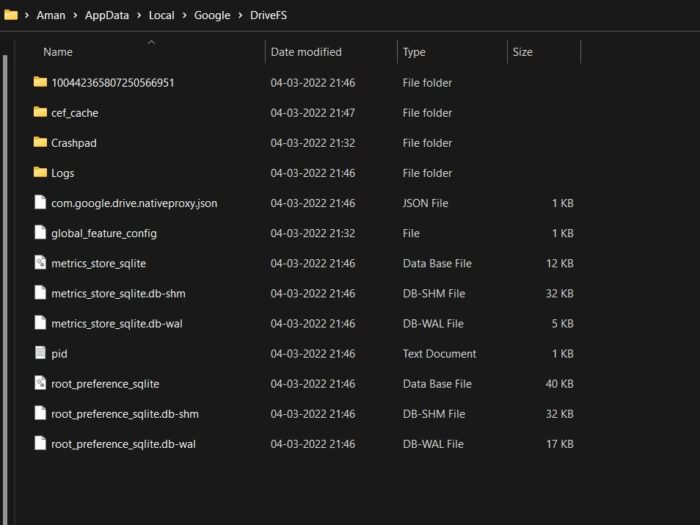
All applications, including Google Drive, store cache data, which helps them offer a faster, smoother user experience. However, on the negative side, a large amount of cache data can be the main cause of the launch issue. As a solution, you will have to clear the app cache data from your system to fix the problem. Here’s how to clear Google Drive app cache data from Windows 11/10.
- Open the Run dialogue box by pressing the Windows + R hotkeys.
- In the search bar, type %userprofile%\Appdata\Local\Google\ and press the enter key.
- In the following window, open the DriverFS folder.
- Select everything inside and choose the permanent delete option.
That’s it. Now reboot your system, and launch Google Drive. Check whether the launch issue is fixed.
3] Change the Google Drive Proxy Settings
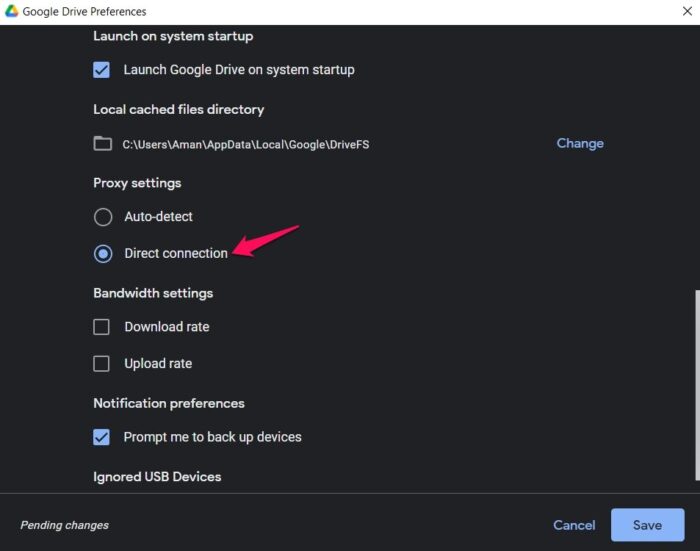
You can change the Google Drive proxy settings to fix the problem. As it turns out, misconfigured proxy settings can be another reason you face a launch issue with Google Drive on your Windows PC. So, here are the changes you have to make in the proxy settings off Google Drive.
- In your system tray, click the Google Drive icon.
- Tap the gear icon in the top-right corner of the window.
- From the context menu, choose the Preferences option.
- Tap the gear icon again, the one before your profile picture.
- In the following window, select the Direct connection option present under the Proxy setting section.
- Click on the Save option to save the settings.
- Tap on Restart now from the prompt that pops up to apply the changes.
Now, Google Drive will restart on your system. Check whether the problem is fixed.
Read: How to fix file upload problems in Google Drive?
4] Run Google Drive in Administrator mode
Sometimes, not having administrator privileges can be the primary reason behind the launch issue. Most application text, including Google Drive, requires administrative rights to provide a smooth experience. You can enable the mode by following the steps below.
- Tap the Windows key to open the Start menu.
- In the search bar, type Google Drive.
- Right-click on Google Drive and choose theRun as administrator option.
- Click on Yes on the User Account Control prompt that pops up.
Now, check if the problem is solved or not.
5] Whitelist Google Drive through the Windows Firewall settings
Windows Firewall includes a feature that blocks harmful apps from your system. So, if by any chance Firewall has considered the Google Drive application in that category, you’ll encounter the launch issue. To resolve the issue, you must allow Google Drive through the Windows Firewall settings. Here are the steps you need to follow.
- Open the start menu and search for Windows Security.
- Click on the Firewall & network protection from the left panel of the screen.
- Choose the Allow an app through the firewall option.
- Click on the Change settings option.
- From the list, look for the Google Drive option and checkmark both Private and Public boxes.
- Click on OK to save the settings.
Now, restart your system and launch Google Drive.
6] Run SFC scan

The corrupted Windows system files are another primary reason causing the mentioned issue. Thankfully, you can get rid of such files using the System File Checker or sfc.exe utility of Windows OS. You can restore all the corrupted Windows system files by running this utility. Here are the steps you need to follow to Run the sfc scan.
To begin with, type CMD in the Start search box.
From the search result, right-click on CMD and choose the Run as administrator option.
Type the code below in the command prompt window that pops up and press the Enter key.
sfc /scannow
The sfc scan will run for a while, automatically replace all the corrupted system files on reboot. Once the process is complete, launch Google Drive and check if the problem persists.
Read: How to Block someone on Google Drive?
7] Reinstall Google Drive
The changes are minimal, but if you are still having a hard time launching Google Drive on your Windows PC, the last thing you can try is reinstalling the app on your system. To it, to fix the issue.
Related: Google Drive keeps crashing continuously on Windows PC
Why is my Google Drive not opening on desktop?
There can be multiple reasons Google Drive isn’t opening on your desktop. But among all, the main culprit can be a weak internet connection or a corrupted cache. Along with this, misconfigured proxy settings and Windows Firewall can also be responsible for the issue.
Read Next: How to move a file from OneDrive to Google Drive?
