
The ability to click, drag, and drop icons on the Taskbar to organise them in the preferred manner has been one of Windows’ intuitive features. However, many Windows 11 users are frustrated when this simple action fails. In this article, we will see what to do if you can’t change the order of Taskbar icons in Windows 11.
Can’t change the order of Taskbar Icons in Windows 11
If you can’t change the order of Taskbar icons in Windows 11/10, execute the solutions given below.
- Restart Windows Explorer and check alignment
- Disable or uninstall the third-party customisation tool
- Force unlock via registry and reset the layout database
- Clear the icon cache and rebuild the Taskband data
- Check for Group Policy Restrictions
Let’s get started with the troubleshooting guide.
1] Restart Windows Explorer and check alignment
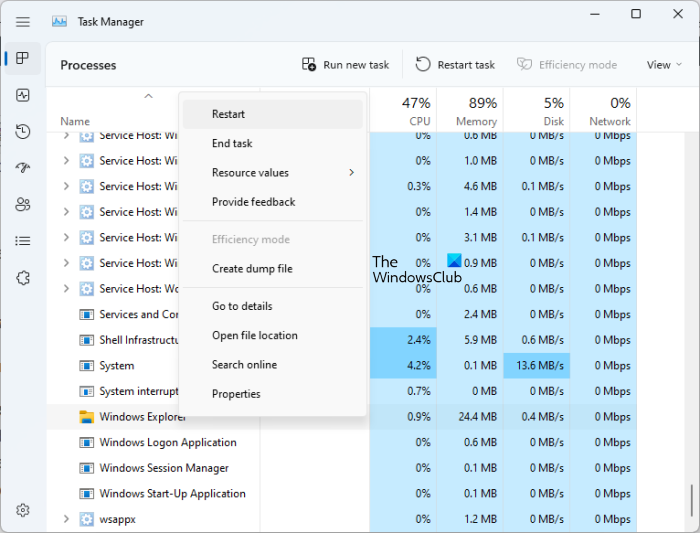
The taskbar is tightly intertwined with Windows Explorer, and if it misbehaves, icon movement and alignment will also stop responding, even if the rest of the system seems fine. Restarting Explorer performs a soft reset, and toggling the alignment forces the system to redraw the taskbar and clear any stuck configuration that might be blocking the movement. Follow the steps mentioned below to do the same.
- Click Ctrl + Shift + Esc to open Task Manager, scroll down, and locate Windows Explorer.
- Right-click on Windows Explorer and select Restart. The screen will flicker, and the taskbar will disappear and reappear.
- Once the taskbar has fully reloaded, try clicking and dragging the icons to rearrange them. If the issue persists, click Win + I to open Settings, and then navigate to Personalisation.
- Click on Taskbar, select Taskbar behaviours, and locate the Taskbar alignment dropdown menu.
- If it is set to Centre, change it to Left; if it is already Left, change it to Centre.
After changing the alignment, try rearranging the icons again. If the issue persists, go to the next solution.
2] Disable or uninstall the third-party customisation tool
Apps like Start Menu replacers or taskbar customisation utilities can override Windows 11’s native taskbar behaviour. If there are tools installed, such as ExplorerPatcher, StartAllBack, or similar software, then it is recommended to temporarily uninstall them and then reboot the device. Windows 11’s taskbar is tightly integrated with Explorer, and even minor compatibility issues can prevent icon recording.
3] Force unlock via registry and reset the layout database
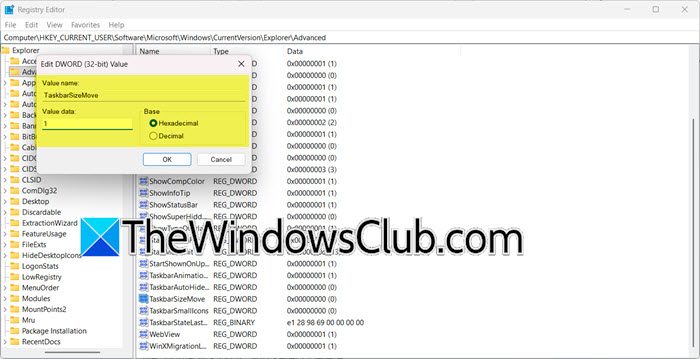
Although Windows 11 removed the visible Lock the taskbar option, registry remnants can still block changes. The TaskbarSizeMove value controls this, and additionally, Windows stores a default layout template in LayoutModification.xml. If this file becomes corrupted, it can override the preferences, and deleting it forces Windows to generate a fresh layout based on the actual pinned icons.
Follow the steps mentioned below to do the same.
- Hit Win + R, type regedit, press Enter to open Registry Editor, take a backup, and click Yes if prompted by User Account Control.
- Navigate to the location given below, and in the right pane, look for a value named TaskbarSizeMove.
HKEY_CURRENT_USER\Software\Microsoft\Windows\CurrentVersion\Explorer\Advanced
- If it does not exist, right-click an empty area, select New > DWORD (32-bit) Value, and name it TaskbarSizeMove. If it exists, double-click on it and set the Value data to 1.
- Click Ok, and then open the Run dialogue box again, type %localappdata%, and press Enter.
- Navigate to Microsoft> Windows > Shell, and look for a LayoutModification.xml file, right-click on it, and select Delete.
Once done, reboot the device and see if the issue persists.
4] Clear the icon cache and rebuild the Taskband data
Over time, cache files can become corrupted, leading to mismatches between what the user sees and what the system records as the correct order. We are going to delete the icon cache and rebuild the Taskband data to rebuild fresh thumbnails and clear any corrupted ordering data.
- Launch the Run dialogue box, type %localappdata%\Microsoft\Windows\Explorer, and press Enter.
- In this folder, there will be several files starting with icon-cache. Select all those files, right-click on them, and select Delete.
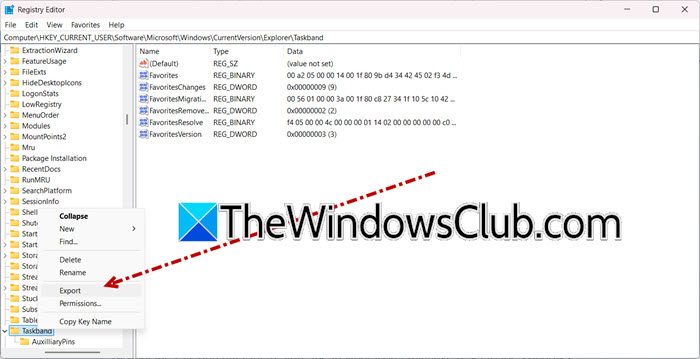
- Next, open the Run dialogue box again, type regedit, and navigate to the following location:
HKEY_CURRENT_USER\Software\Microsoft\Windows\CurrentVersion\Explorer\Taskband - Right-click on the Taskband folder and select Export before making any changes, and save this backup file to the Desktop or Documents folder. Now, select all the values, right-click them, and select Delete.
Reboot the PC, and after the restart, the taskbar icons will have reset to the Windows default set. See if you can pin the desired apps again and arrange them; otherwise, proceed to the next solution.
5] Check for Group Policy Restrictions
A system administrator can enforce specific user interface behaviour through Group Policy. If a policy such as Lock the Taskbar or Prevent changes to the taskbar and Start Menu settings is enabled, it will block any rearrangement, irrespective of what users do in the Settings.
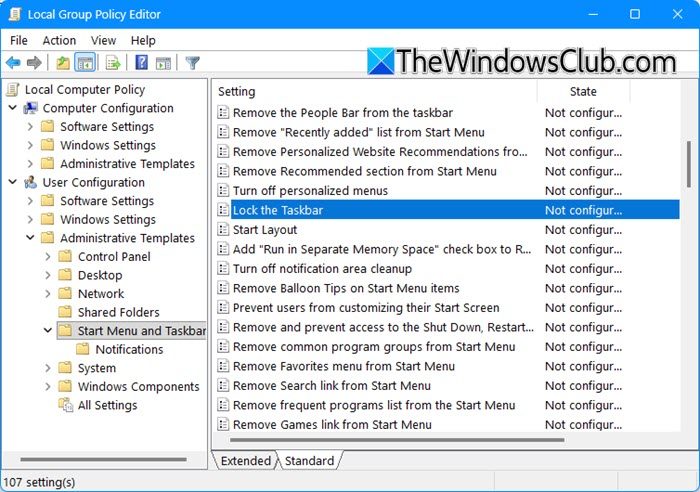
To ensure that no higher-level restrictions from modifying the taskbar, we are going to check and disable these policies.
- Press Win + R to open the Run dialogue box, type gpedit.msc, and hit Enter to open the Local Group Policy Editor.
- Navigate to User Configuration > Administrative Templates > Start Menu and Taskbar.
- In the right pane, look for the following policies:
- Lock the Taskbar
- Prevent changes to Taskbar and Start Menu settings
- Remove and prevent access to the ShutDown, Restart, Sleep, and Hibernate commands
- Double-click on each policy, set the status to Not Configured, and click OK.
Once done, press Win + R, type cmd, and click Ctrl+ Shift+ Enter to open Command Prompt as administrator.
In the Command Prompt window, type gpudate/force and Enter to force the policy changes to apply immediately.
After the process is complete, restart the device to ensure all settings take effect. Hopefully, there won’t be any more issues in changing the order of taskbar icons.
Read: Desktop or Taskbar Icons Overlapping on Windows 11
How to rearrange icons on taskbar Windows 11?
To rearrange icons on the taskbar in Windows 11, simply click and hold the icon you want to move and then drag it left or right along the taskbar and release it in the desired position. If you are unable to rearrange icons, proceed to the article given above.
Read: Can’t move desktop icons in Windows 11
How do I reset my taskbar in Windows 11?
To reset the taskbar in Windows 11, restart Windows Explorer from Task Manager. Click Ctrl + Shift+ Esc, right-click Windows Explorer, and select Restart. To make any changes to the Taskbar settings, go to Settings > Personalization > Taskbar, and do the needful.
Also Read: Desktop icons rearrange and move after restart in Windows 11.
