
Can’t boot into Linux (WSL) after installing Windows? The issue typically occurs when you have recently uninstalled or upgraded Windows, and now, when you try to use WSL, it fails to start. The issue mainly occurs due to WSL being reset, uninstalled, or misconfigured. However, below are some quick fixes that you can try out.
Can’t boot into Linux (WSL) after installing Windows
Follow these suggestions if you can’t boot into Linux (WSL) after installing Windows OS on your computer:
- Check if WSL is still installed
- Check if your Linux data still exists
- Repair or reinstall your distro
1] Check if WSL is still installed
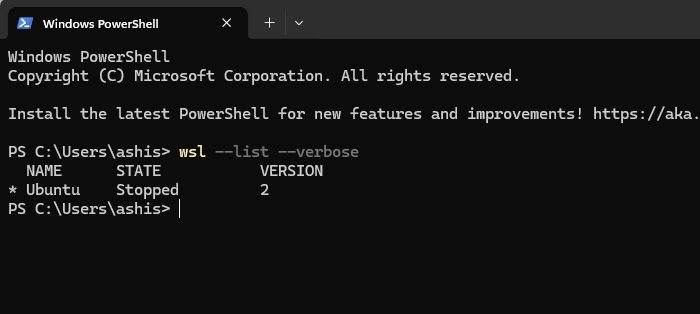
Start by checking if WSL is installed on your computer by following these steps:
- Press Windows key + X to open the quick menu.
- Select Windows Terminal (Admin).
- Run the following command: wsl –list –verbose
- After running the command, if you see WSL isn’t installed or WSL not recognized message, it means WSL isn’t installed anymore.
- To reinstall WSL, run the following command: wsl –install
- Or you can directly install your preferred distro via this command: wsl –install -d Ubuntu
Read: How to install Debian on Hyper-V
2] Check if your Linux data still exists
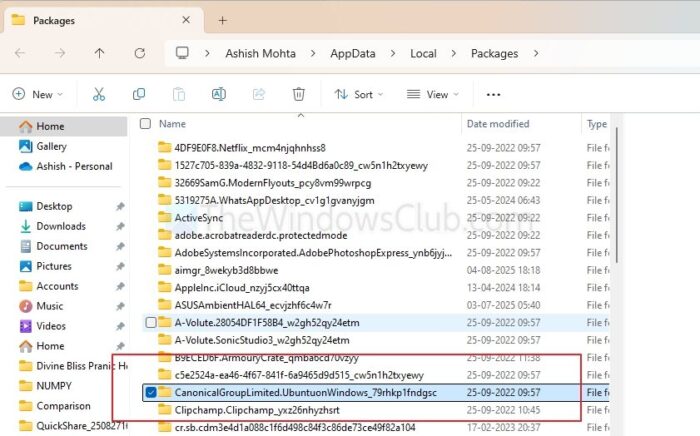
Your Linux files are stored inside your Windows user profile. If the files are there, they might be recoverable.
- To see if they’re still there, press Windows Key + E to open File Explorer.
- Go to the following path: C:\Users\<YourUser>\AppData\Local\Packages.
- Over here, look for a folder named something like CanonicalGroupLimited.Ubuntu. If you find it, that means your Linux filesystem still exists on your disk, even if you can’t currently open it through WSL.
- Next, you should back up your data by opening the folder and locating the LocalState subfolder.
- Then, copy the entire ext4.vhdx file to a safe location (this is your Linux filesystem disk).
Later, when your WSL is recovered, you can mount this file in a new WSL instance or use a virtual disk tool to recover your files.
Read: Diskpart Virtual Disk Service error, The file system is incompatible
3] Repair or reinstall your distro
If your Linux distribution appears in the wsl --list --verbose output in Windows Terminal, but won’t start, you have two options:
First, you can repair it by opening the Microsoft Store, searching for your distro like Ubuntu, and clicking on Repair or Reset. This will attempt to repair the environment without deleting your files.
The second option is to reinstall the distro. To do so, you need to run the following commands in Windows Terminal:
wsl --unregister <distro-name>
wsl --install -d <distro-name>
If you backed up the ext4.vhdx file, you can restore it by replacing the new ext4.vhdx file was generated after the fresh install with your backup. This way, you can easily recover your previous Linux environment.
WSL issues after a Windows installation are common, but they are also fixable. However, before doing anything, ensure that your Linux data still exists and create a backup of the ext4 partition.vhdx file before attempting repairs or reinstallations.
Read: Can’t boot into Windows after installing Linux
Why does WSL sometimes stop working after a Windows Update, even if I didn’t uninstall it?
Major Windows updates can reset or overwrite certain system configurations, including Hyper-V, virtualization settings, or optional features required by WSL. In some cases, updates may disable the “Windows Subsystem for Linux” or “Virtual Machine Platform” features. To fix this, open Windows Features (search in Start menu) and ensure that both Windows Subsystem for Linux and Virtual Machine Platform are checked. Then restart your PC.
Read: Can’t boot into Windows after installing Fedora
What should I do if I get a ‘Kernel not found’ or ‘Please update the WSL kernel’ error?
This error means that your WSL kernel package is missing or outdated. Microsoft distributes the kernel separately from the Windows operating system. You can fix this by running wsl --update command in the Terminal.
