
Many users prefer running a Linux distro such as Linux Mint alongside Windows. It offers the flexibility of both operating systems in a single computer. However, if the installation doesn’t go well, issues such as being unable to boot into Windows after installing Linux are quite common.
As a result, Windows will not boot up, and this typically occurs due to bootloader conflicts, UEFI/Legacy mode mismatches, or partition table issues. However, below are some steps that will help you fix the issue:
Can’t boot into Windows after installing Linux
Follow these suggestions to fix the problem where you can’t boot into Windows after installing Linux Mint or any other distro:
- Preliminary checks
- Update GRUB
- Use Boot Repair
- Adjust UEFI settings
1] Preliminary checks
- Open the Linux Terminal by pressing Ctrl + Alt + T.
- In the terminal, run the following command to check if the Windows partition still exists:
sudo fdisk –l
- If you spot any NTFS partitions, then it means Windows is installed.
- Next, check your system’s boot mode by running the following command in the terminal:
[ -d /sys/firmware/efi ] && echo "UEFI" || echo "Legacy"
- Lastly, review your BIOS settings and ensure that the boot order prioritizes where Windows is installed.
2] Update GRUB
GRUB is the software responsible for managing the boot menu when you power on your computer. When you install Linux Mint, it uses its own version of GRUB, but sometimes it fails to detect your existing Windows installation. So, by updating GRUB, you will force it to rescan for the Windows installation.
In the Linux Terminal, run the following command to update GRUB:
sudo update-grub
3] Use Boot Repair
If updating GRUB doesn’t solve the problem, the next step is to use Boot Repair. Boot Repair is a specialized Linux utility designed to automatically diagnose and fix common bootloader issues.
Run the following commands in the Linux Terminal:
sudo add-apt-repository ppa:yannubuntu/boot-repair

sudo apt update

sudo apt install boot-repair

boot-repair
Read: Can’t boot into Windows after installing Fedora
4] Adjust UEFI settings
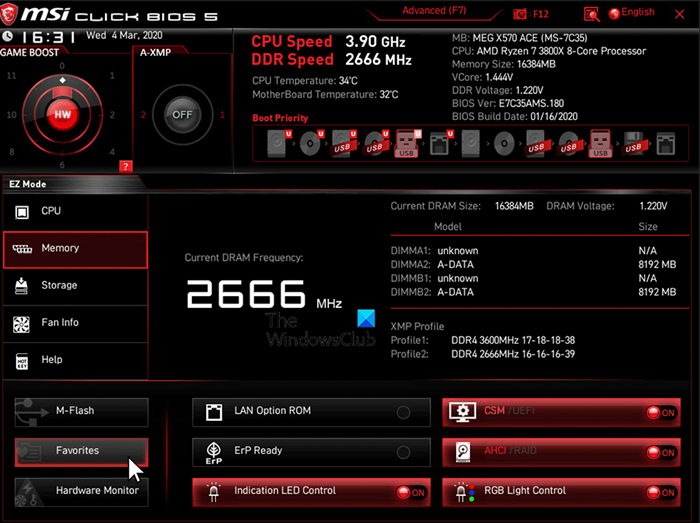
In case updating or repairing GRUB didn’t fix your issue, then the problem might be with your system’s firmware settings. There is a good chance that Windows and Linux Mint were installed using different modes (one UEFI, one Legacy). As a result, the bootloader won’t detect both operating systems.
- Reboot your computer and enter BIOS mode.
- Locate the Boot Order or Boot Priority section.
- Ensure Windows Boot Manager and the Linux boot entry (often labeled as Ubuntu or Linux Mint) are both listed.
- Adjust the boot priority so GRUB or Windows appears first based on your preference.
- Navigate to the Security tab and disable Secure Boot temporarily.
- Save changes and exit, and see if you can boot into Windows or not.
Read: How to boot a Windows computer into UEFI or BIOS firmware
The issue mostly occurs due to bootloader misconfigurations or UEFI/Legacy mismatches. By updating GRUB, running Boot Repair, and checking UEFI settings, you can usually restore a proper dual-boot setup without losing data. However, if the problem persists, consider reinstalling Linux Mint with the proper UEFI settings.
Read: Can’t boot into Linux (WSL) after installing Windows
Will reinstalling Linux Mint erase my Windows installation?
If you reinstall Linux Mint without formatting the Windows partitions, your Windows installation will remain intact. However, a mistake during partitioning (such as selecting the wrong drive or wiping the Windows partition) can permanently erase Windows. Always back up your important files and double-check partition choices during reinstallation.
Read: Can’t boot into Windows after installing Arch
Why does my computer boot straight into Windows without showing the GRUB menu?
This usually occurs when the system’s firmware (BIOS/UEFI) is set to boot the Windows Boot Manager first, thereby skipping GRUB entirely. You will need to change the boot order or boot priority from GRUB.
